
Sign in to Morasel: password, WhatsApp or code
There are three ways into your Morasel account: email and password, one message from your mobile on WhatsApp, or a one-time code sent to your mobile number. Teammates invited by phone often have no password and use the last two. The same account works on the web, iOS and Android apps.
L’app Morasel e i suoi modelli di messaggio sono in inglese e arabo. Questo sito è disponibile anche in italiano.
Questo articolo è disponibile solo in inglese — leggilo in inglese
Apri questa pagina nell’app https://app.morasel.ai/login
Passaggi
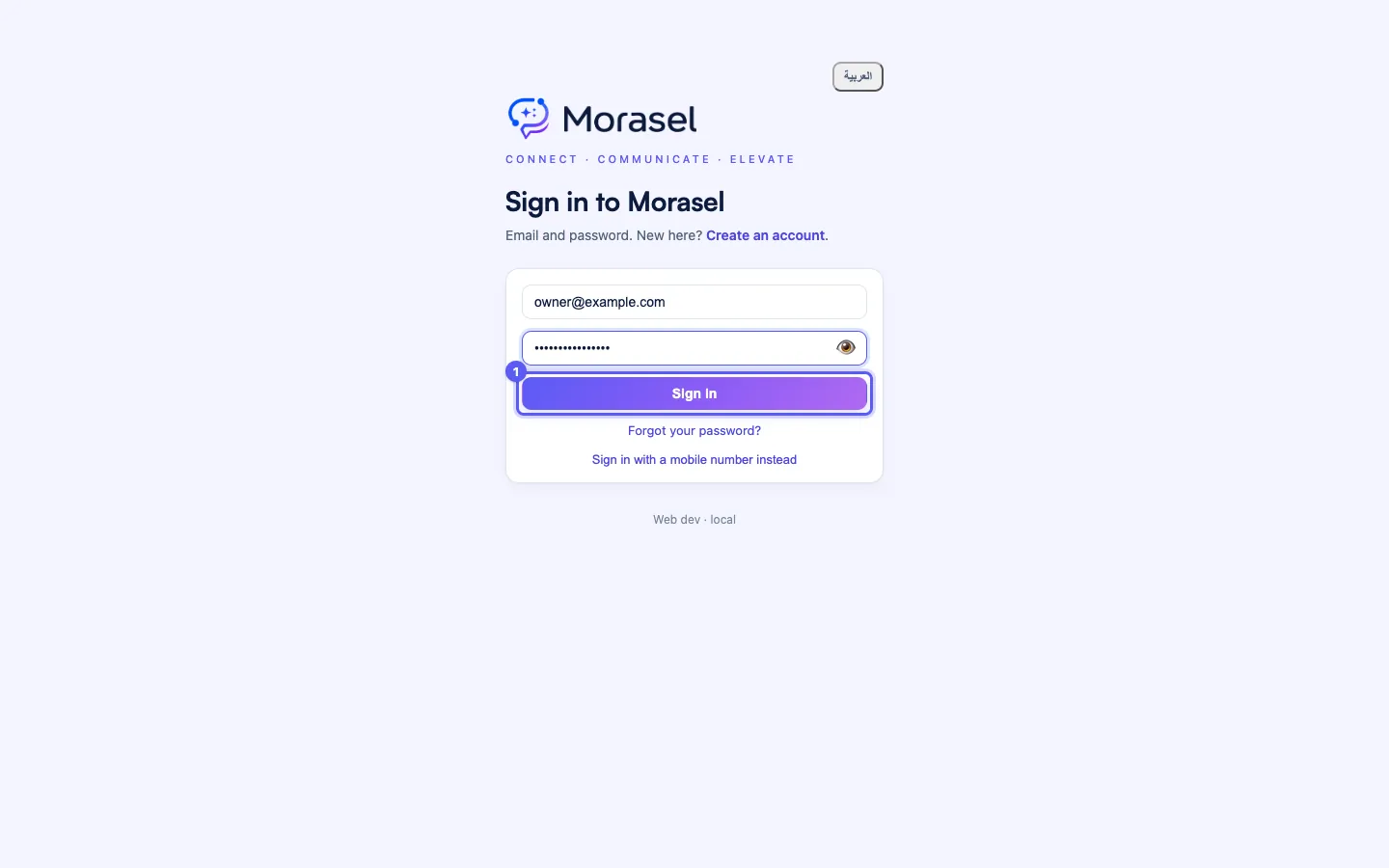
To use your password, enter your email address and password on Sign in to Morasel and click Sign in.
Cosa dovresti vedere: Your workspace opens. If two-factor is on, the Two-factor authentication screen asks for the 6-digit code from your authenticator app first.
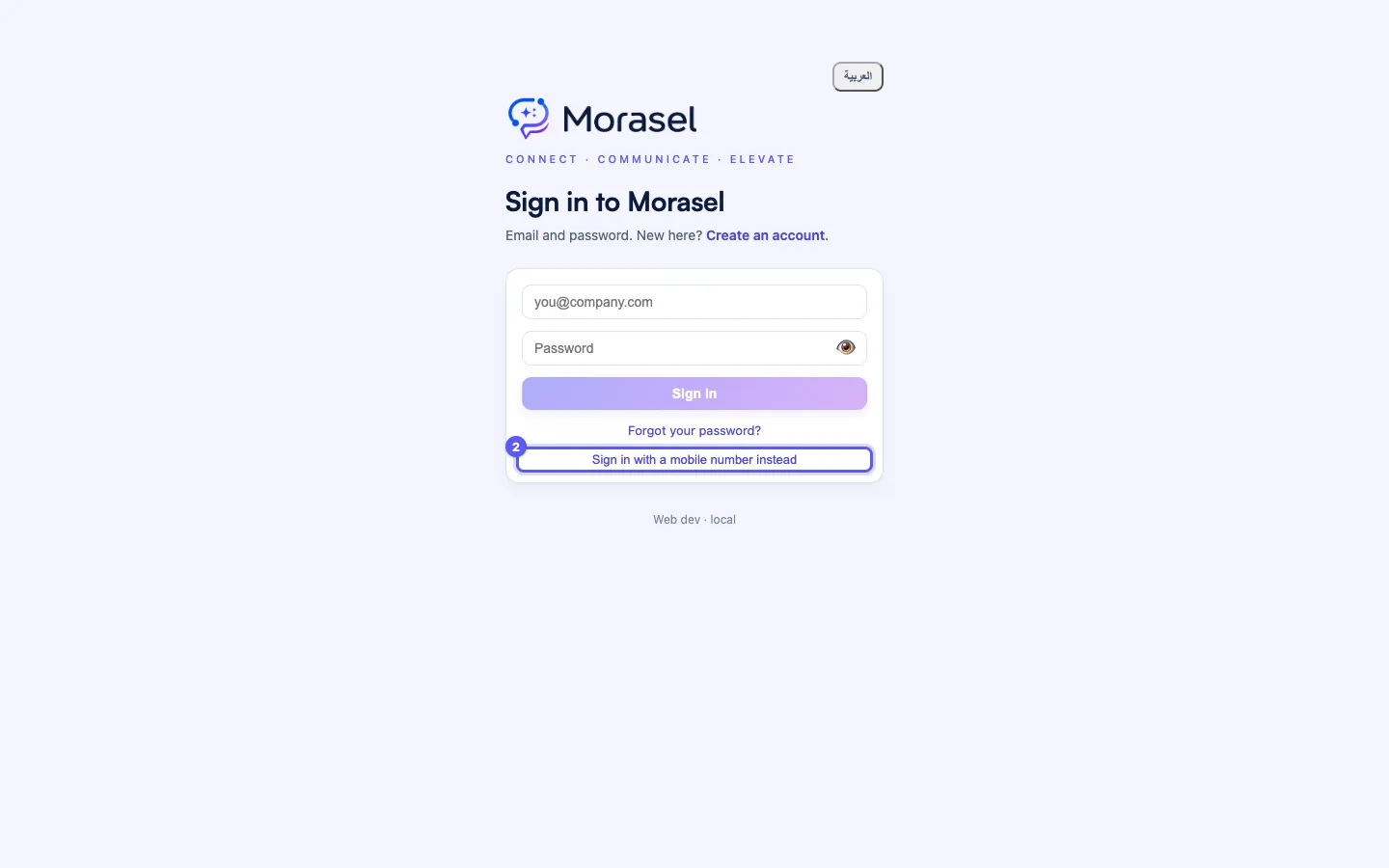
To sign in with your mobile number instead, click Sign in with a mobile number instead.
Cosa dovresti vedere: The Sign in with your mobile number screen opens, with Sign in with WhatsApp at the top and a number field below.
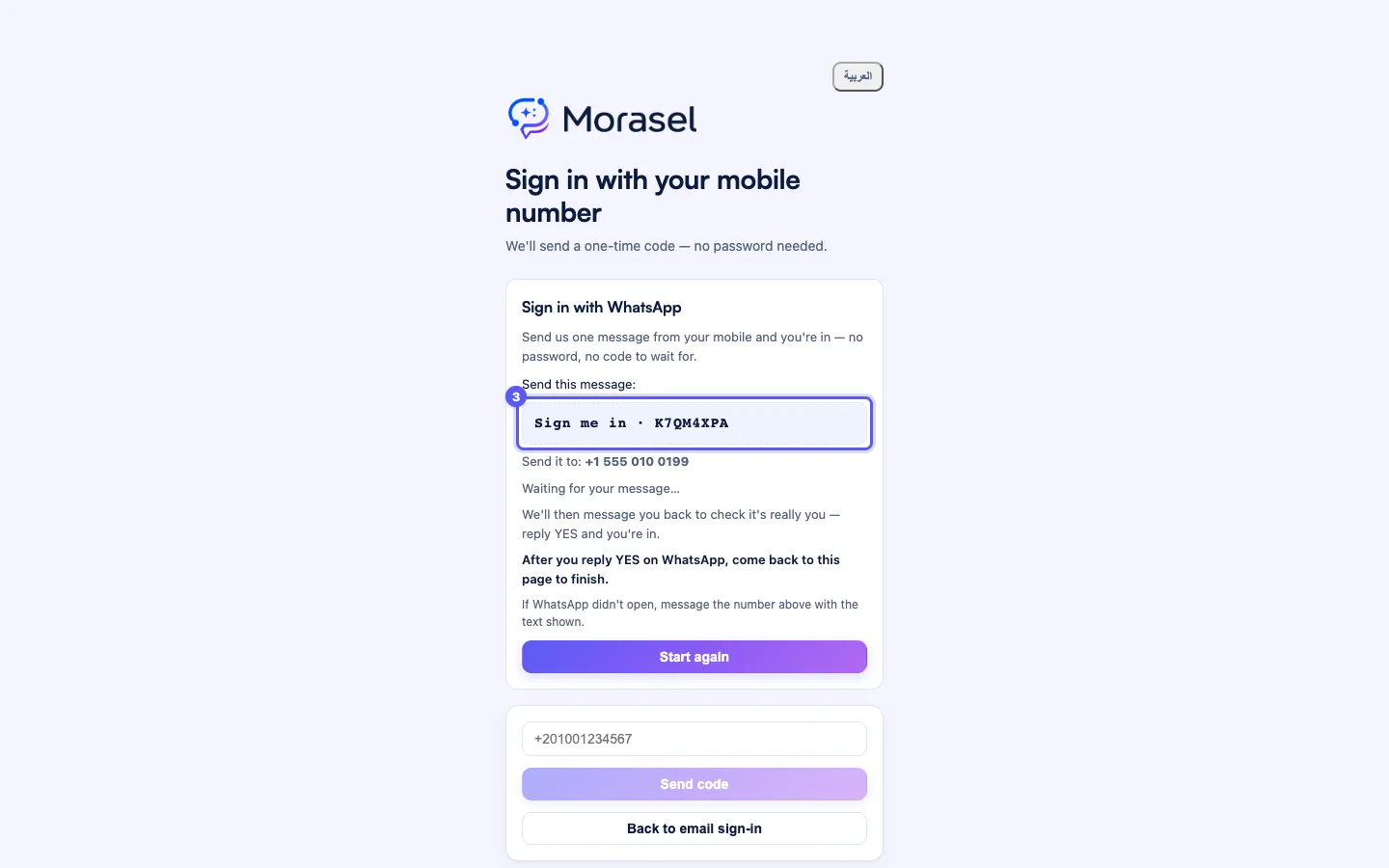
Under Sign in with WhatsApp, click Open WhatsApp and send the message shown, from your own mobile.
Cosa dovresti vedere: WhatsApp opens with the message ready, and the page shows the same message and, under Send it to:, Morasel's sign-in number. Send it to that number only. We message you back to check it's really you. After you reply YES on WhatsApp, come back to this page to finish.
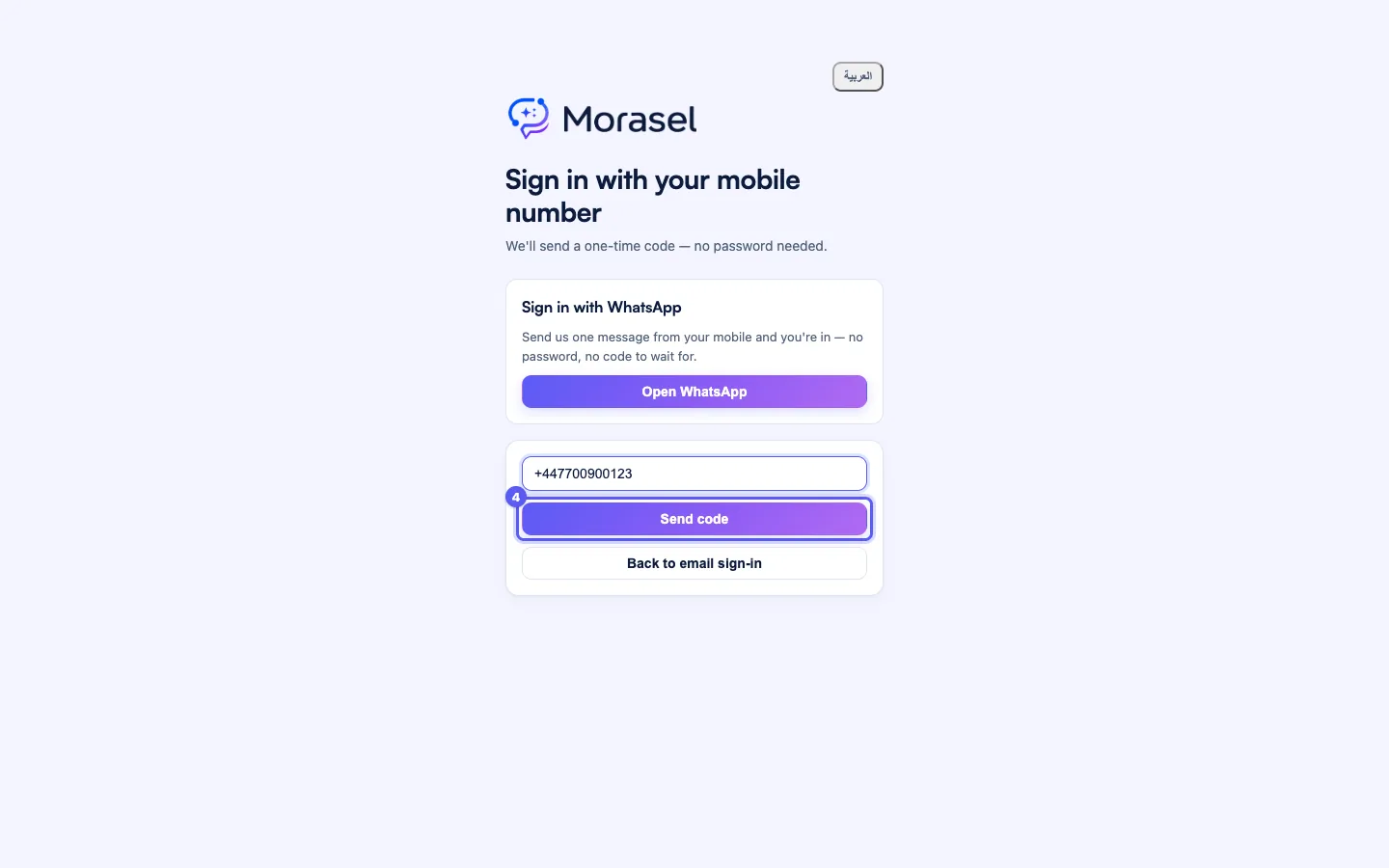
Or type your mobile number with the country code and click Send code.
Cosa dovresti vedere: Check for your code appears. Enter the 6-digit code and click Verify & sign in.
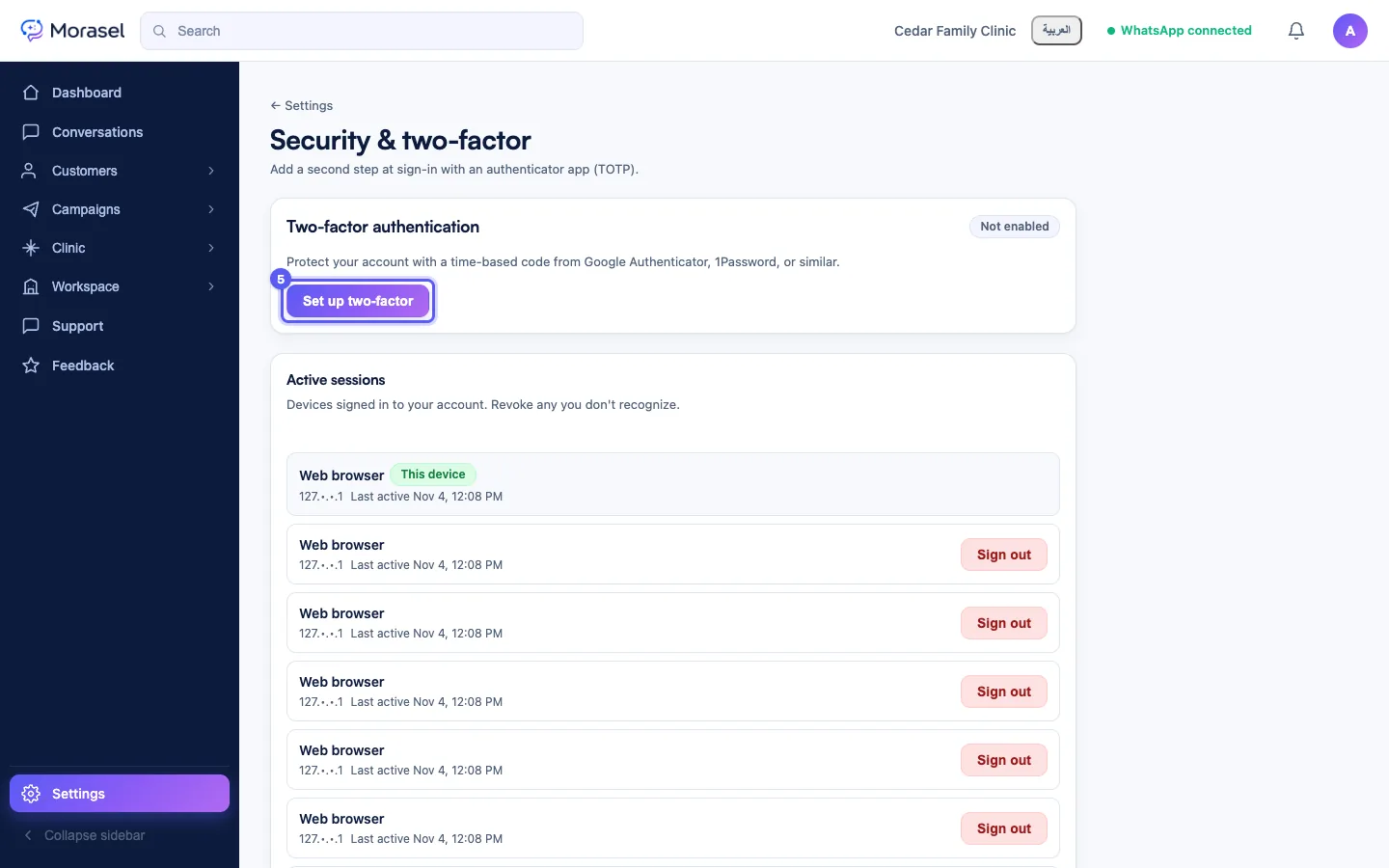
Once signed in, to add two-factor, open Settings → Security & two-factor and click Set up two-factor.
Cosa dovresti vedere: A setup key for your authenticator app appears. Add it to the app, enter the current 6-digit code, click Verify & enable and save your recovery codes.


Se non ha funzionato
- My one-time code never arrives.
- Invitations are tied to the exact number they were sent to, so use the number you accepted the invite on. The code may come from Morasel's own WhatsApp number rather than your workspace's, so check the WhatsApp chat with Morasel too. Otherwise check the number, click Send the code again, or use Sign in with WhatsApp.
- "Too many code requests for this number."
- Wait a few minutes before asking for another code, or sign in with WhatsApp or your password.
- "We couldn't confirm on WhatsApp — try again."
- Morasel's WhatsApp reply to check it's really you couldn't be sent, so this attempt can't finish. Click Start again and send the new message from your own mobile. Send it to the number shown under Send it to: and nowhere else.
- WhatsApp did not open.
- Send the message shown on the page yourself, from your mobile, to the number shown under it.
- I forgot my password.
- Click Forgot your password? on the sign-in page to reset it by email, or sign in with your mobile number.
- I lost my authenticator app.
- On the Two-factor authentication screen, enter one of the recovery codes you saved when you turned two-factor on. Each code works once.
Domande frequenti
Do I need a password?
No. If your account has a mobile number, you can always sign in with WhatsApp or a one-time code instead.
My code didn't arrive in the mobile app. What now?
In the latest iOS and Android apps, the WhatsApp option stays on screen after you ask for a code: use the WhatsApp option under 'Didn't get a code? Sign in with WhatsApp instead'.
My code came from a number I don't recognize. Is that safe?
Yes, if it is the code you just asked for. When your workspace's own WhatsApp number can't carry the code, it is sent from Morasel's own sign-in number instead, in your language. It is the same kind of message with the same 6-digit code: enter it as usual. Morasel never asks for the code in return.
Can I use the same account on my phone?
Yes. Sign in to the iOS or Android app with the same email, WhatsApp or mobile number.
Which authenticator apps work for two-factor?
Any time-based code app, such as Google Authenticator or 1Password.
I'm a driver or order agent. Where do I sign in?
In the Morasel iOS or Android app, with the mobile number you were invited on. Use the latest version of the app; an older one shows "Update Morasel to continue".
How do I sign out of other devices?
Open Settings → Security & two-factor. Active sessions lists every device signed in to your account, with Sign out next to each.
Articoli correlati
Ultimo aggiornamento · Added: your one-time code may come from Morasel's own WhatsApp number