
Clinic Schedule: every doctor's day side by side
Schedule shows one branch's day by doctor: each speciality over its doctors' columns, every visit, every free time and every break. From there you book a free time, move a visit to another doctor of the same speciality, and see the week as a heatmap of how full each speciality is. It is for every clinic that books by time, with one doctor or many; a clinic that runs a first-come queue keeps Today and the Queue board as they are. Schedule is on the web app and in the iPhone and Android apps.
Open this page in the app https://app.morasel.ai/clinic/schedule
Who sees Schedule: owners, admins and staff who can see appointments, in any clinic that books by appointment time, whether it has one doctor or several. Moving needs the right to reschedule; booking needs the right to book. Clinics that run a first-come queue keep Today and the Queue board unchanged.
The order on screen: specialities come in the same order as in the booking panel, and each speciality's doctors are listed in a stable name order, so a doctor's column stays in the same place all day. (The booking panel itself lists doctors by their next free time.)
The rules for a move are the booking rules: same branch, same speciality, a doctor who works that day, and only times that are free. A move stays on the same day; to move a visit to another day, open it and use Reschedule.
No message is sent at the move. The patient's reminder will show the new time.
The week starts on the clinic's chosen day: Clinic → Setup → Week starts on (by default it follows your clinic's country: Saturday in Egypt and Saudi Arabia, Monday in most of Europe; an owner or admin can change it).
On phones and tablets, Schedule is in the iPhone and Android apps. A phone shows one doctor at a time: chips across the top (No doctor first when there are such visits) and a swipe from doctor to doctor, which follows the reading direction in Arabic. A tablet (and an unfolded foldable) shows the doctors' columns side by side, with the hours down the side. Phones and tablets work by tap only, with no dragging: tap a free time to book it, tap a visit to open it, and long-press a visit (or use the screen reader's actions) for "Move to another doctor…", which has the same rules and the same confirmation as the web. Reschedule on the visit stays for changing the day.
With one doctor: Schedule works the same for a clinic with a single doctor. On the web, the day is that doctor's own column across the page, with no speciality heading; there is no speciality or doctor filter and no By speciality grouping, and Move… only asks for the new time. In Week, the heatmap shows the doctor's row and the doctor's week underneath, without a doctor picker. With two branches, switch branch at the top. On iPhone and Android, a one-doctor clinic looks the same: the doctor's day without a doctor chip or speciality heading, no By speciality, no speciality or doctor filter and no speciality in List; Move… only asks for the new time, and in Week the heatmap row and the doctor's week carry the doctor's name, without a doctor picker.
On a phone, open the Clinic tab and choose Schedule in the switch at the top (Visits | Schedule): the day by doctor takes the place of Visits, and the app keeps your choice for that workspace until you close the app. The Filters button (the funnel icon) narrows the day as on the web: branch, speciality, doctor, service, visit status (Booked, Confirmed and Arrived unless you change it) and Show free slots; a number on the button counts the filters you changed (the branch and the grouping don't count). Under Day, choose By doctor, By speciality or List. Tap a free time ("+ book") to open the booking panel on that doctor, branch and time, then choose the patient and confirm. Tablets work the same, with the filters applied to the doctors' columns. While you scroll, the doctor chips and the chosen doctor's day bar stay at the top; on a tablet the row of doctor names stays at the top and the hours stay at the side. In Week, tapping a heatmap day opens that day with every doctor your filters show: on a tablet that speciality is in the middle with its doctors' names highlighted, and on a phone (By doctor) it opens that speciality's first doctor.
On your device
Web
Open Clinic → Schedule.
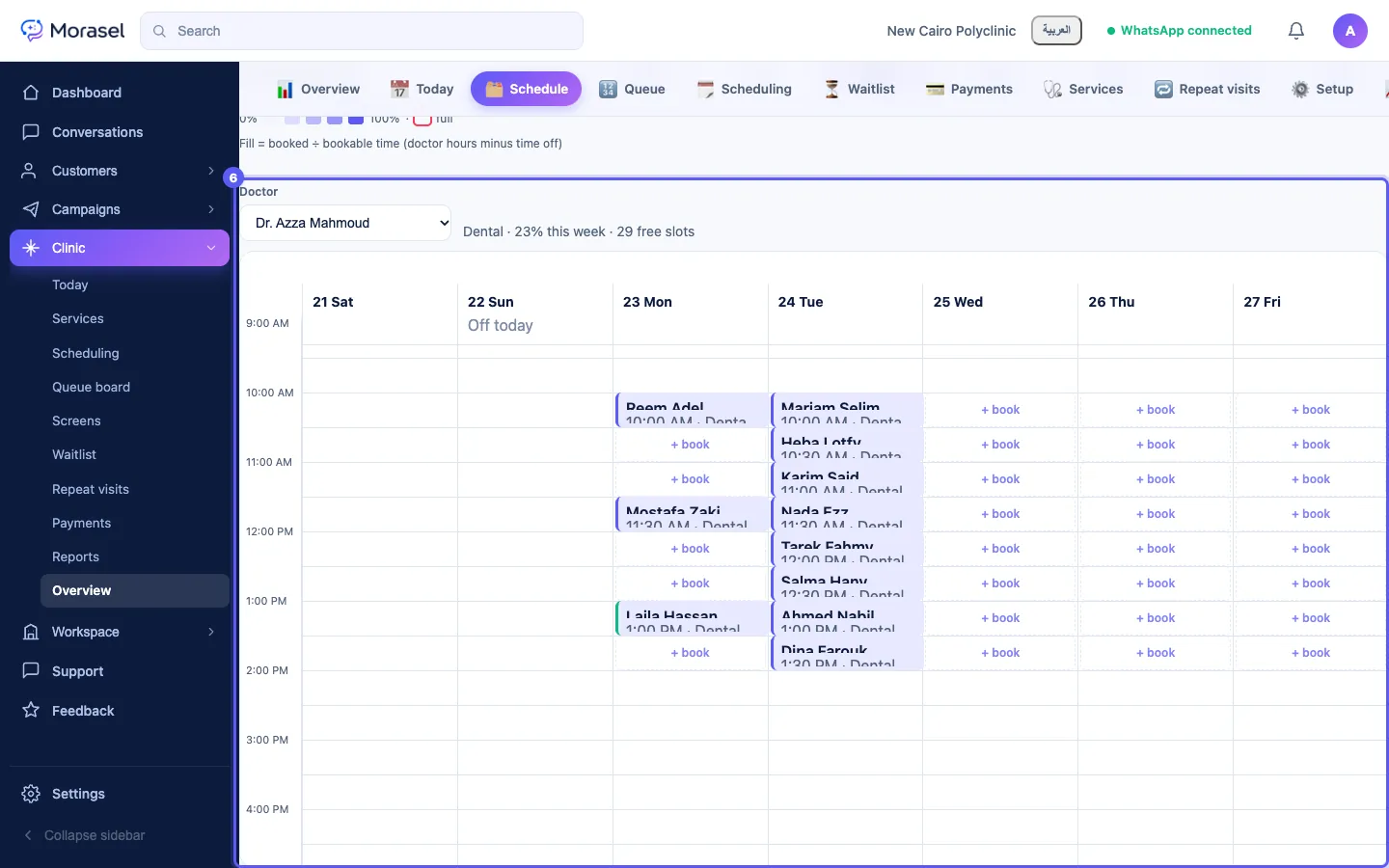
What you should see: The day by doctor opens on today: each speciality over its doctors' columns, with a time rail on the side. Each doctor's header shows how full the day is (a percentage and a bar) and "6 free", "Fully booked" (every time is taken), "No times left" (the rest of today is taken) or "Off today". Visits sit at their times, free times show "+ book", and breaks and time off are greyed. Visits booked without a doctor have their own "No doctor" column. Use Day / Week, Group by (By doctor, By speciality, List) and the filters (branch, speciality, doctor, service, status, Show free slots) at the top.
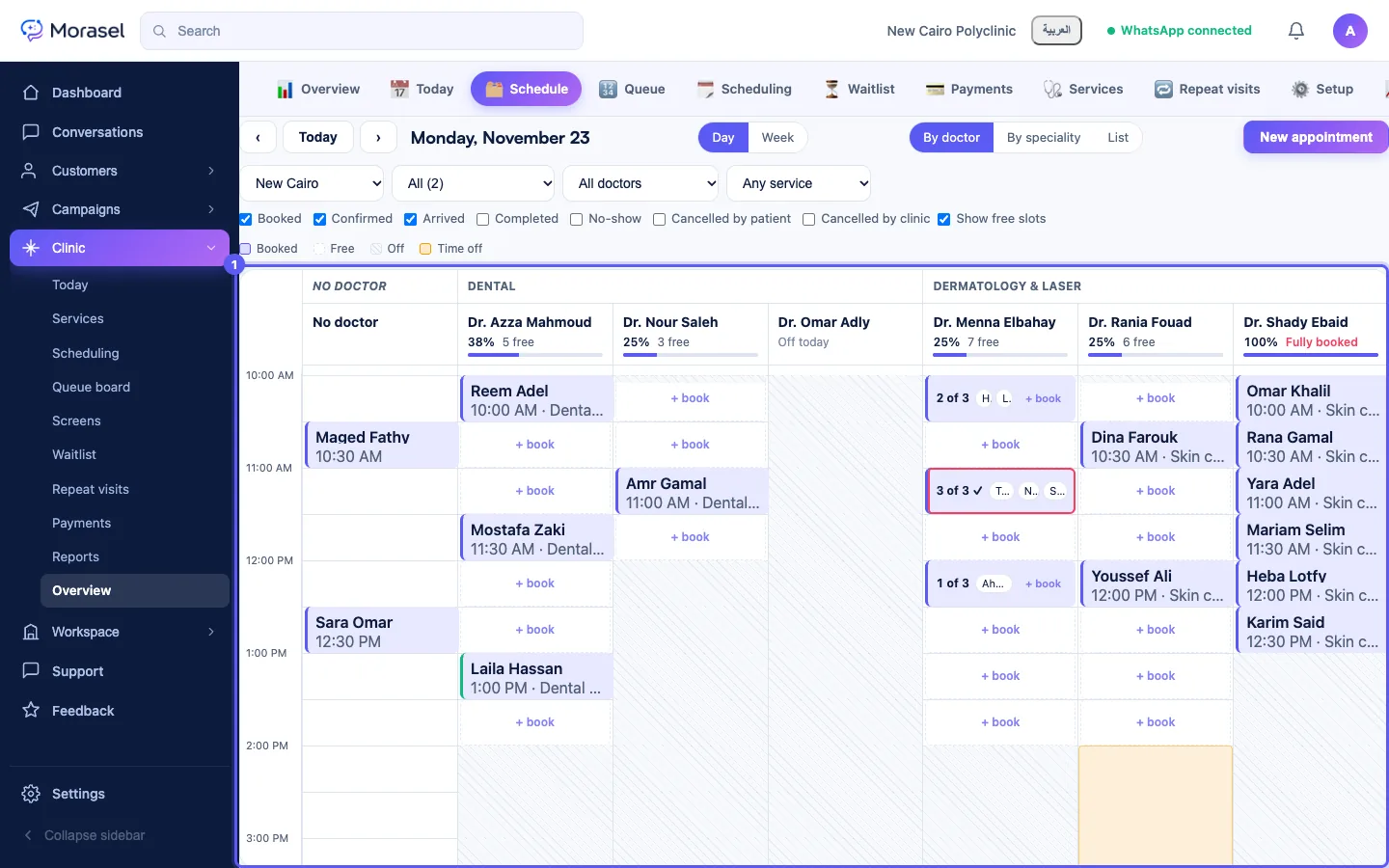
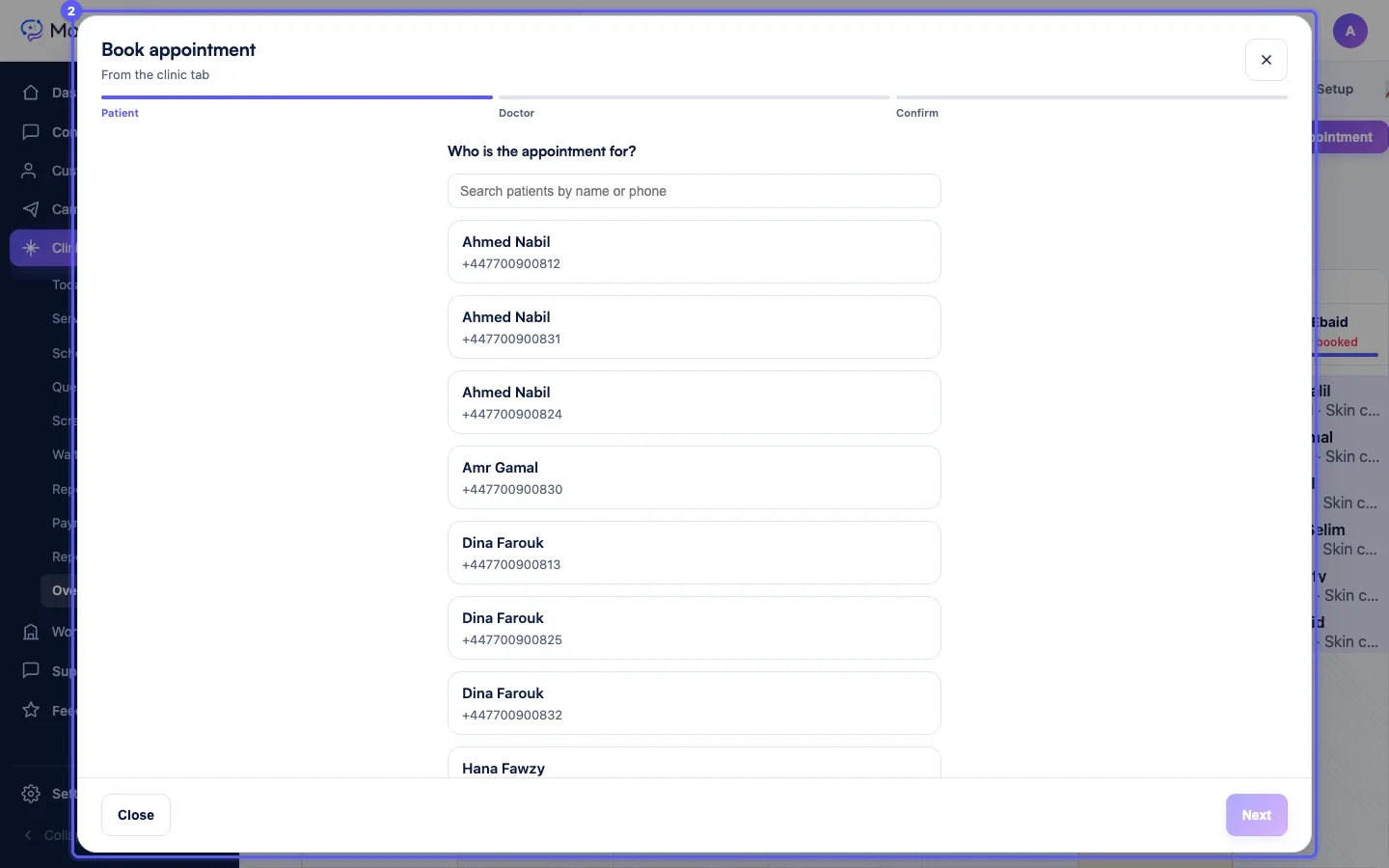
Click "+ book" on a free time.
What you should see: The booking panel opens on that speciality, doctor, day and time, so you only choose the patient and confirm. If someone took the time in the meantime, the panel says "That time isn't free any more. Choose another time."
Drag a visit onto another doctor's time, or click the visit and choose Move….
What you should see: While you drag, the times the visit can go to light up, and a doctor who can't take it says why: "Another branch", "Another speciality" or "Off today". Move… opens the same choices as two lists, Doctor and Time, for the keyboard and for anyone who prefers it.
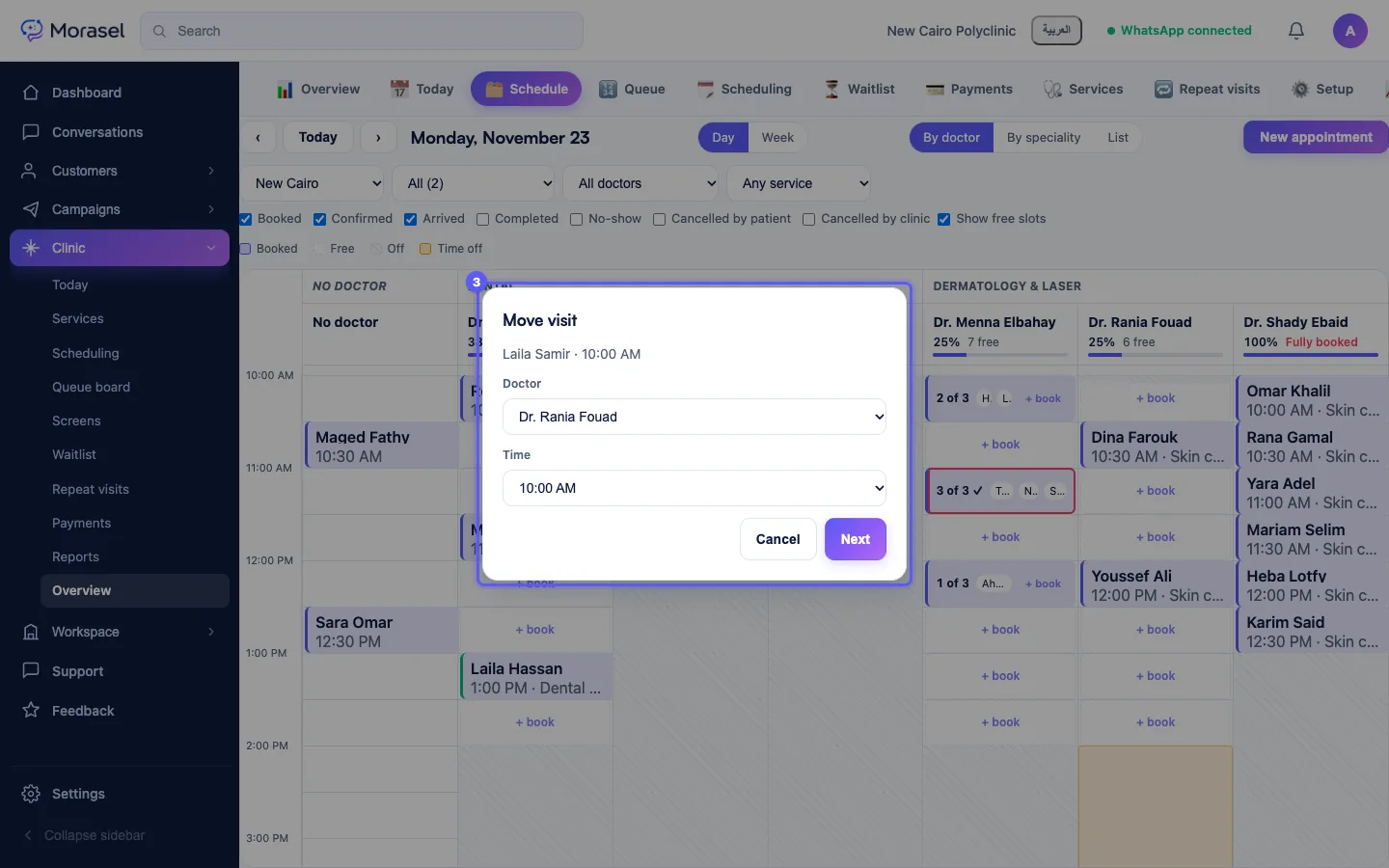
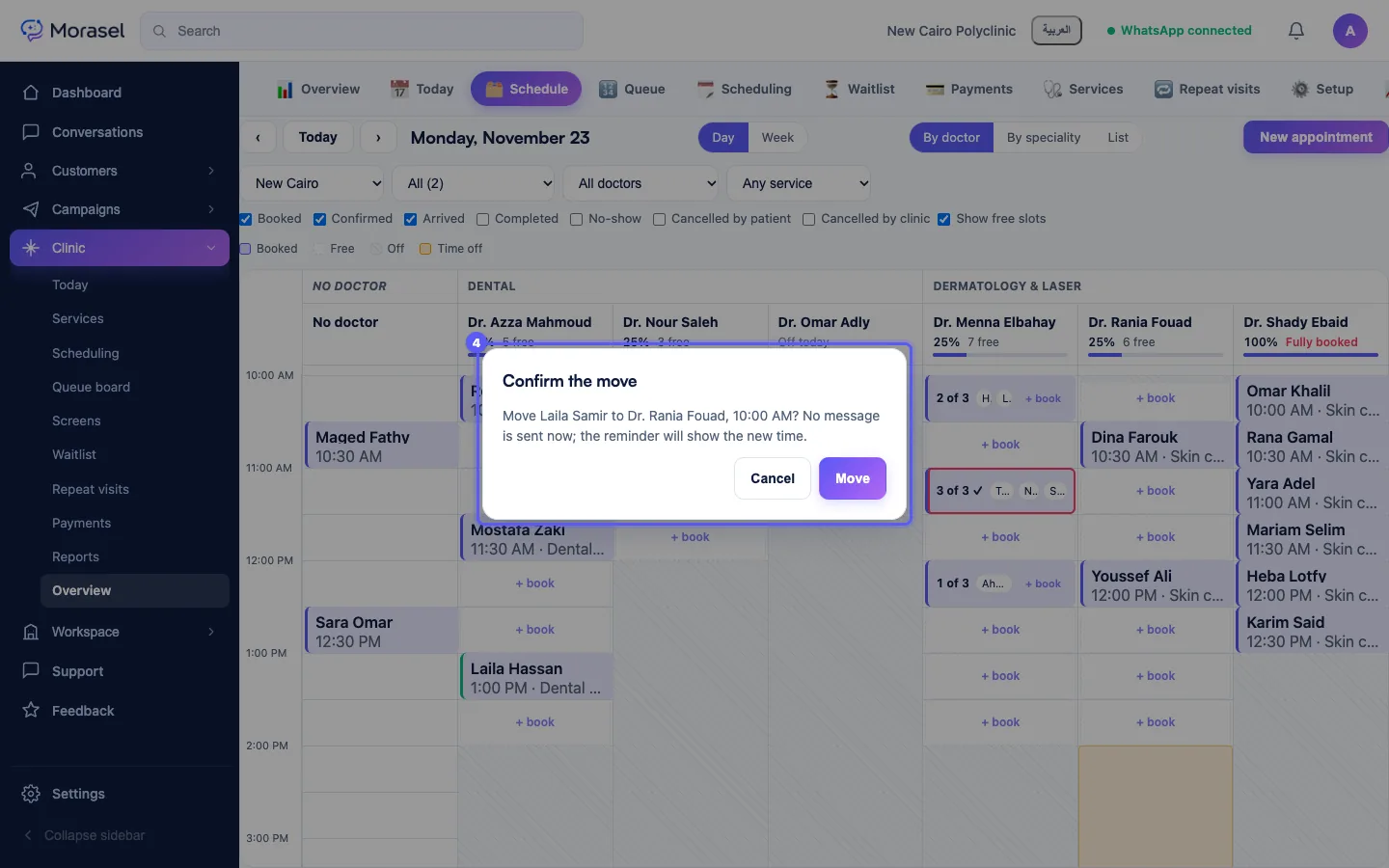
Drop the visit (or click Next in Move visit).
What you should see: "Confirm the move" asks, for example: "Move Laila Samir to Dr. Rania Fouad, 10:00 AM? No message is sent now; the reminder will show the new time." Click Move. Only the server decides: if the time was taken a moment ago, the day refreshes and nothing moves.
Click Week.
What you should see: The heatmap shows each speciality by day: the darker the cell, the fuller the day (booked time out of bookable time, doctor hours minus time off). A full day has a red ring and reads "full"; a day with no working doctor reads "closed". Hover a cell (or long-press it on a touch screen) for the hours booked and free and the doctors working; click it to open that day for that speciality.
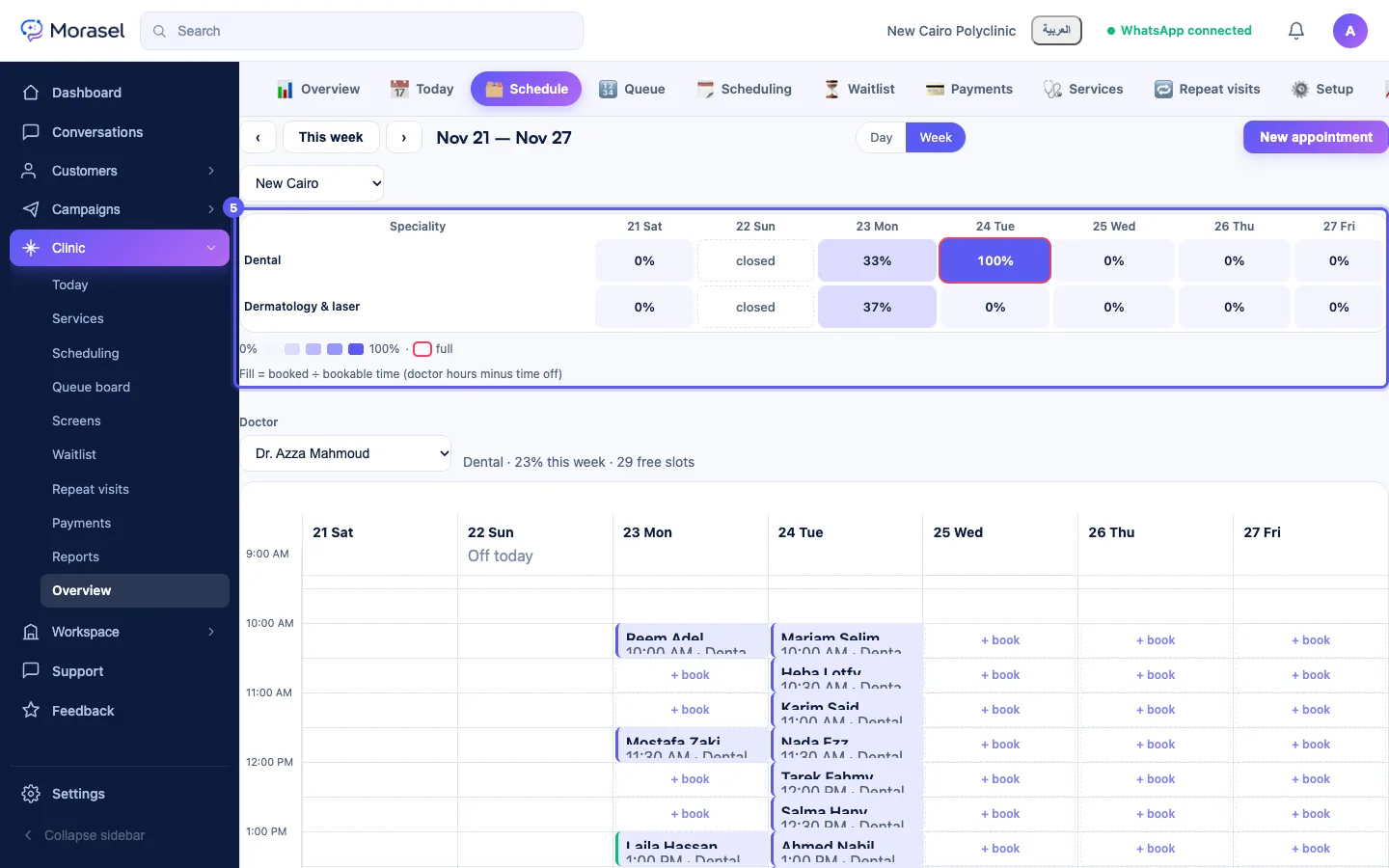
Under the heatmap, pick a doctor in Doctor week.
What you should see: You see their speciality, how full their week is and how many slots are free (for example "Dermatology & laser · 71% this week · 9 free slots"), then each day: the visits, the free times with "+ book", breaks and time off, or "Off today".


If it didn't work
- I don't see Schedule in the clinic menu.
- Schedule is for clinics that book by time, with one doctor or several. A clinic that runs a first-come queue keeps Today and the Queue board. If your clinic books by time and you still don't see Schedule, contact support.
- A doctor's column won't take the visit I drag.
- The column says why: "Another branch", "Another speciality" or "Off today". Pick a doctor of the same speciality who works that day, or use Reschedule to change the day.
- The move said the time was taken.
- Someone booked that time a moment before you. The day refreshes with the new state; pick another free time.
Frequently asked questions
Does moving a visit message the patient?
No message is sent at the move. The patient's reminder will show the new time.
Can I move a visit to another day from Schedule?
Not by dragging: drag and Move… only offer times on the day you are looking at. To change the day, open the visit and use Reschedule.
How is the week heatmap counted?
Each cell is the booked time out of the bookable time of that speciality's doctors that day (their hours minus time off). "full" means nothing bookable is left; "closed" means no doctor of that speciality works that day.
Is Schedule on iPhone and Android?
Yes, in the iPhone and Android apps: one doctor at a time on a phone, the doctors side by side on a tablet, with tap to book, tap to open and "Move to another doctor…" to move. Dragging is on the web only.
We are a clinic with one doctor. Can we use Schedule?
Yes, if your clinic books by appointment time: open Clinic → Schedule for the doctor's day (book a free time, move a visit to another time) and Week for how full the week is. A clinic that runs a first-come queue uses Today and the Queue board instead.
Where is the meeting link for an online day?
When Schedule shows one doctor's day at an Online branch, its header shows "Today's meeting link" with Join and Copy link, and Edit when the branch uses a link per day. On Today, an online visit's card has Join, Copy link and Send link again (confirmed visits only). See "Run an online clinic with meeting links".
Where is Schedule on my phone?
Open the Clinic tab: the switch at the top reads Visits | Schedule; choose Schedule. The Filters button and By doctor, By speciality or List work as on the web, and a tap on a free time opens the booking panel on that doctor and time.
Related articles
Last updated · Changed: on iPhone and Android, Schedule for a clinic with one doctor now shows just that doctor's day and week