
Create and use WhatsApp message templates
WhatsApp lets you reply freely only within 24 hours of a customer's last message. After that, you start the conversation again with a template Meta has approved. Morasel submits its built-in templates (reminders, confirmations and the like) for you; owners and admins can also write and submit their own.
La aplicación de Morasel y sus plantillas de mensajes están en inglés y árabe. Este sitio web también está en español.
Este artículo solo está disponible en inglés: léelo en inglés
Abre esta página en la app https://app.morasel.ai/templates
Pasos
Open Templates (under Campaigns in the menu).
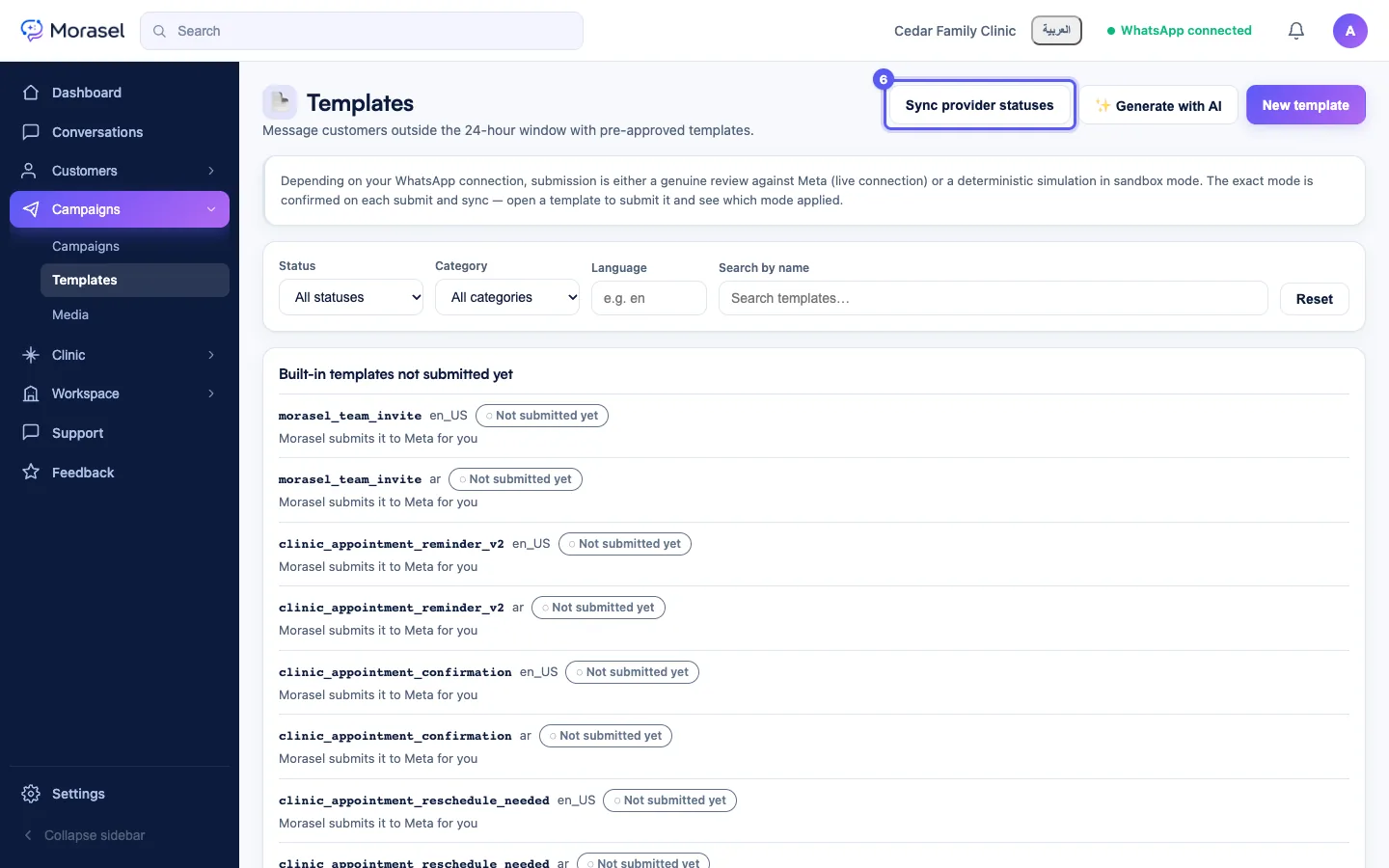
Lo que deberías ver: The Templates page lists your templates. While some of Morasel's built-in templates are still waiting, Built-in templates not submitted yet lists them; Morasel submits those to Meta for you.
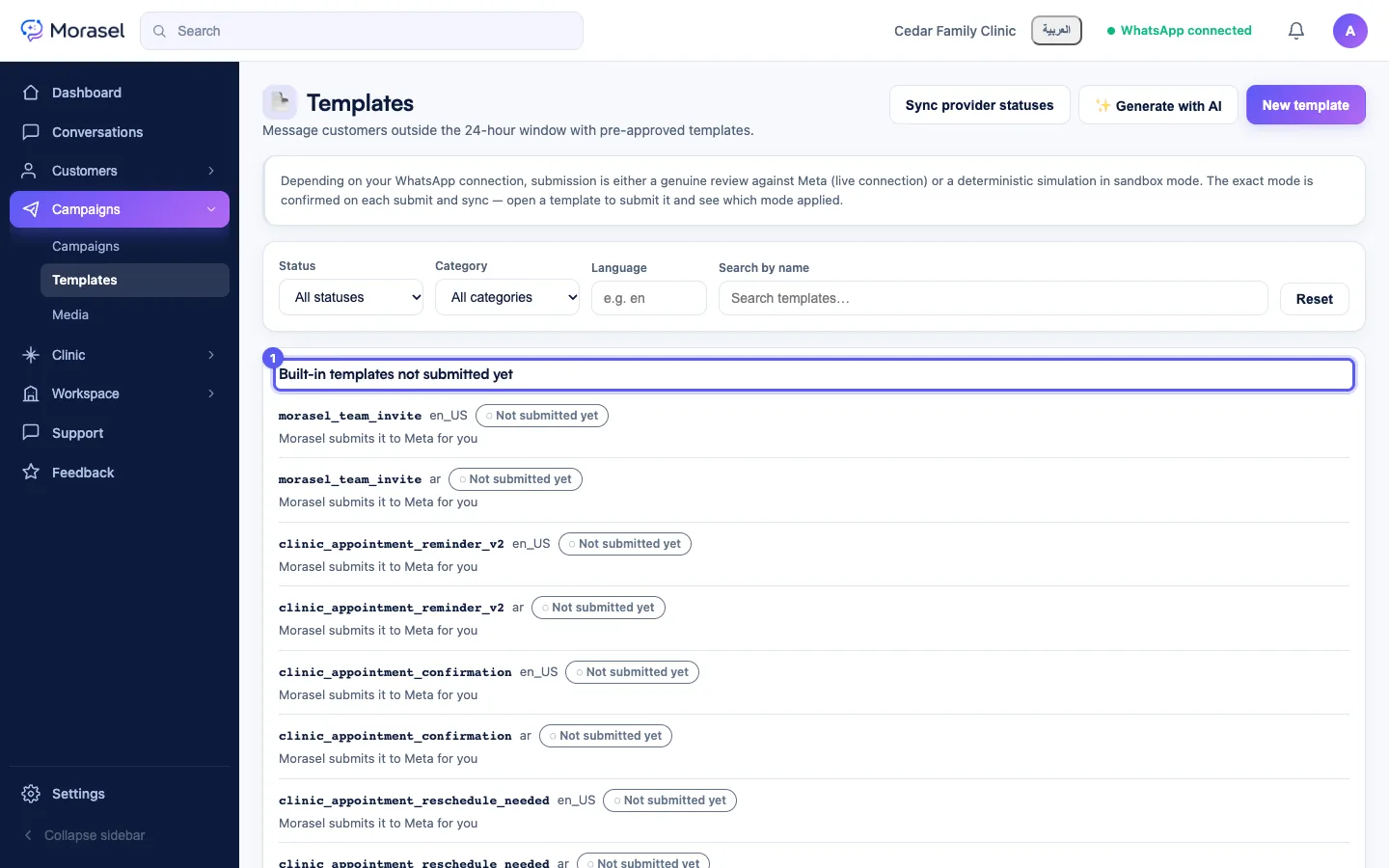
Click New template.
Lo que deberías ver: The New template draft form opens.
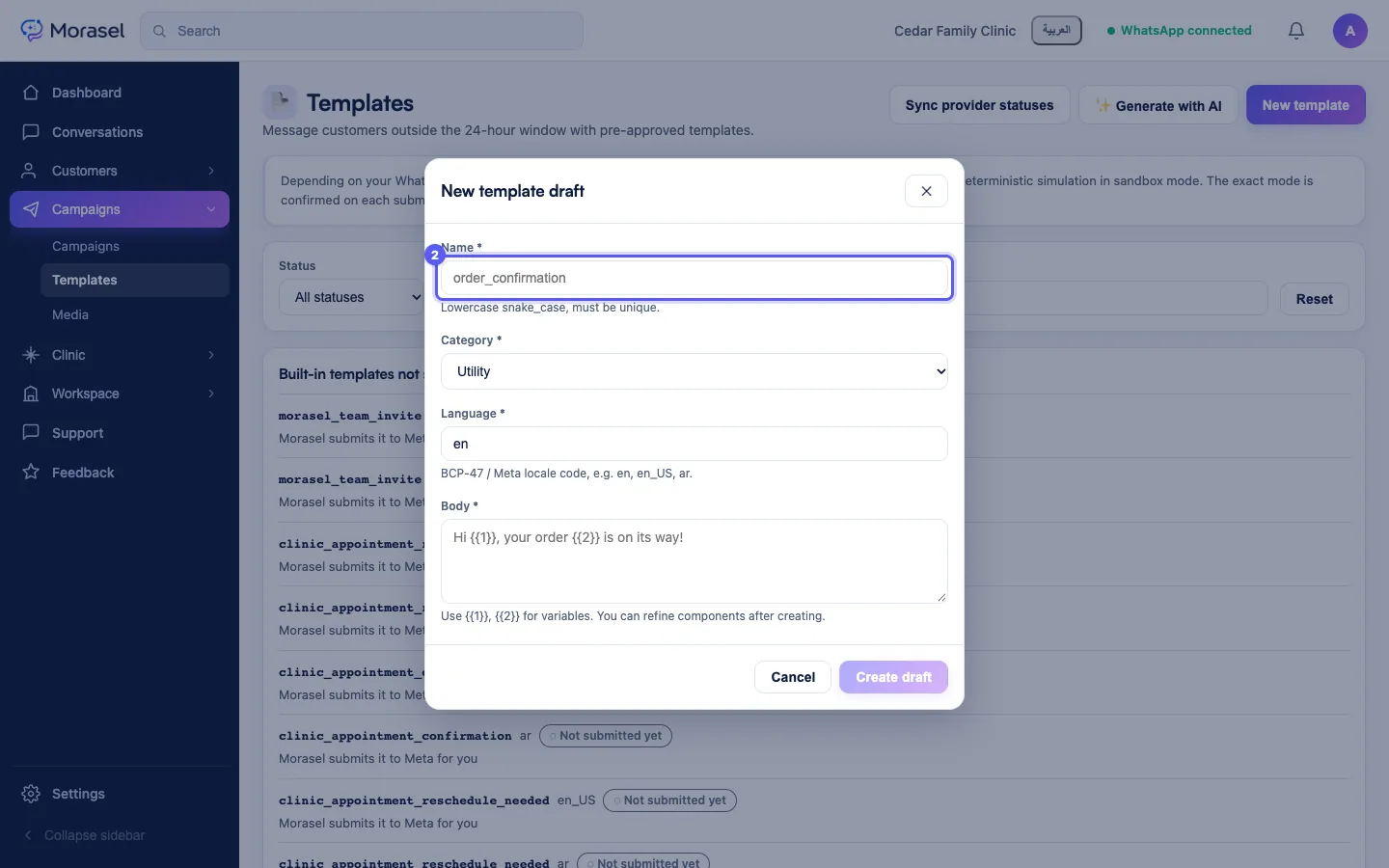
Fill in Name (lowercase with underscores), Category, Language (for example en or ar) and Body. Mark each detail that changes per customer, such as a name, with a numbered placeholder; the form's hint shows the format.
Lo que deberías ver: Create draft becomes clickable.
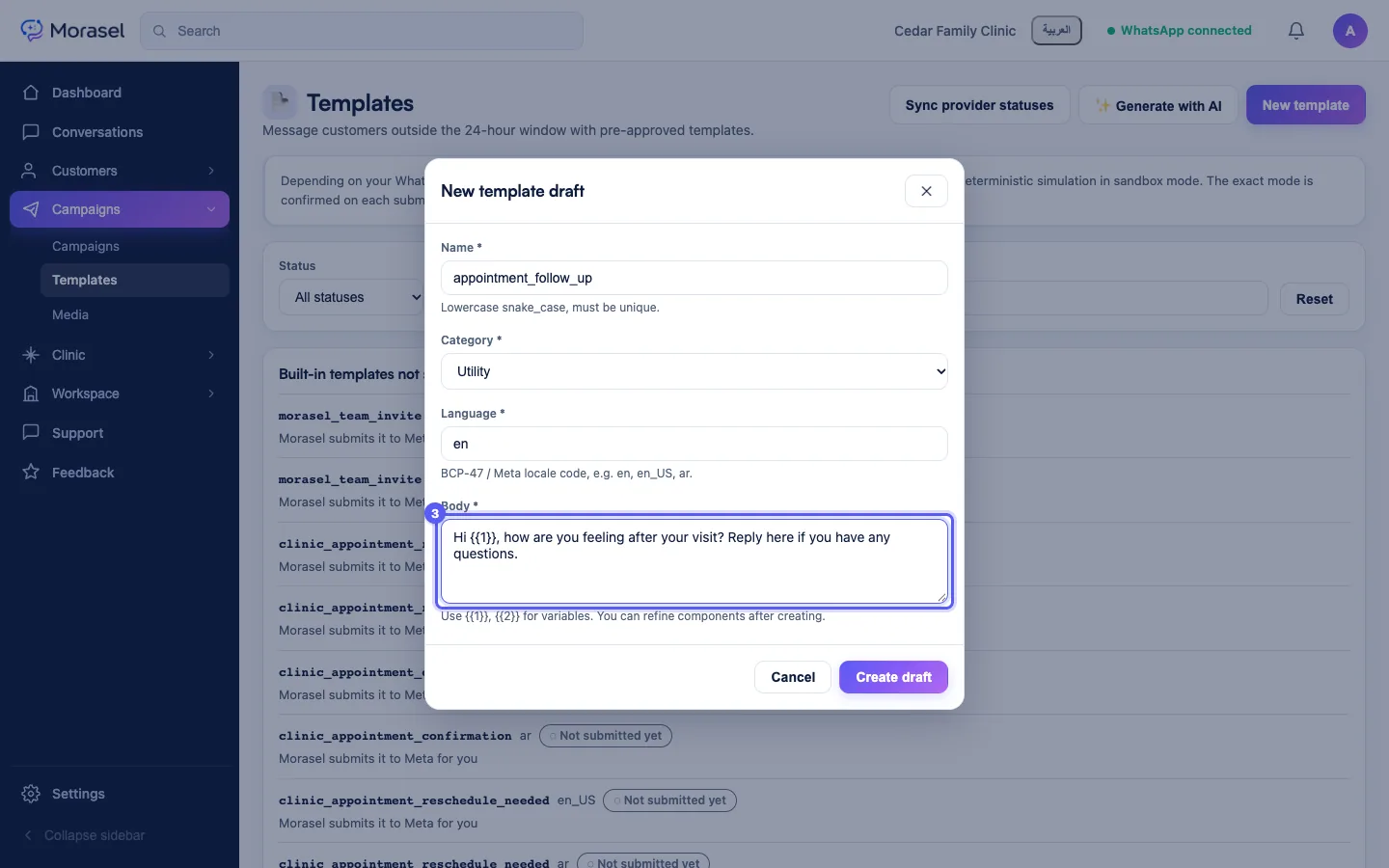
Click Create draft.
Lo que deberías ver: "Draft template created" appears and the template's page opens with its status Draft and a Submit for review button. Give an example value for each placeholder here; Meta needs them to review the template.
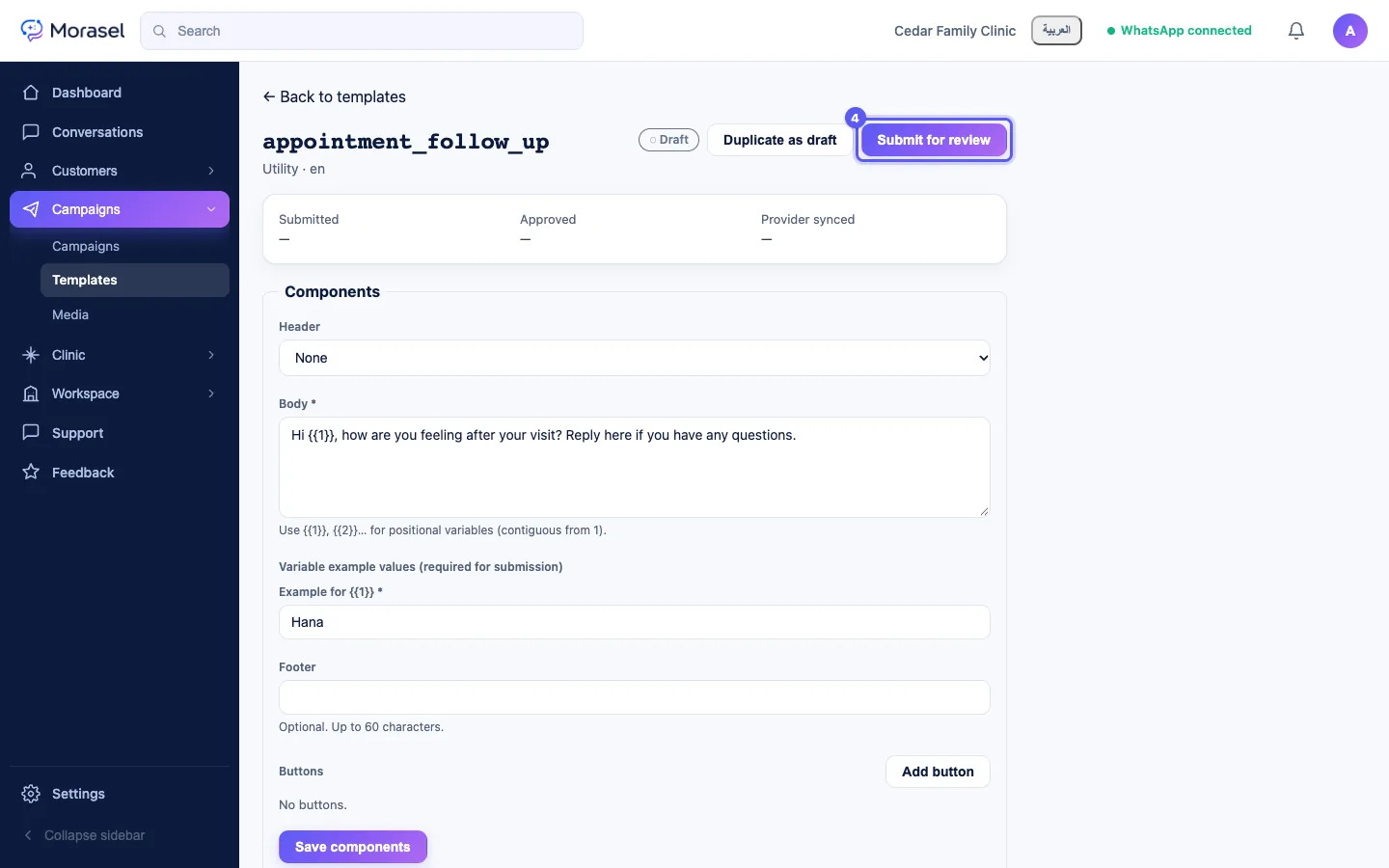
Click Submit for review.
Lo que deberías ver: "● Live Meta submission — this template was submitted to Meta for genuine review." The status changes to Submitted.
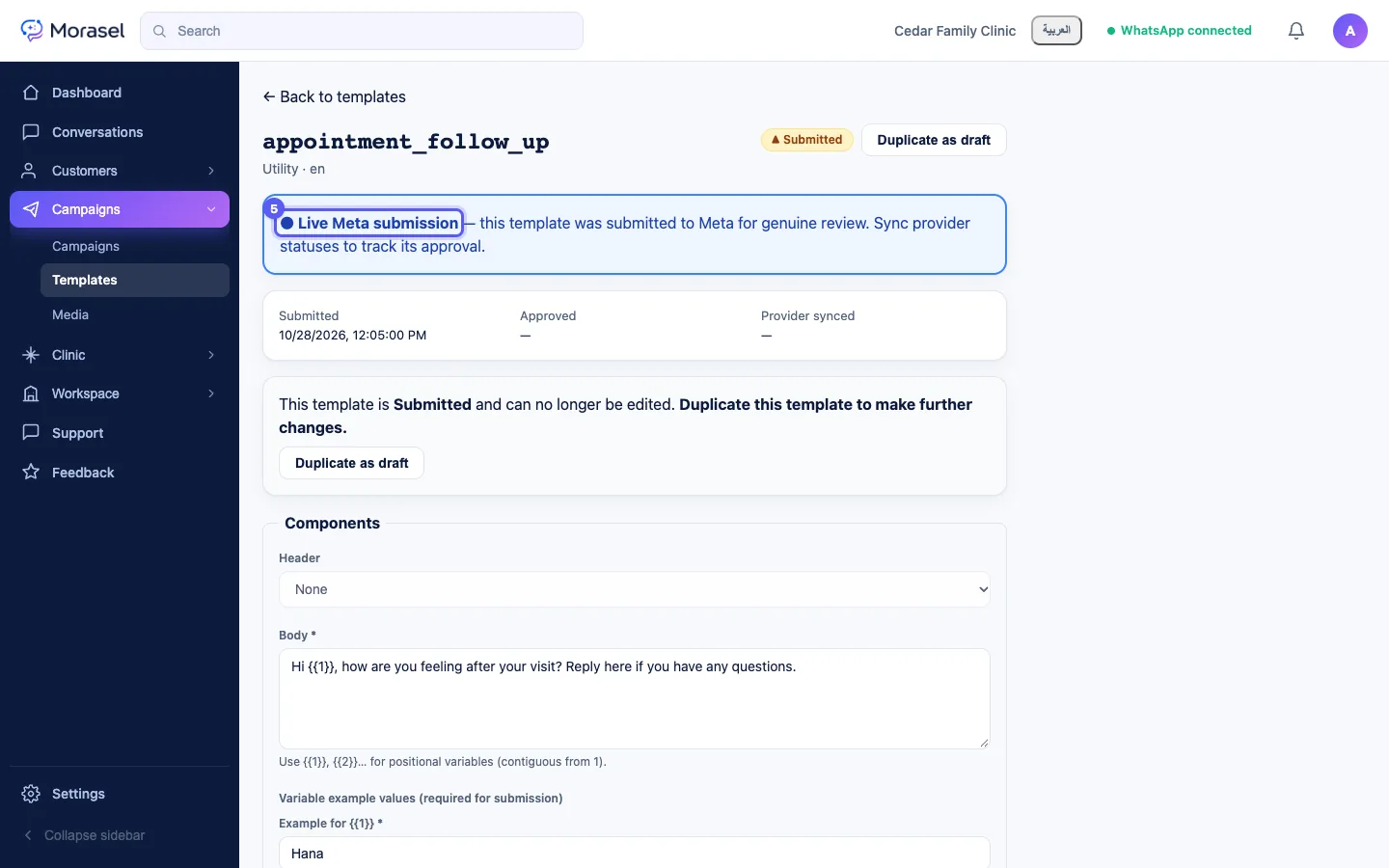
Later, back on Templates, click Sync provider statuses.
Lo que deberías ver: Each template shows Meta's latest answer: Approved, or Rejected with Meta's reason.
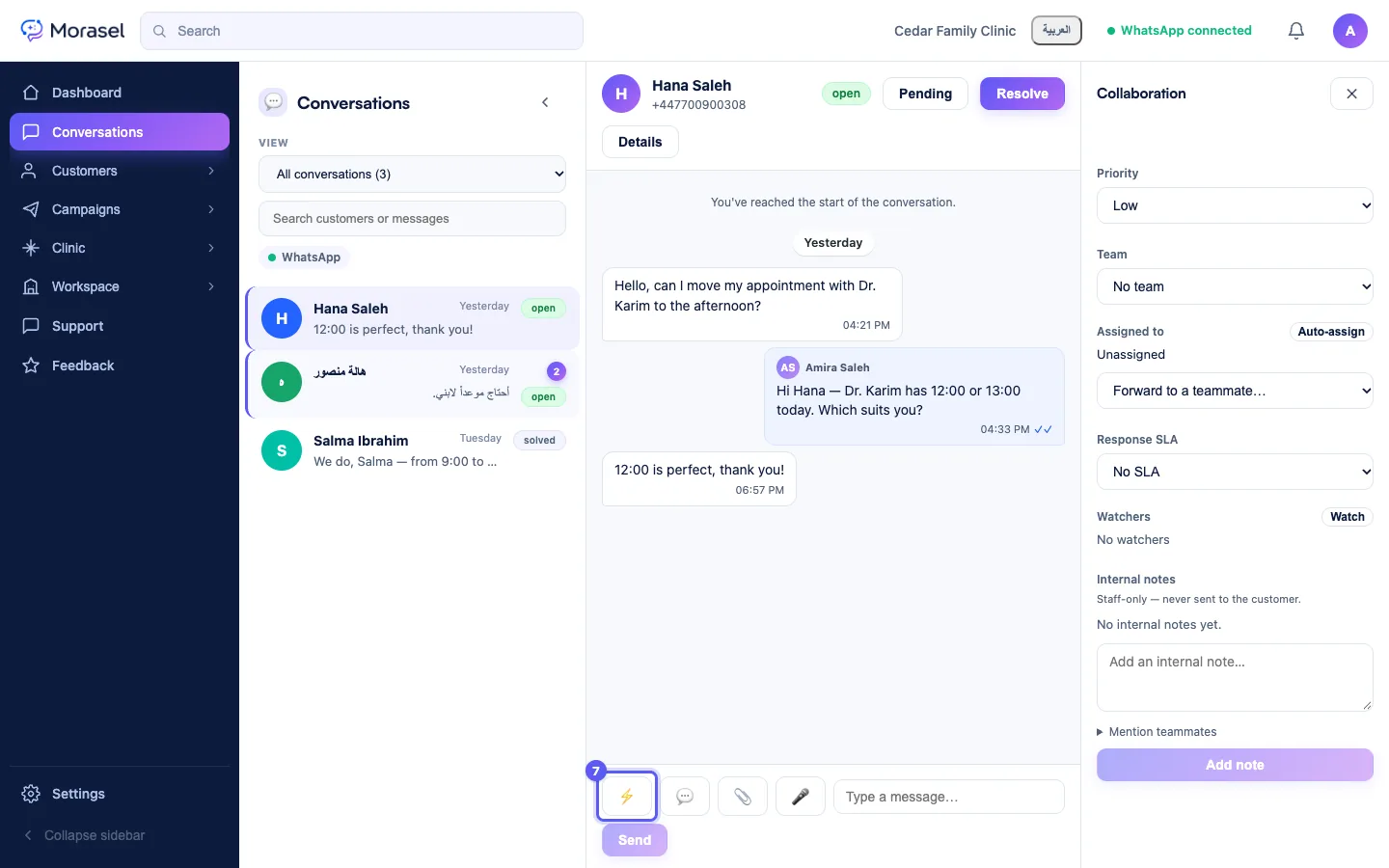
In a chat whose 24-hour window has closed, click ⚡ and pick the approved template.
Lo que deberías ver: Your approved templates appear above the message box; fill in the details and send it.


Si no funcionó
- Meta rejected my template.
- Open the template to read the reason, click Duplicate as draft, fix the wording and submit the copy. Avoid promotional wording in a Utility template.
- Create draft stays greyed out.
- Fill in Name, Language and Body. The name must be lowercase with underscores and not used by another template.
- There is no New template button.
- Creating and submitting templates needs the owner or admin role.
- ⚡ shows no templates.
- Only Approved templates appear in a chat. Click Sync provider statuses on Templates to fetch Meta's latest answers.
Preguntas frecuentes
Why can't I send a normal message to some customers?
WhatsApp allows free replies only within 24 hours of the customer's last message. After that, you need an approved template; once the customer replies, you can write freely again.
How long does Meta take to approve a template?
Often minutes, sometimes longer. Click Sync provider statuses on Templates to see the latest answer.
Do I need to create reminder and confirmation templates myself?
No. Morasel's built-in templates for your app are submitted to Meta for you.
Which category should I choose?
Utility for messages about something the customer already has with you, such as an appointment, order or booking. Marketing for promotions and offers. Meta may change the category when it reviews the template.
Artículos relacionados
Última actualización · First version