
Your store's first week: connect Shopify
Morasel Commerce works with Shopify. In your first week, connect your store so its orders reach Morasel, connect your WhatsApp number and invite your team. Connecting the store takes about five minutes in the Shopify Dev Dashboard and needs access to the Shopify organization that owns the store. Owners and admins can do it.
Open this page in the app https://app.morasel.ai/integrations
Steps
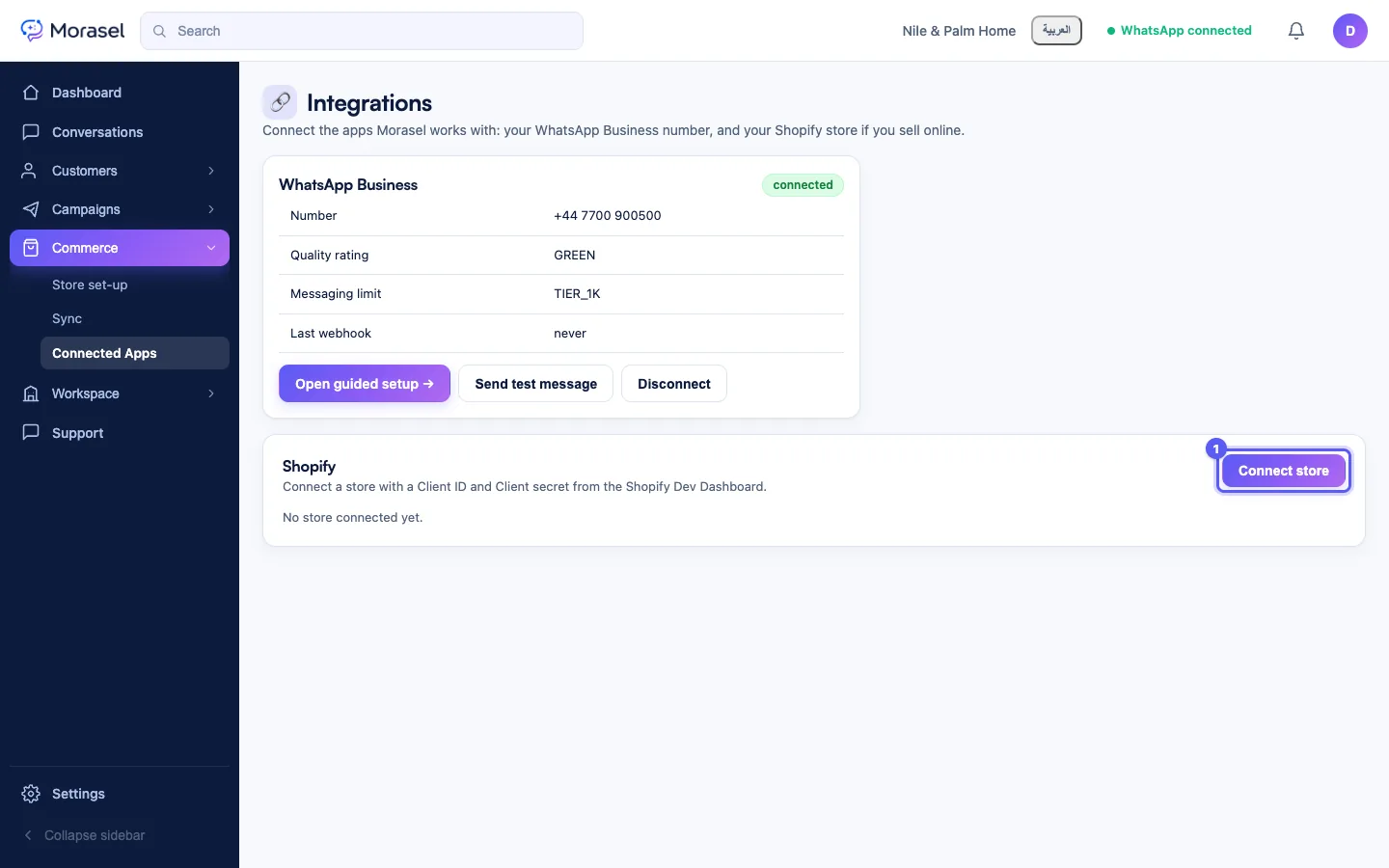
Open Commerce → Connected Apps and, on the Shopify card, click Connect store.
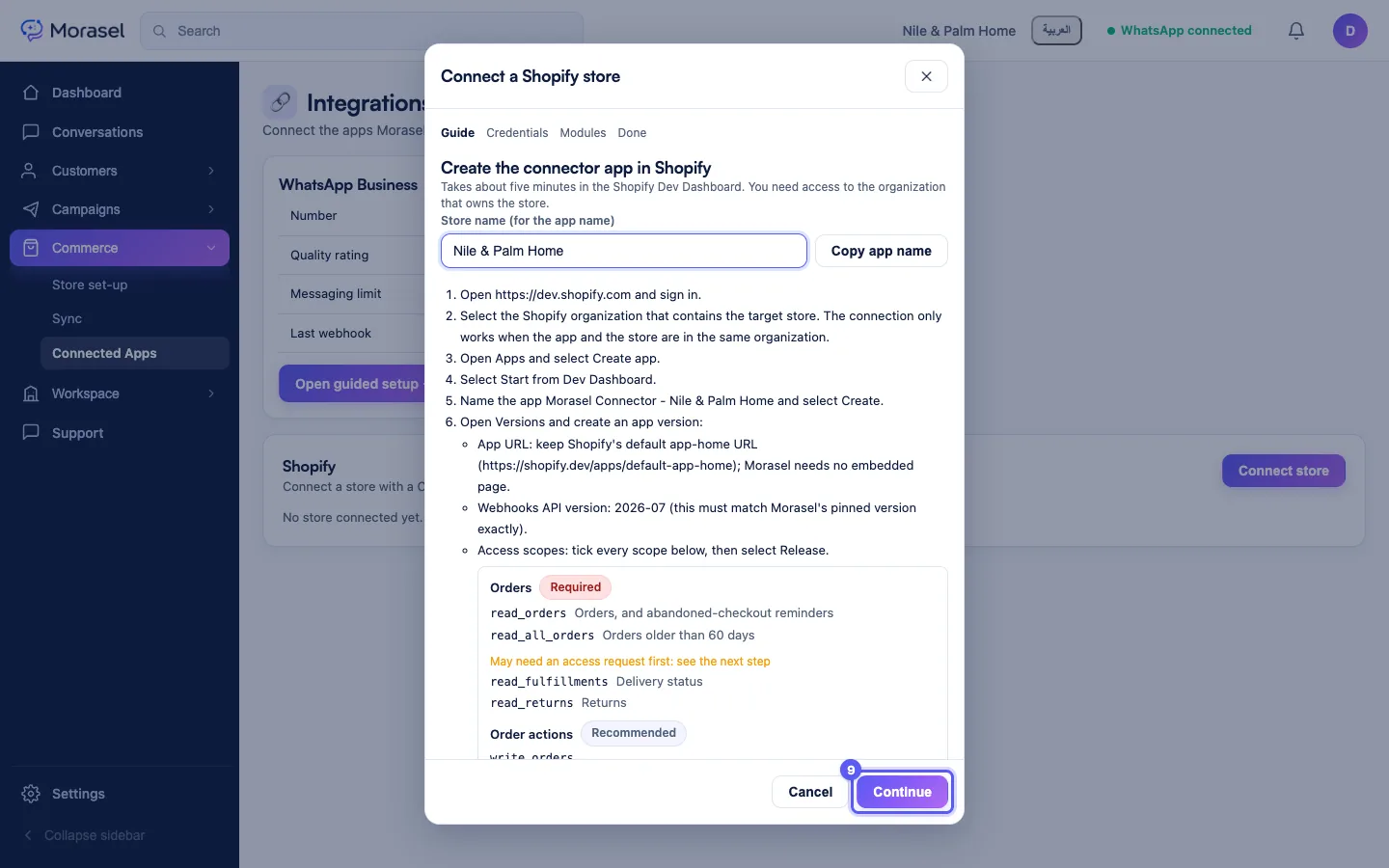
What you should see: Connect a Shopify store opens on its guide: Create the connector app in Shopify.
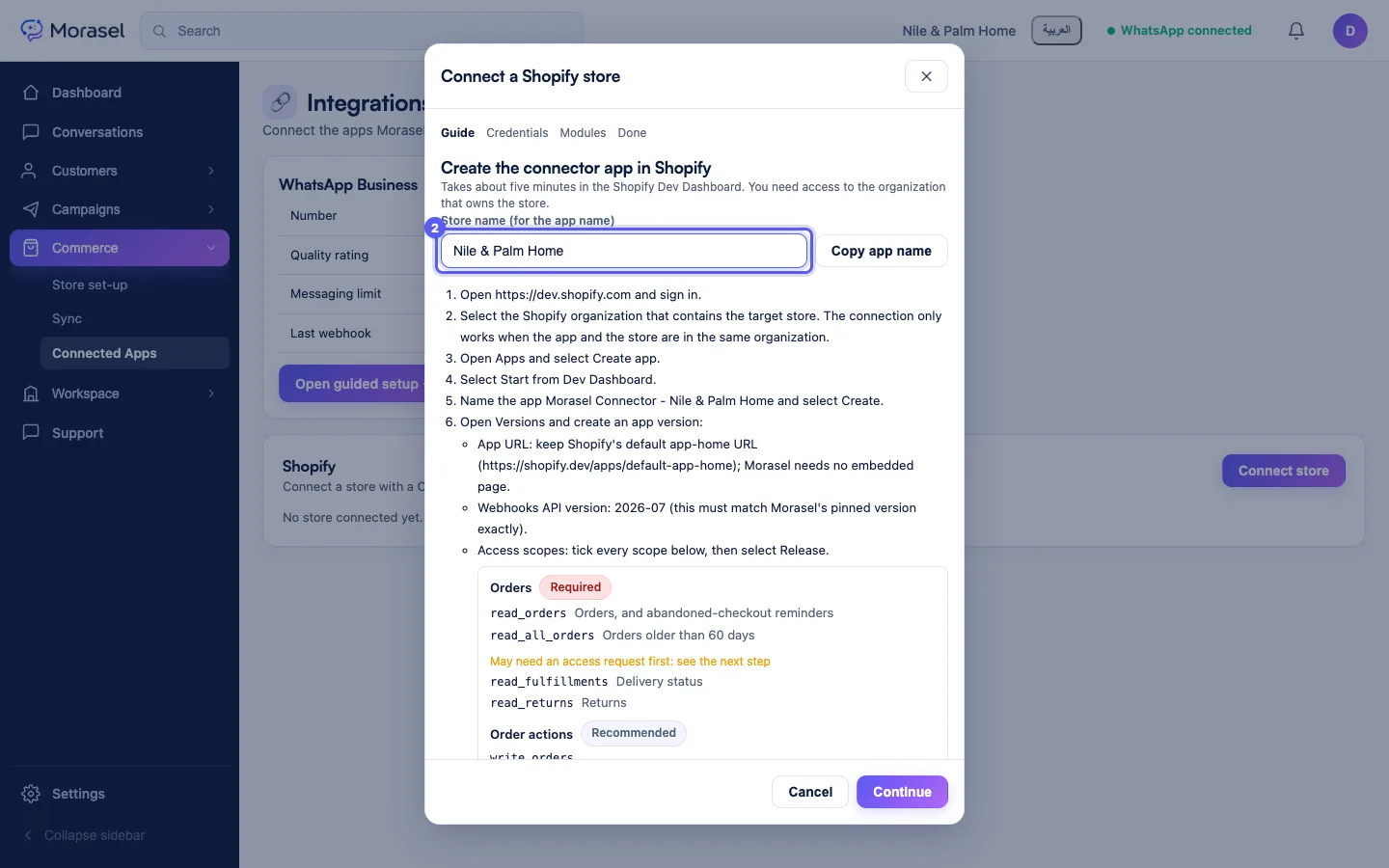
Type your store name in Store name (for the app name).
What you should see: The guide shows the app name to use, Morasel Connector - <your store>.
In the Shopify Dev Dashboard, create an app from the Dev Dashboard with that name (Copy app name copies it).
What you should see: The new app opens in the Dev Dashboard.
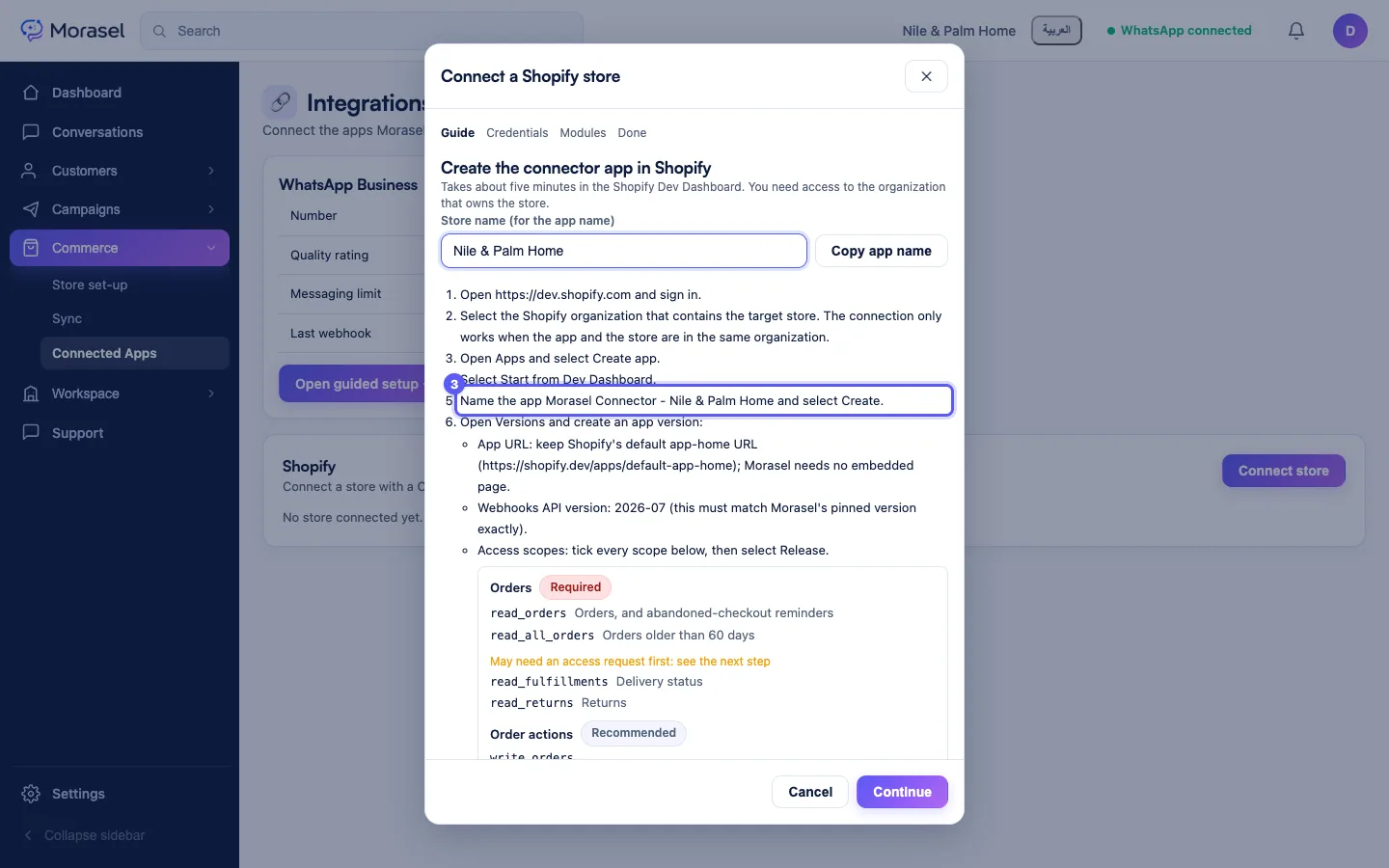
In the app, open Versions and create an app version.
What you should see: The new version's settings open.
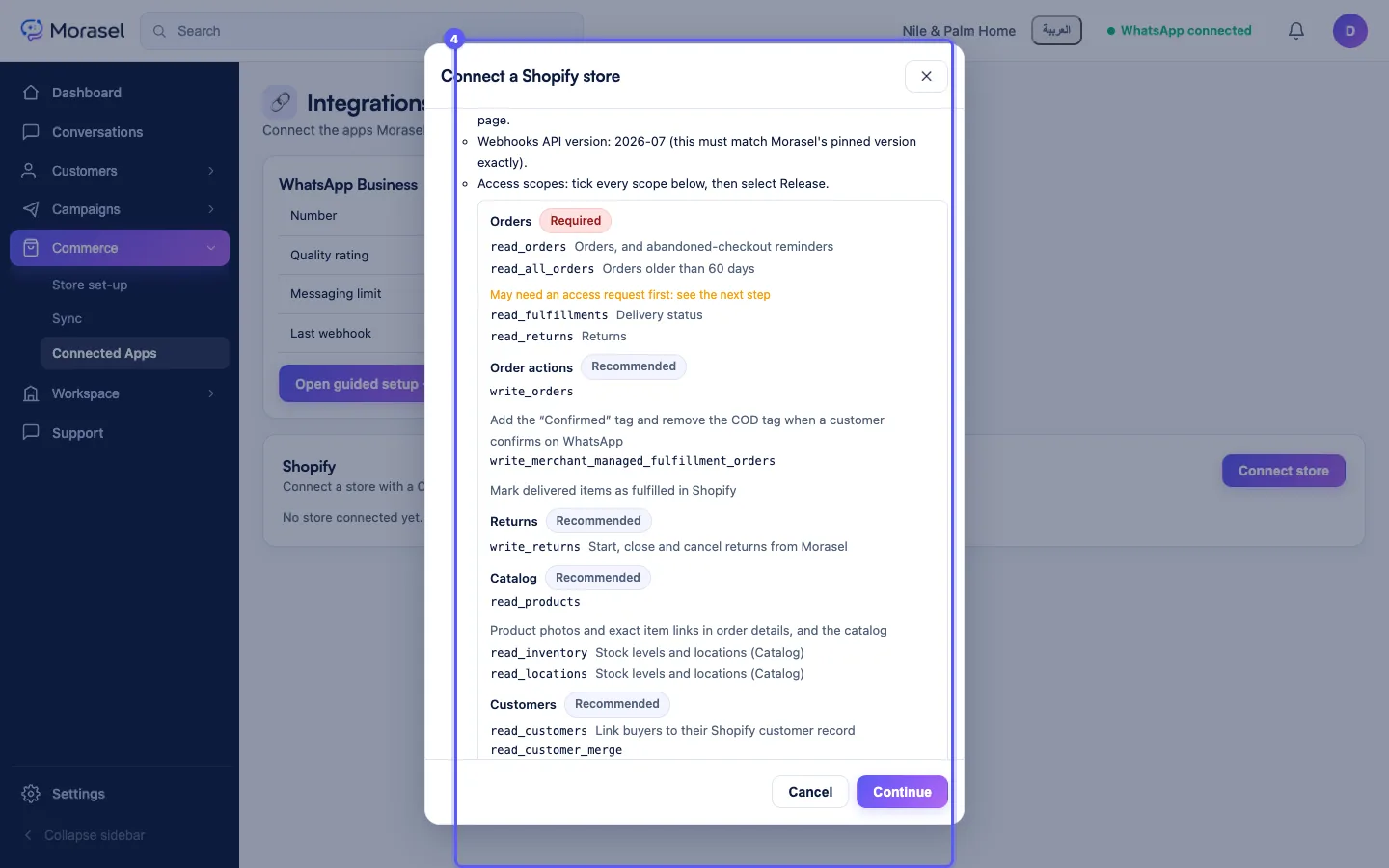
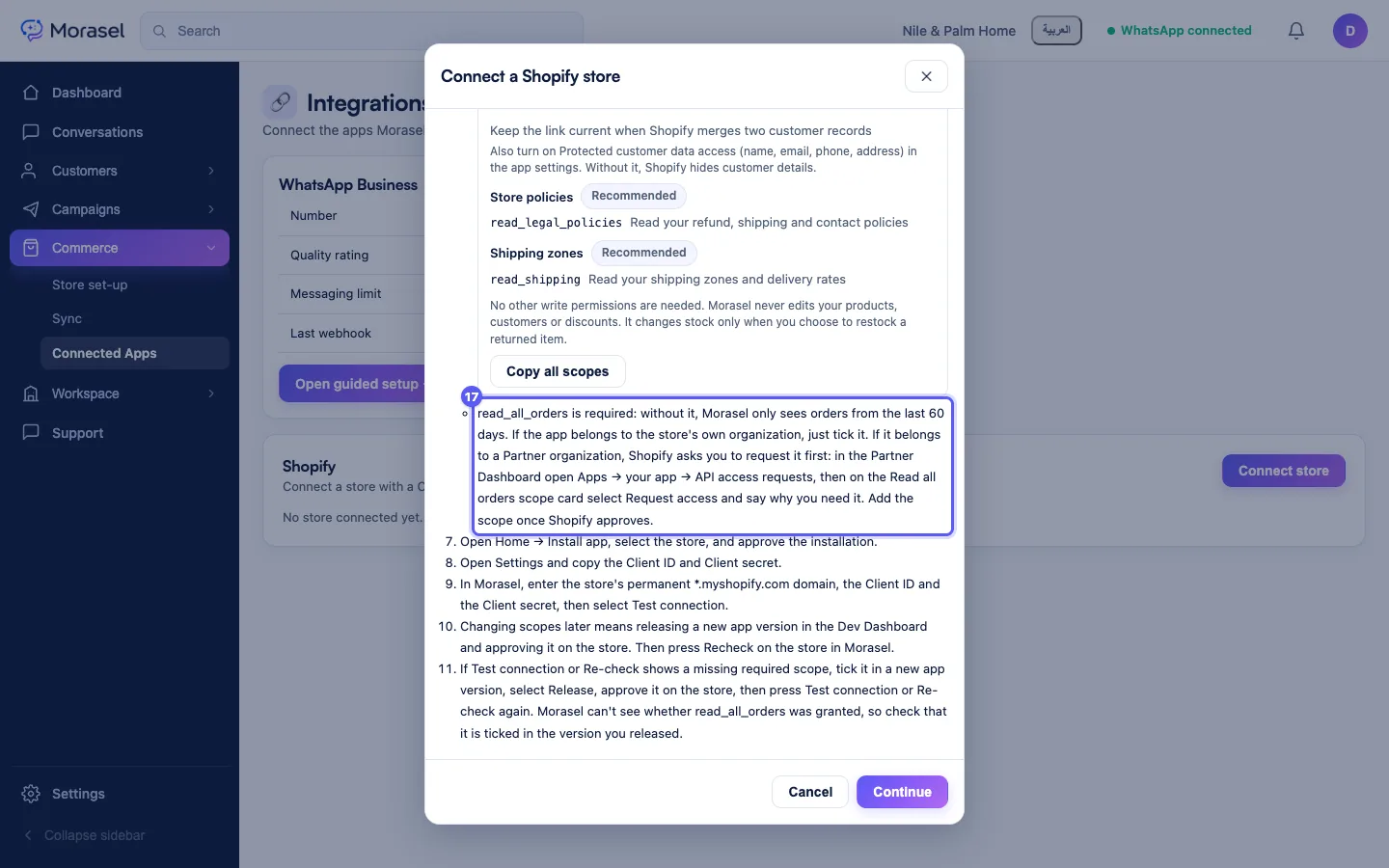
Tick every access scope the guide lists. The Orders group is required; the others are recommended. Add the Returns group (write_returns) if your team will start, close and cancel returns from Morasel.
What you should see: All the scopes you chose are ticked in the version. Copy all scopes copies the whole list at once.
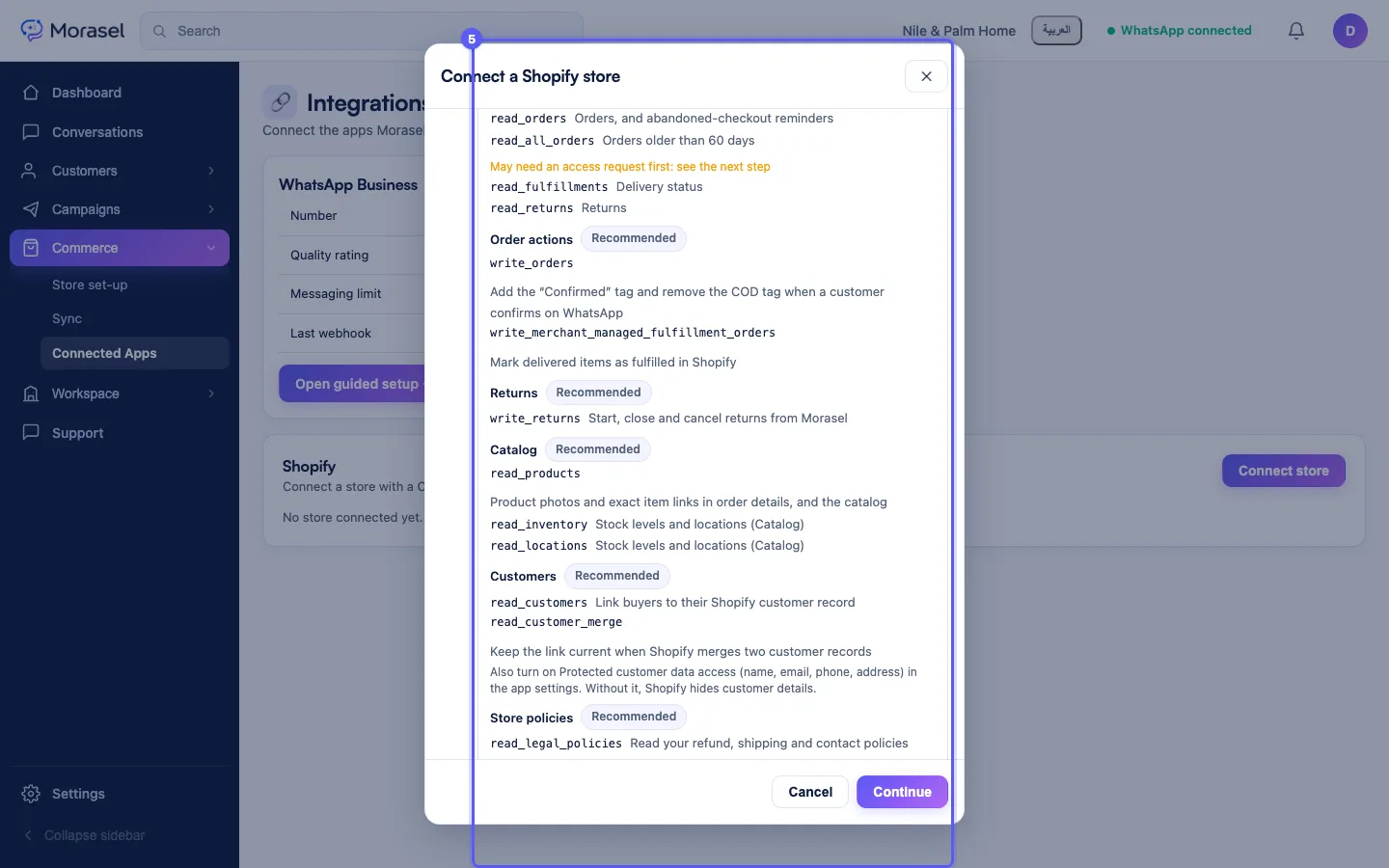
Make sure read_all_orders is ticked: it is required. If the app belongs to the store's own organization, just tick it. If it belongs to a Partner organization, Shopify asks you to request it first: in the Partner Dashboard open Apps → your app → API access requests, then on the Read all orders scope card click Request access and say why you need it. Tick it once Shopify approves.
What you should see: read_all_orders is ticked with the other Orders scopes. Without it, Morasel only sees orders from the last 60 days.
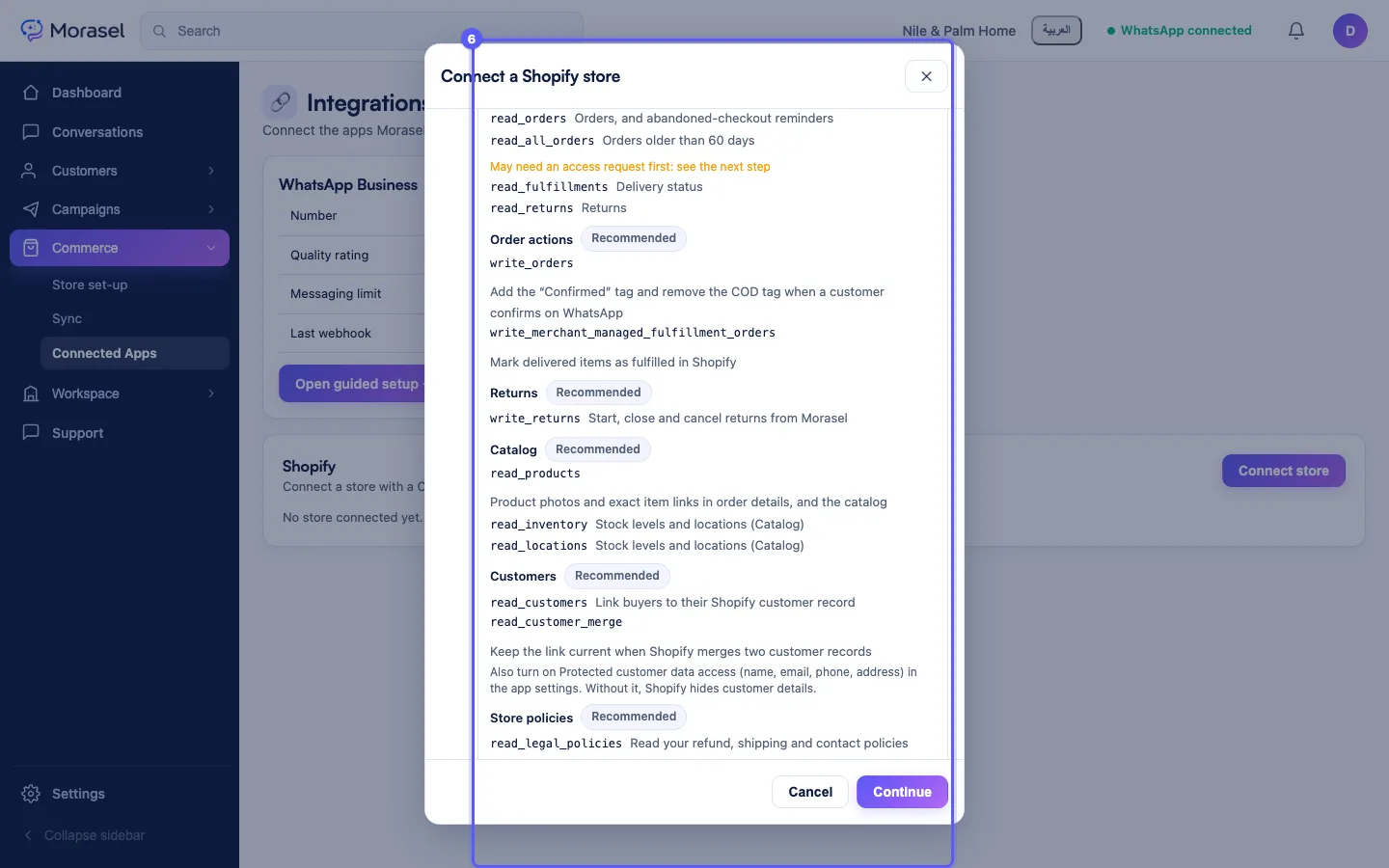
Select Release.
What you should see: The version is released with all the scopes.
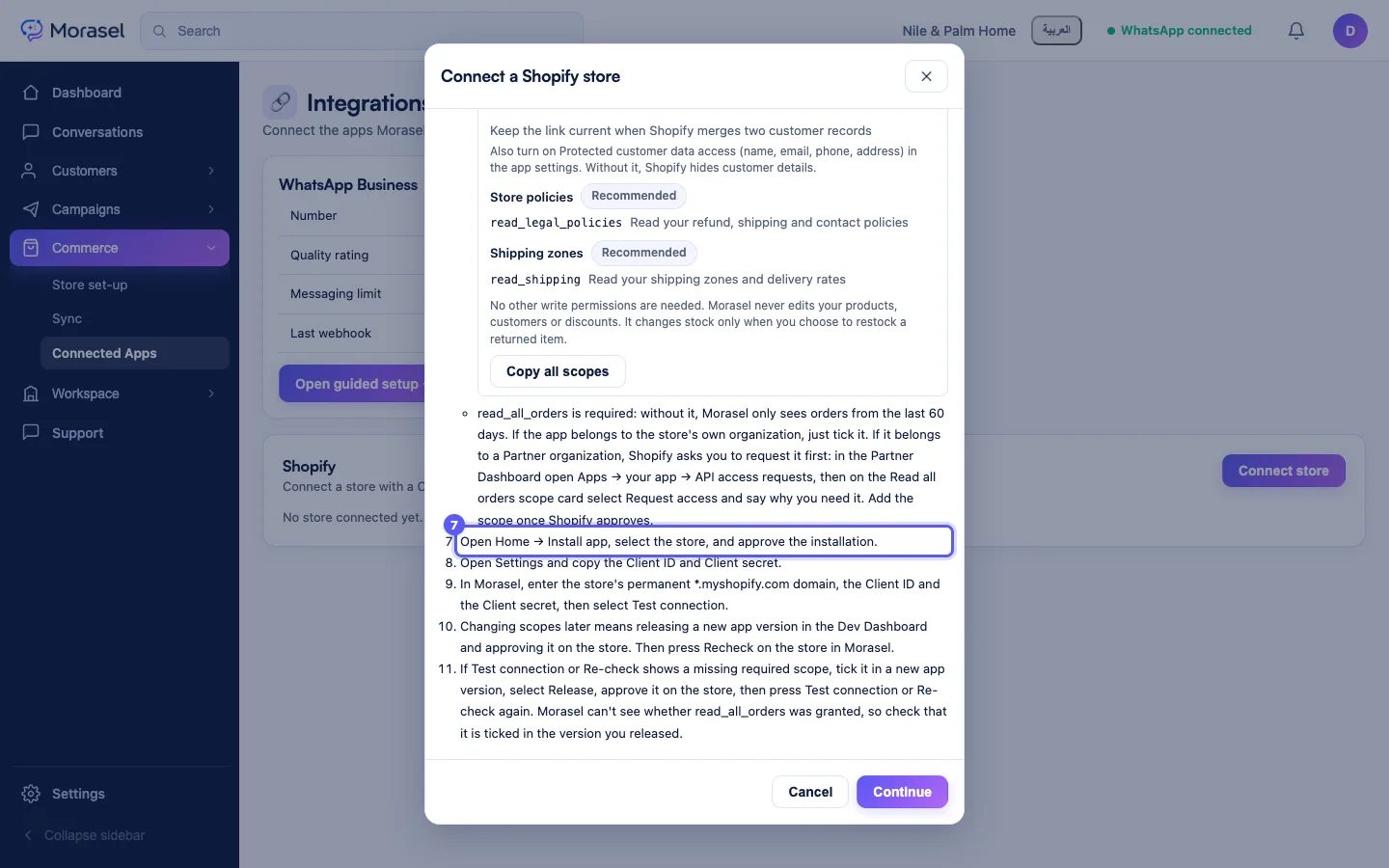
Open Home → Install app, select your store and approve the installation.
What you should see: The app is installed on your store.
Open Settings in the app and copy the Client ID and Client secret.
What you should see: You have both values ready to paste.
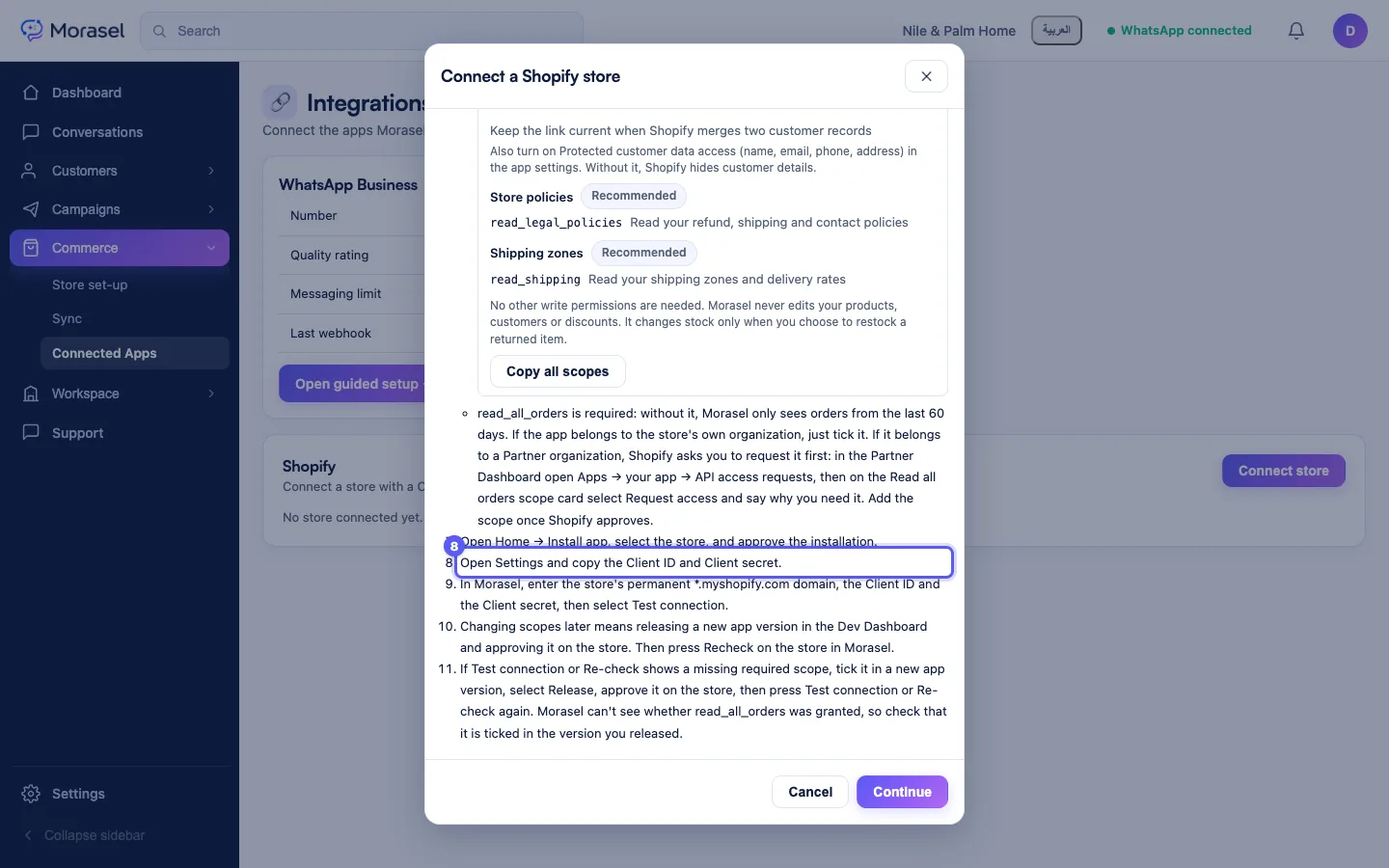
Back in Morasel, click Continue.
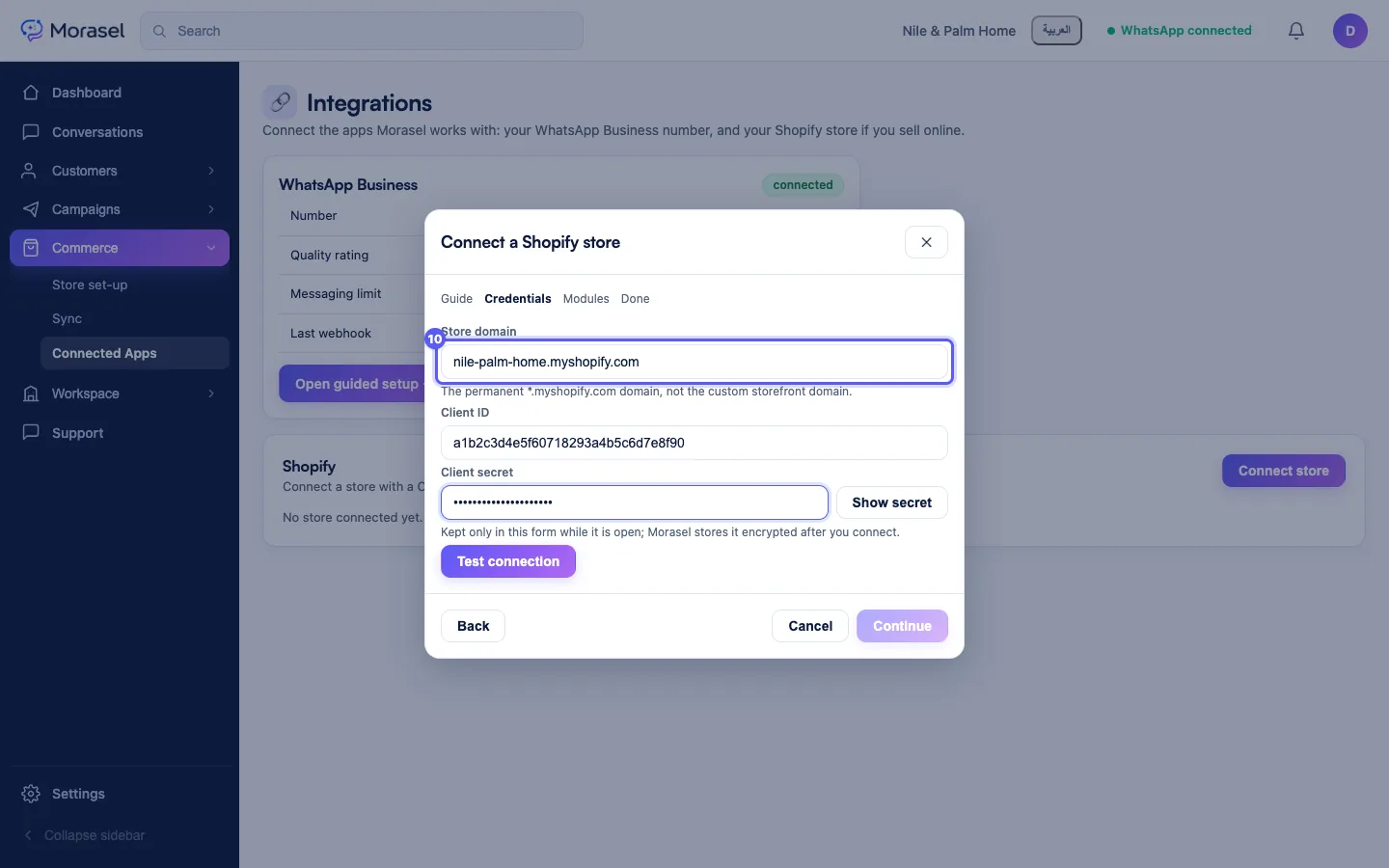
What you should see: The Credentials step asks for the Store domain, Client ID and Client secret.
Enter the store's permanent *.myshopify.com domain, the Client ID and the Client secret.
What you should see: Test connection becomes clickable.
Click Test connection.
What you should see: "Store found: <your store>" appears with the Granted scopes in green. Missing scopes, if any, are listed in red and must be added in Shopify first.
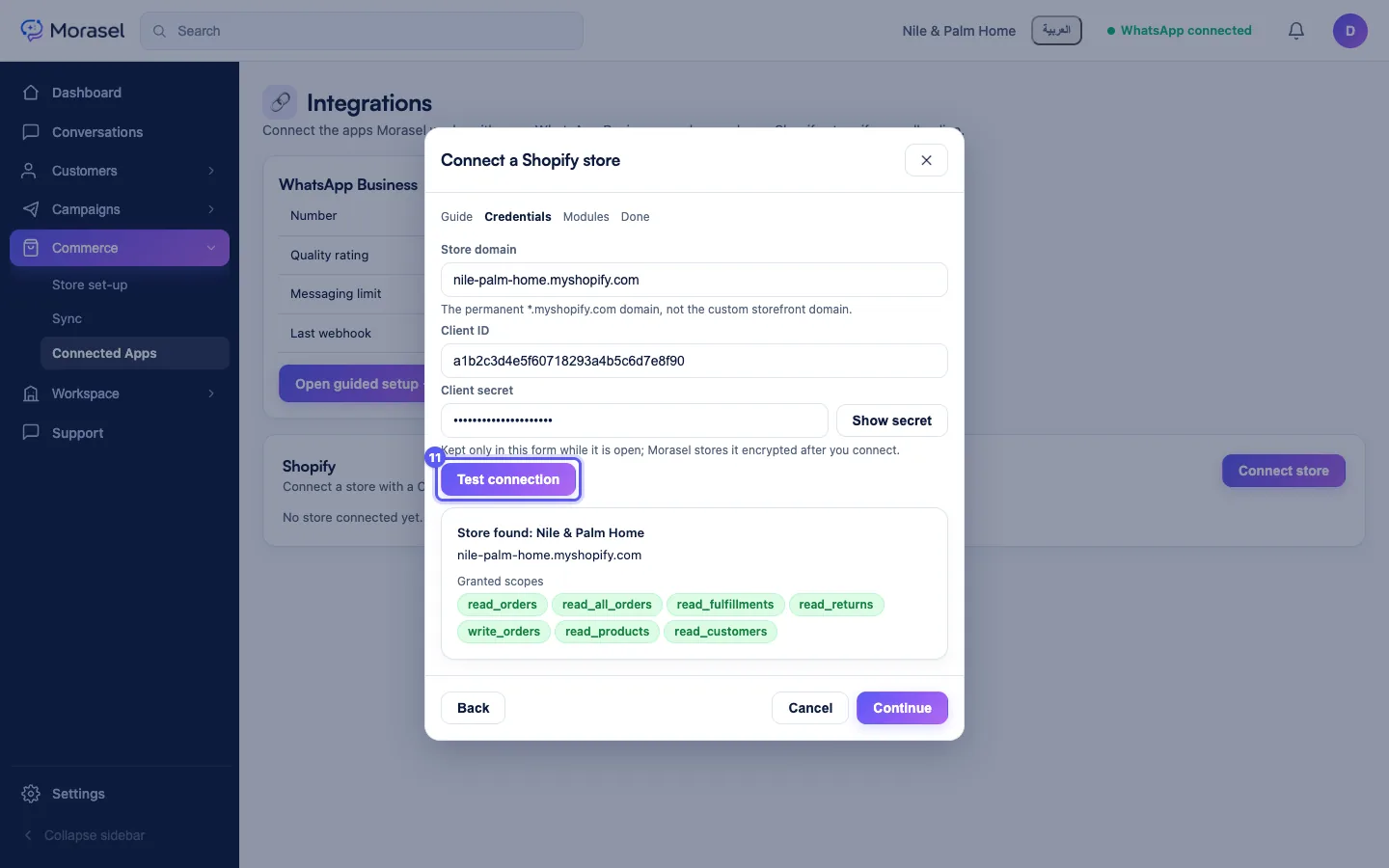
Click Continue.
What you should see: What Morasel may read lists the modules, already ticked.
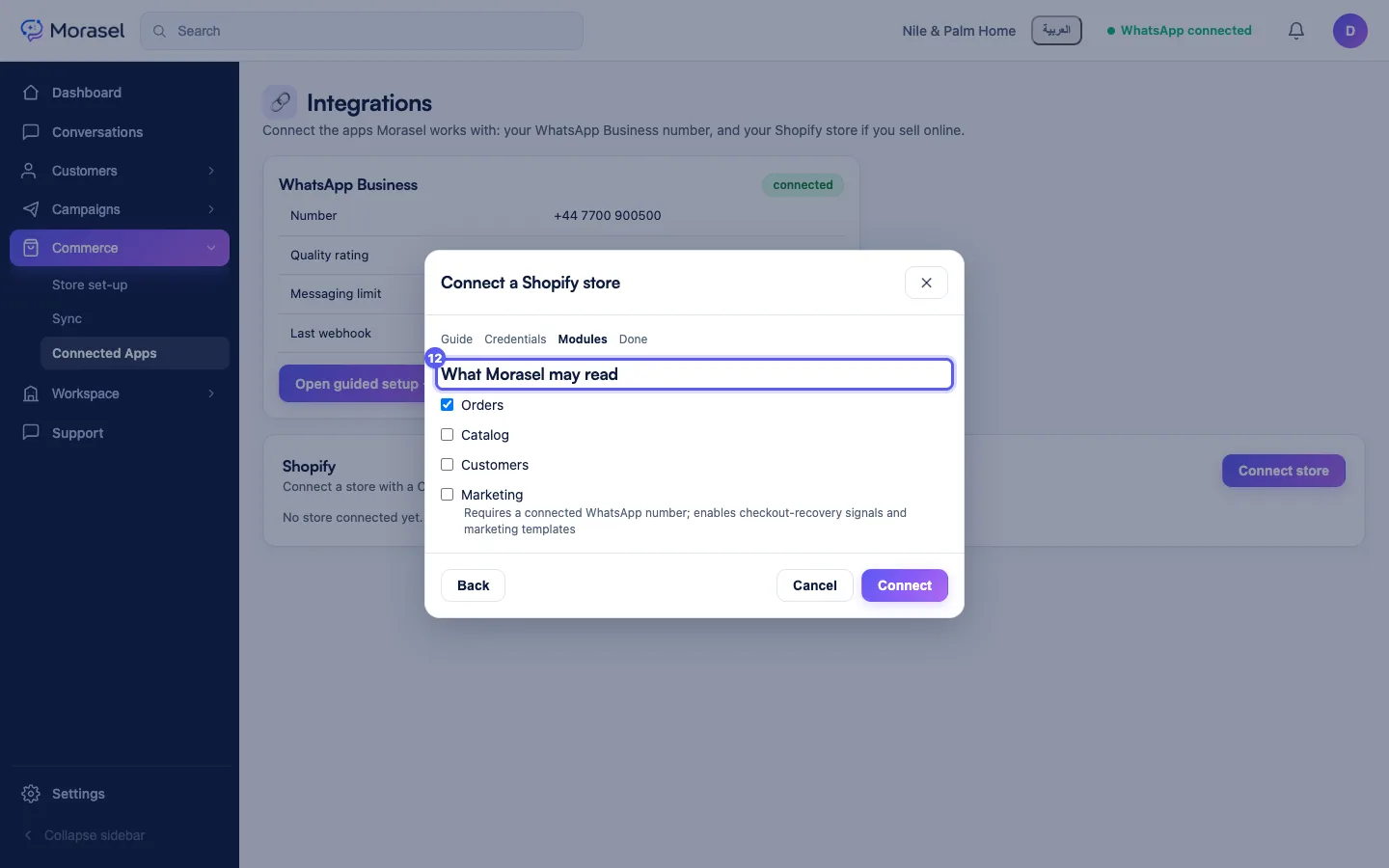
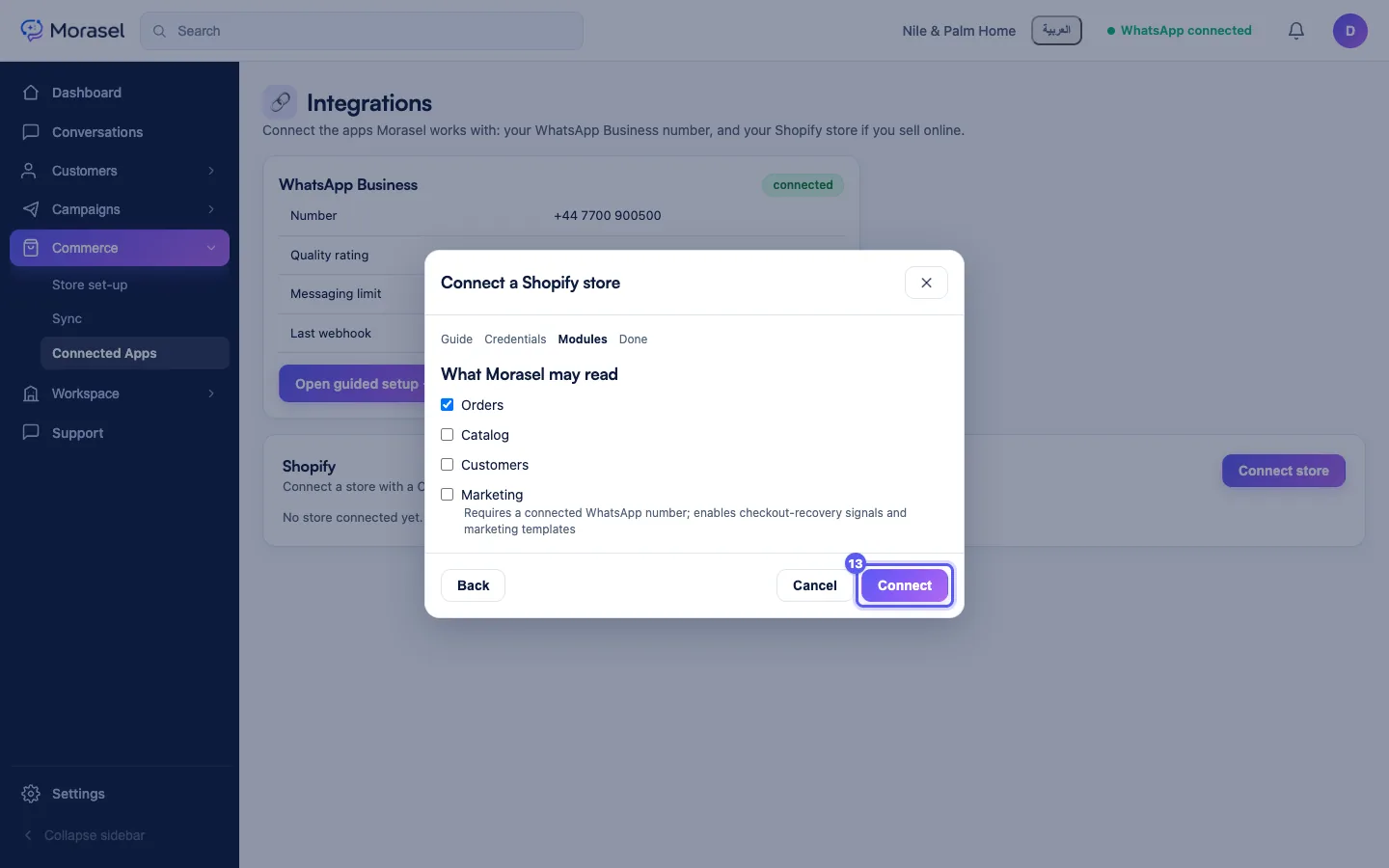
Click Connect.
What you should see: "<your store> is connected" appears: "New orders now sync to Morasel as they are placed." The store is listed on the Shopify card.
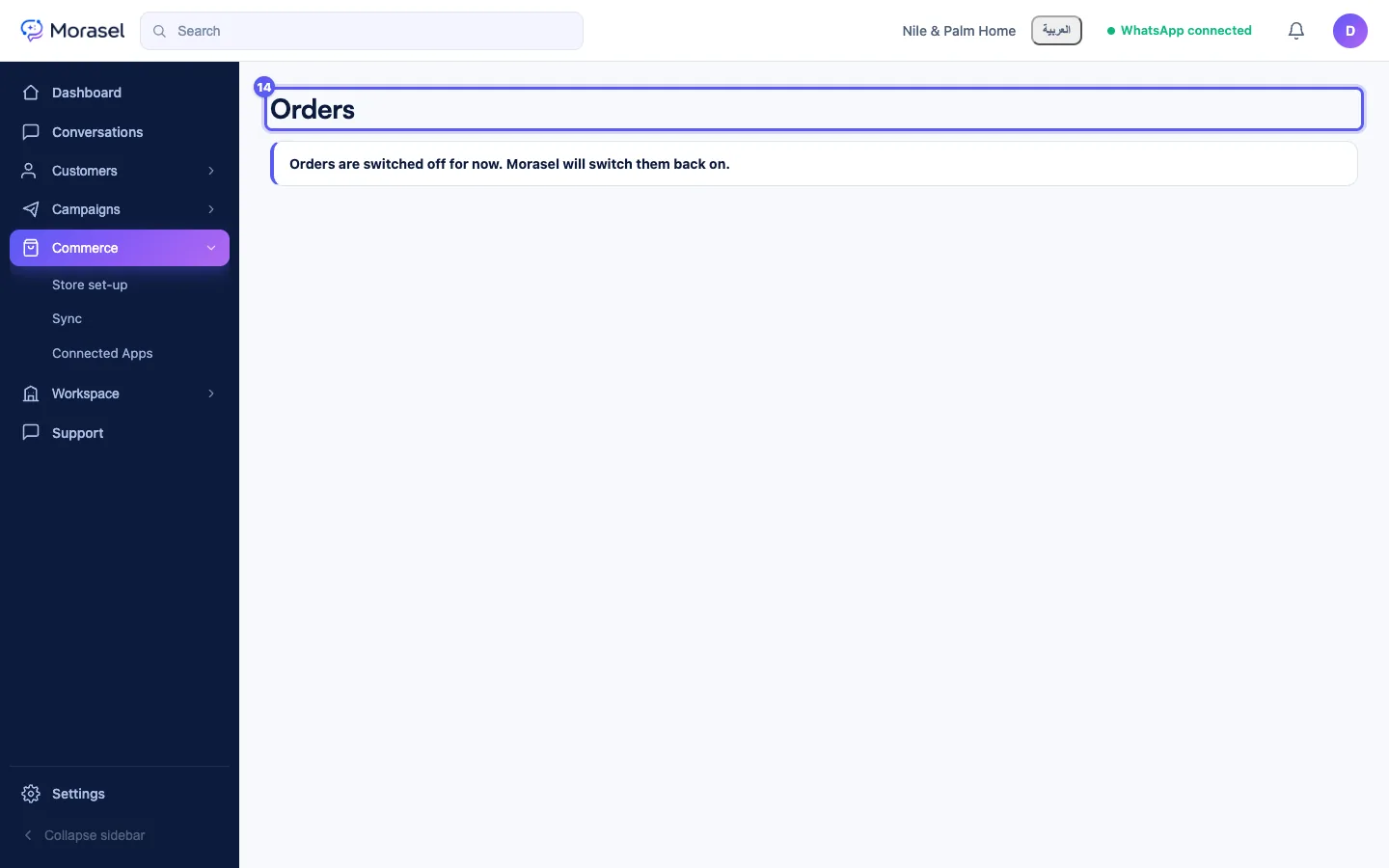
Open Commerce → Orders.
What you should see: New Shopify orders appear here as customers place them, ready for your team to confirm and follow up on WhatsApp.


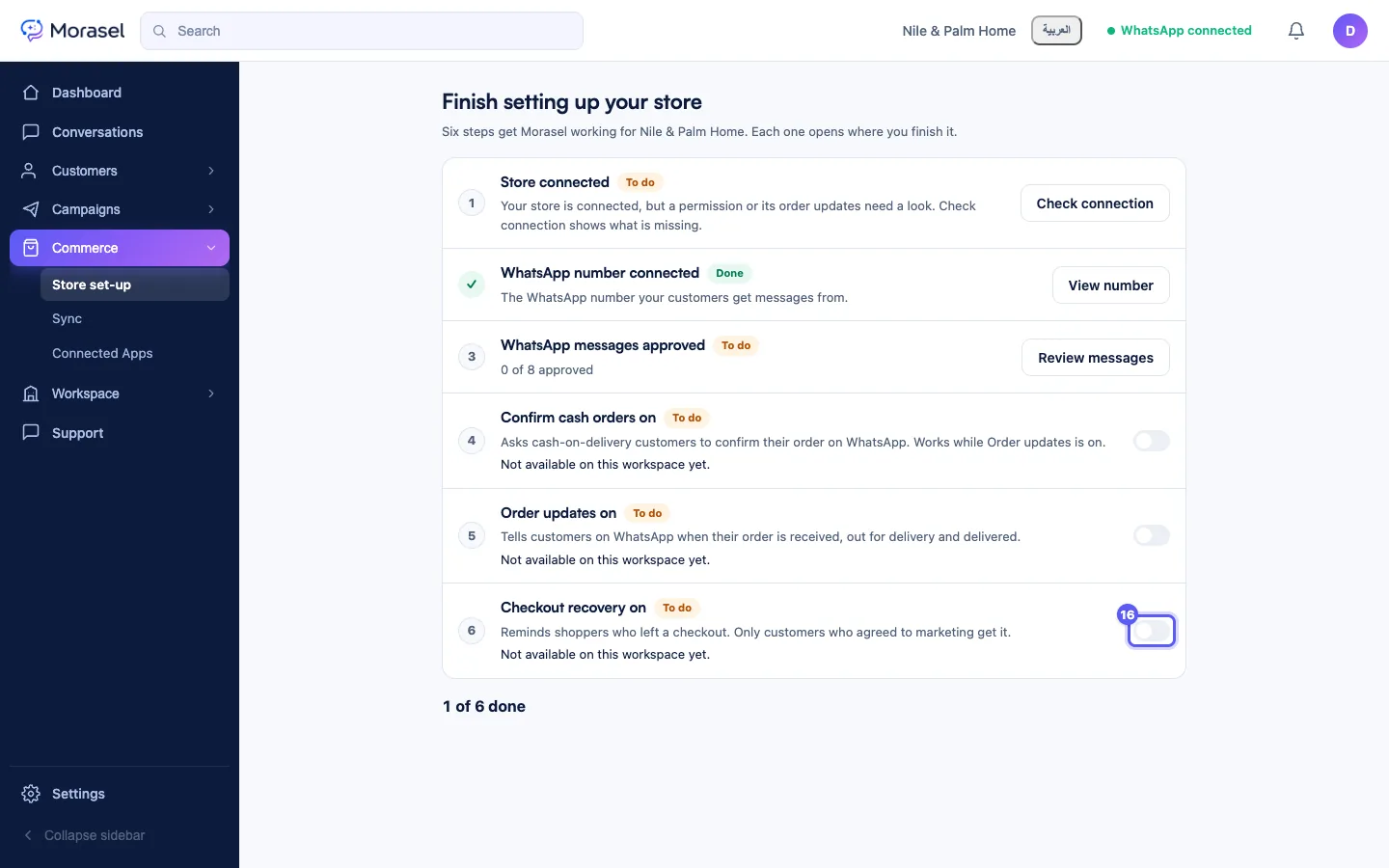
Finish setting up your store
Open Commerce → Store set-up, or click Finish setting up your store on the Home set-up card. Both are there while a step is unfinished.
What you should see: The page lists six steps, each marked Done or To do: Store connected, WhatsApp number connected, WhatsApp messages approved, Confirm cash orders on, Order updates on and Checkout recovery on. Each step has one action: View connection (or Connect a store) opens the store's connection page, where you see its webhook health; Connect WhatsApp opens the WhatsApp set-up; Review messages opens Message templates and the row says how many are approved, for example "3 of 5 approved". The bottom of the page says how many steps are done.
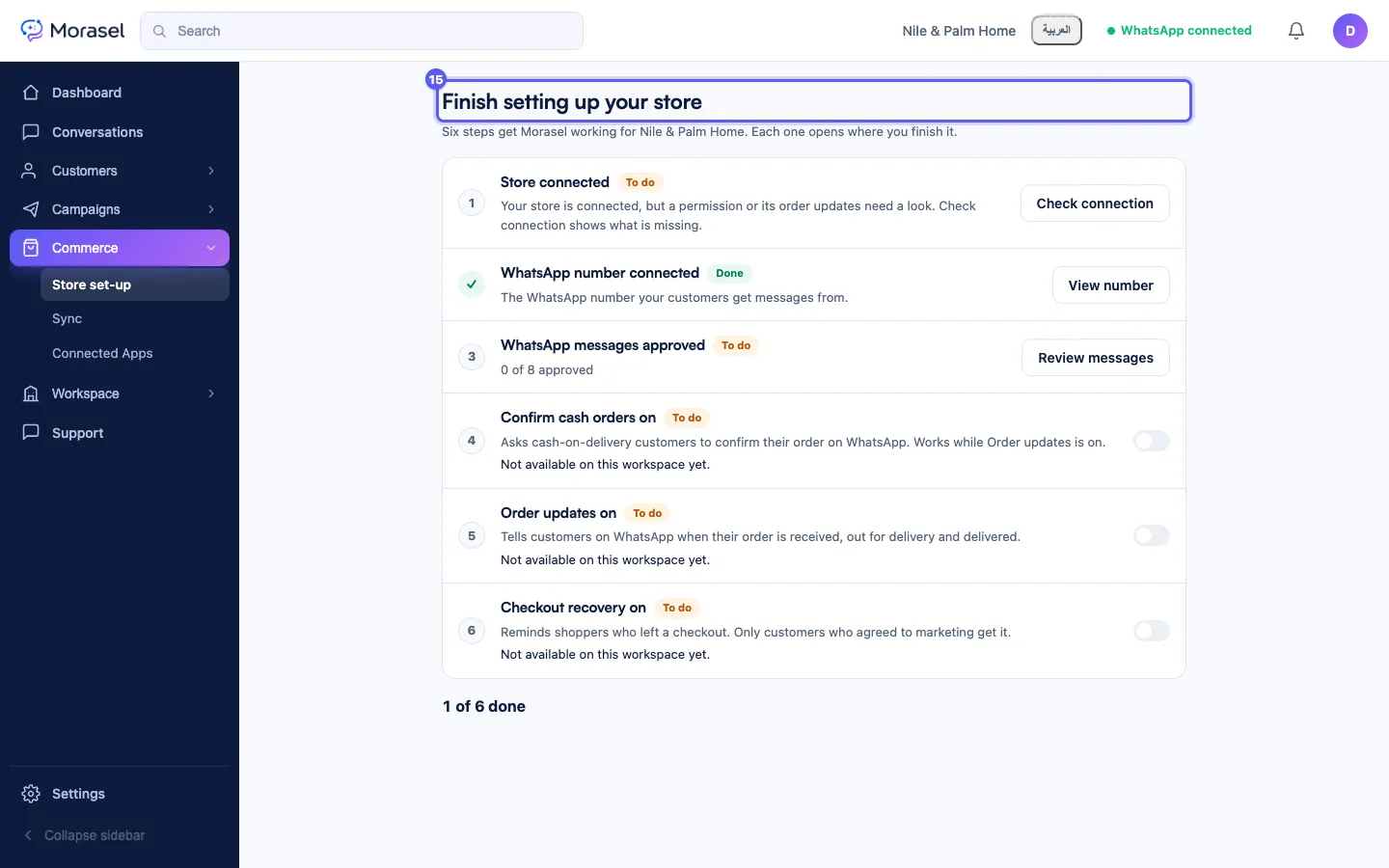
Switch Confirm cash orders, Order updates or Checkout recovery on or off right on the page.
What you should see: Switching one on asks you to confirm once, because it starts sending messages to your customers; switching off is immediate and always possible. A switch that can't be turned on yet is greyed out, with one line under it saying why and a link to the step that fixes it: for example "Connect a WhatsApp number first" with Connect WhatsApp (all three need one), or "Turn on Order updates first" under Confirm cash orders, which reads on only while Order updates is on. Order updates also needs its WhatsApp messages ready before it can be turned on. Checkout recovery messages only customers who agreed to marketing. Owners and admins can switch them; other members see the status only.


If it didn't work
- Test connection says scopes are missing.
- In the Shopify Dev Dashboard, tick the missing scopes in a new app version, release it and approve it on the store, then click Test connection again.
- Orders older than 60 days don't show in Morasel.
- The app is missing read_all_orders. Tick it in a new app version (request it first if the app belongs to a Partner organization), release it and approve it on the store, then click Re-check on the store in Morasel. Morasel can't see whether read_all_orders was granted, so Test connection and Re-check don't warn you when it is missing.
- Test connection can't find the store.
- Use the permanent *.myshopify.com domain, not your storefront's own domain, and check that the app is installed on that store and belongs to the same Shopify organization.
- "Credentials changed — test again before continuing."
- You edited a field after testing. Click Test connection again, then Continue.
- Customer names and phone numbers are missing on orders.
- Turn on Protected customer data access (name, email, phone, address) in the app's settings in the Shopify Dev Dashboard; Shopify hides customer details without it.
Frequently asked questions
Does Morasel change anything in my store?
Morasel reads your orders, deliveries, returns and checkouts, and writes order tags: for example the Confirmed tag when a customer confirms on WhatsApp (the write_orders scope). With the optional Returns permission (write_returns), your team can start, close and cancel returns from Morasel; stock changes only when someone chooses to restock a returned item. Your products stay as they are in Shopify.
Which platforms does Morasel Commerce support?
Shopify only.
I changed the app's scopes in Shopify. What now?
Release a new app version in the Dev Dashboard and approve it on the store, then click Re-check on the store in Morasel.
What else should I set up in the first week?
Connect your WhatsApp Business number on WhatsApp setup, invite your team from Team & Access, and import your existing customers from a CSV file if you have a list.
How do my drivers find the customer?
Put the customer's location on the order: on the order page, click Add location in the Timeline (Paste link, Drop pin or Type address) and leave Use as delivery location ticked. Drivers then navigate to that pin instead of the shipping address. See Deliveries: locations, drivers and reconciliation. Drivers, order agents and delivery are available on Commerce Pro and Max.
I added write_returns after connecting. What now?
Release the new app version in the Dev Dashboard and approve it on the store, then click Re-check on the store in Connected Apps. Start return then shows on delivered orders. See Start a return from a chat or an order.
Where do I see what is left to set up for my store?
On Finish setting up your store: Commerce → Store set-up, or the link on the Home set-up card, while a step is unfinished. It shows the six steps, Done or To do, with one action for each, and how many are done.
Why can't I turn on Order updates, Confirm cash orders or Checkout recovery?
A step it needs isn't finished. On Finish setting up your store the greyed-out switch says which one, for example "Connect a WhatsApp number first", and links to it. All three need a connected WhatsApp number; Order updates also needs its messages ready, and Confirm cash orders needs Order updates on. You can always switch them off.
What is the optional Store policies permission (read_legal_policies) in the guide?
It lets Morasel read your published refund, shipping and contact policies when an owner or admin clicks Import in Settings → Business knowledge, to draft answers for your WhatsApp assistant. Nothing is used until it is approved, and your store works the same without it. To add it later, tick read_legal_policies in a new app version, release it and approve it on the store, then click Re-check on the store in Connected Apps. See Business knowledge for stores.
Related articles
Last updated · Added: what the optional Store policies permission (read_legal_policies) is for, and how to add it later