
Turn on AI message drafts for your team
AI help with replies is a selected pilot: where it is available, an owner or admin allows Message drafts in the AI settings, and your team then gets ✨ in each conversation. AI only drafts text; a person always reviews, edits and sends it. The AI settings are on the web app and in the iPhone and Android apps.
Open this page in the app https://app.morasel.ai/settings/ai
On your device
Web
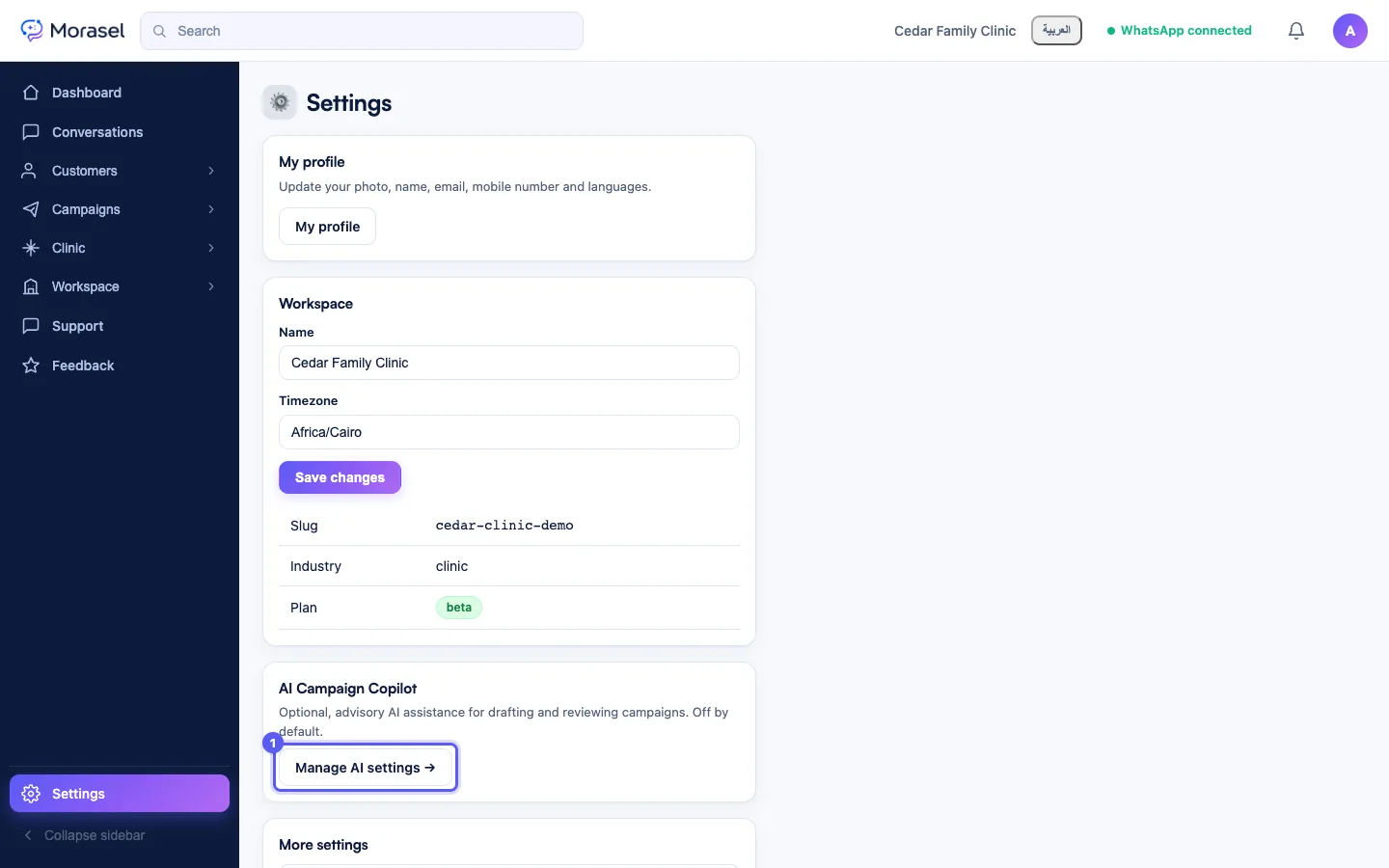
Open Settings and, in the AI Campaign Copilot card, click Manage AI settings →.
What you should see: The AI Campaign Copilot page opens with Availability, AI usage and the settings below.
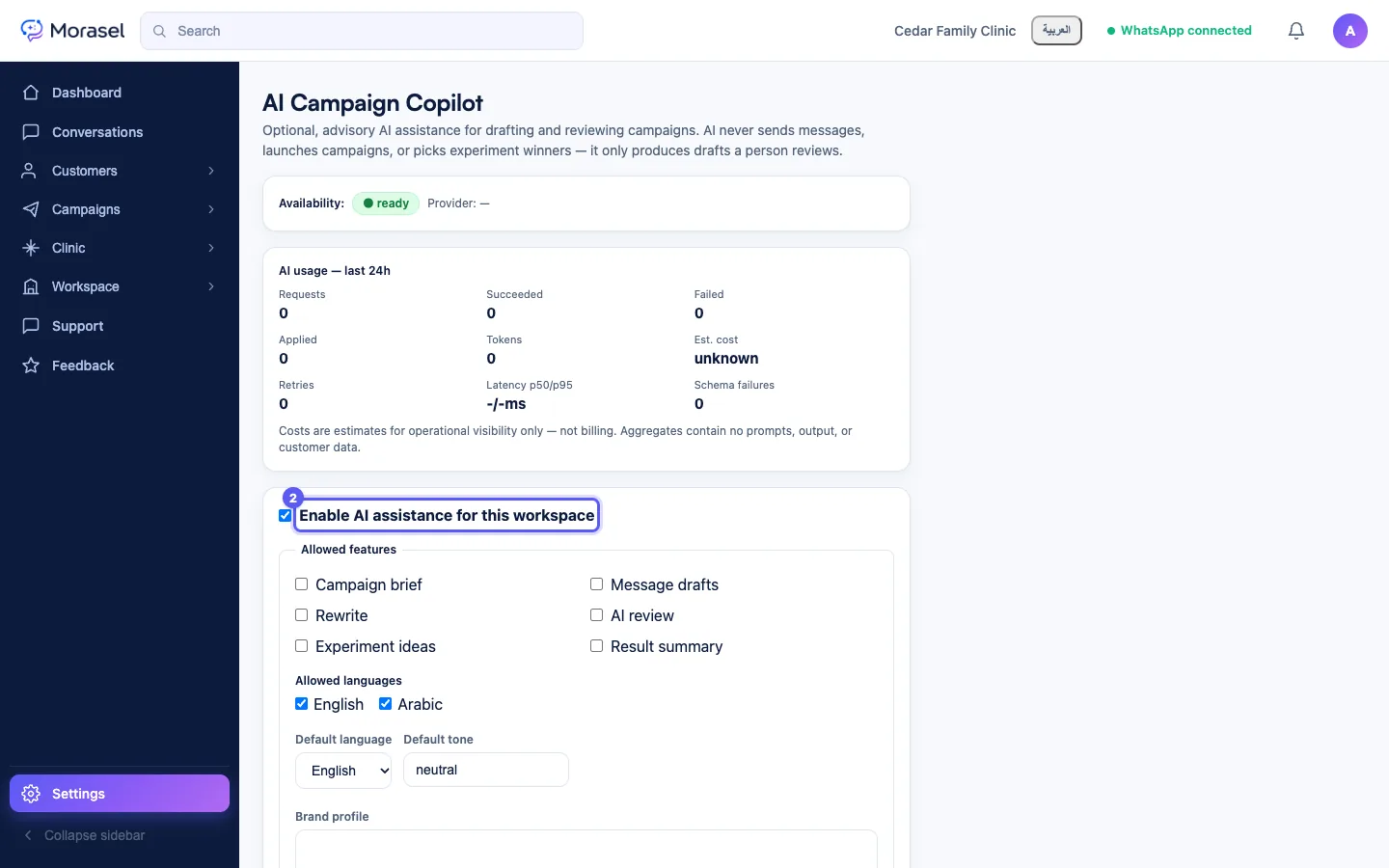
Tick Enable AI assistance for this workspace.
What you should see: The Allowed features, Allowed languages and other settings below it become available.
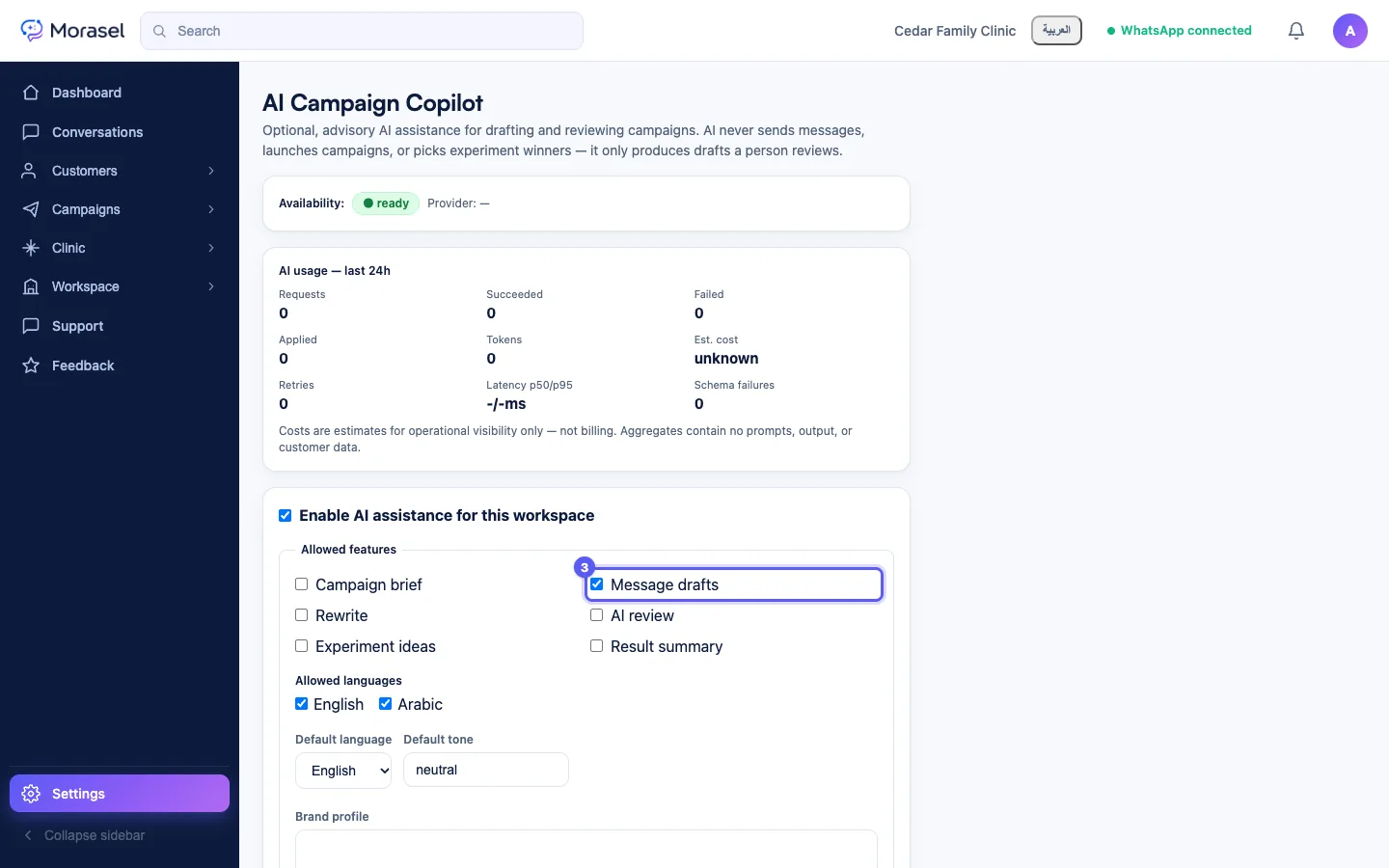
Under Allowed features, tick Message drafts.
What you should see: Message drafts is ticked. English and Arabic stay ticked under Allowed languages.
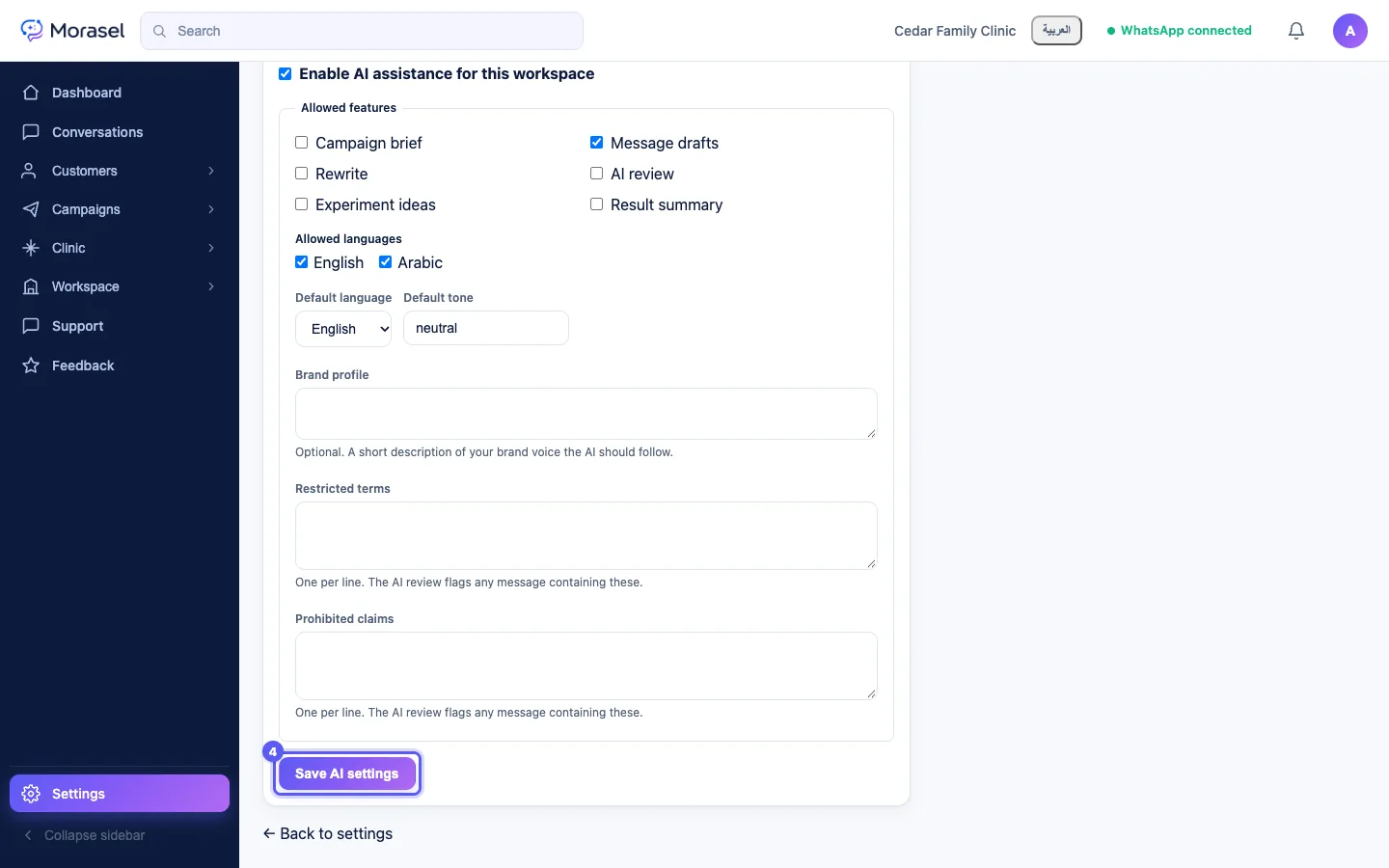
Click Save AI settings.
What you should see: A message confirms "AI settings saved".
Open Conversations and click a conversation.
What you should see: The chat opens, with ✨ (Suggest replies with AI) next to the message box.
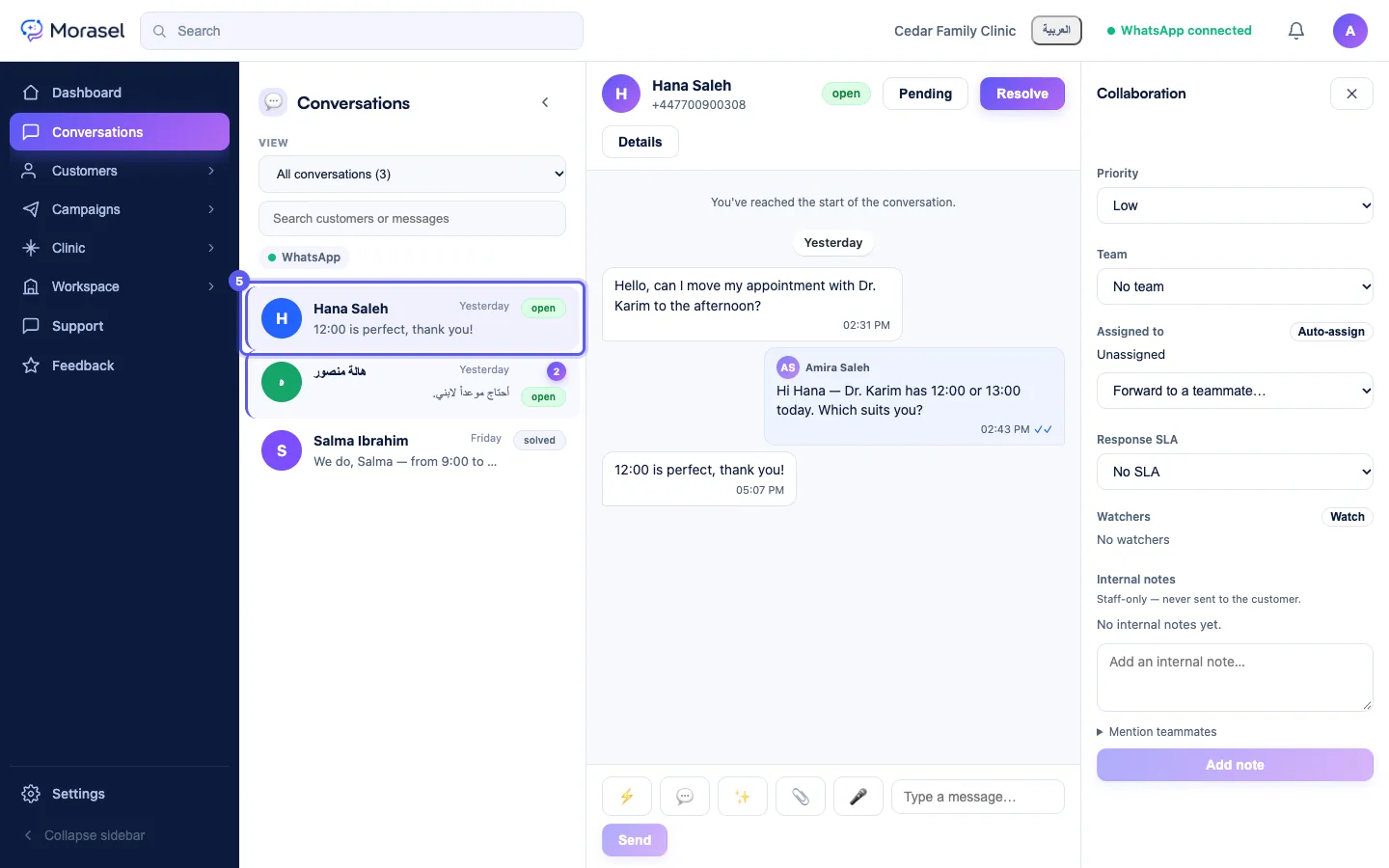
Click ✨.
What you should see: Up to three drafts appear above the message box, in the customer's language, with "AI suggestions — review and edit before sending."
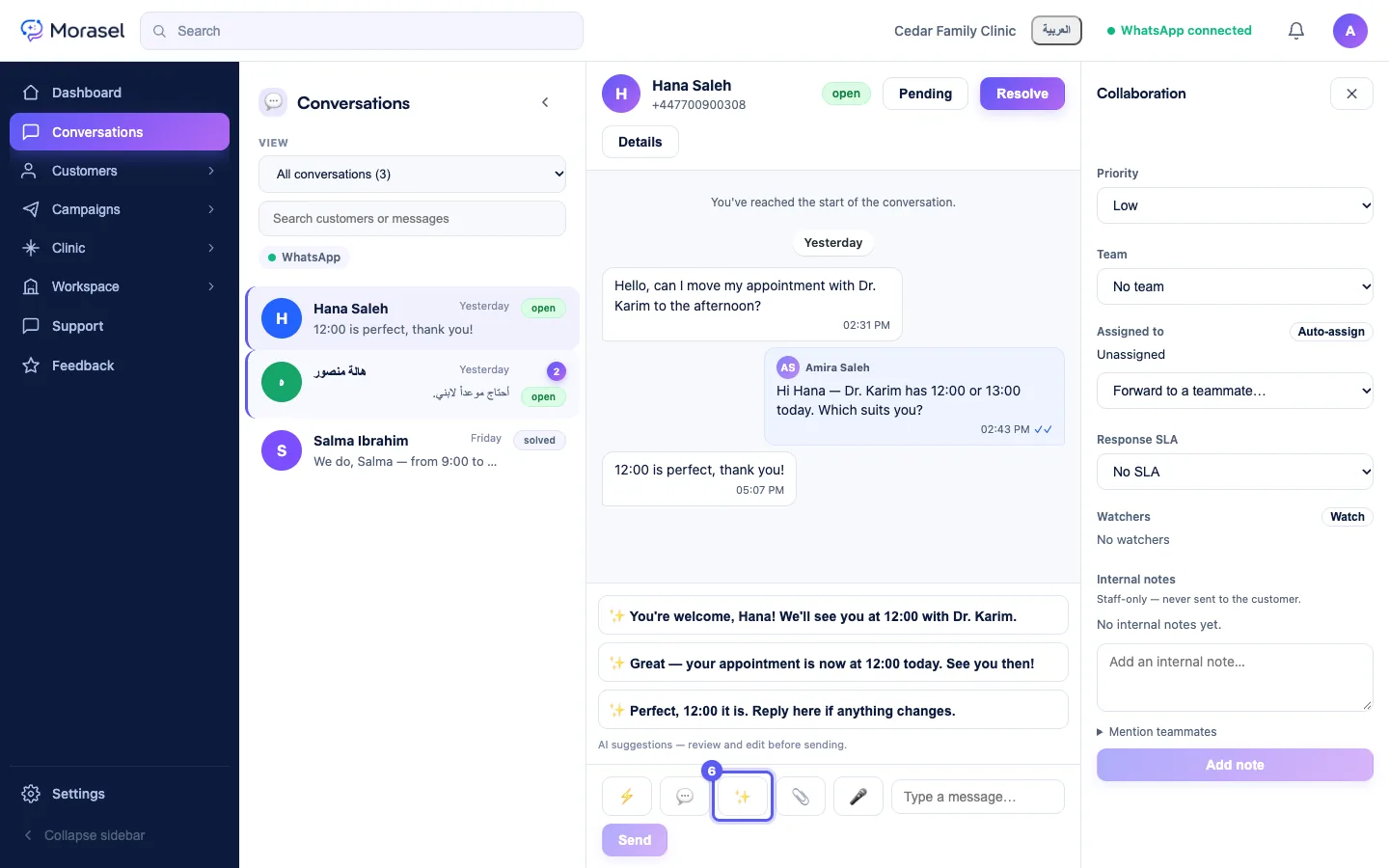
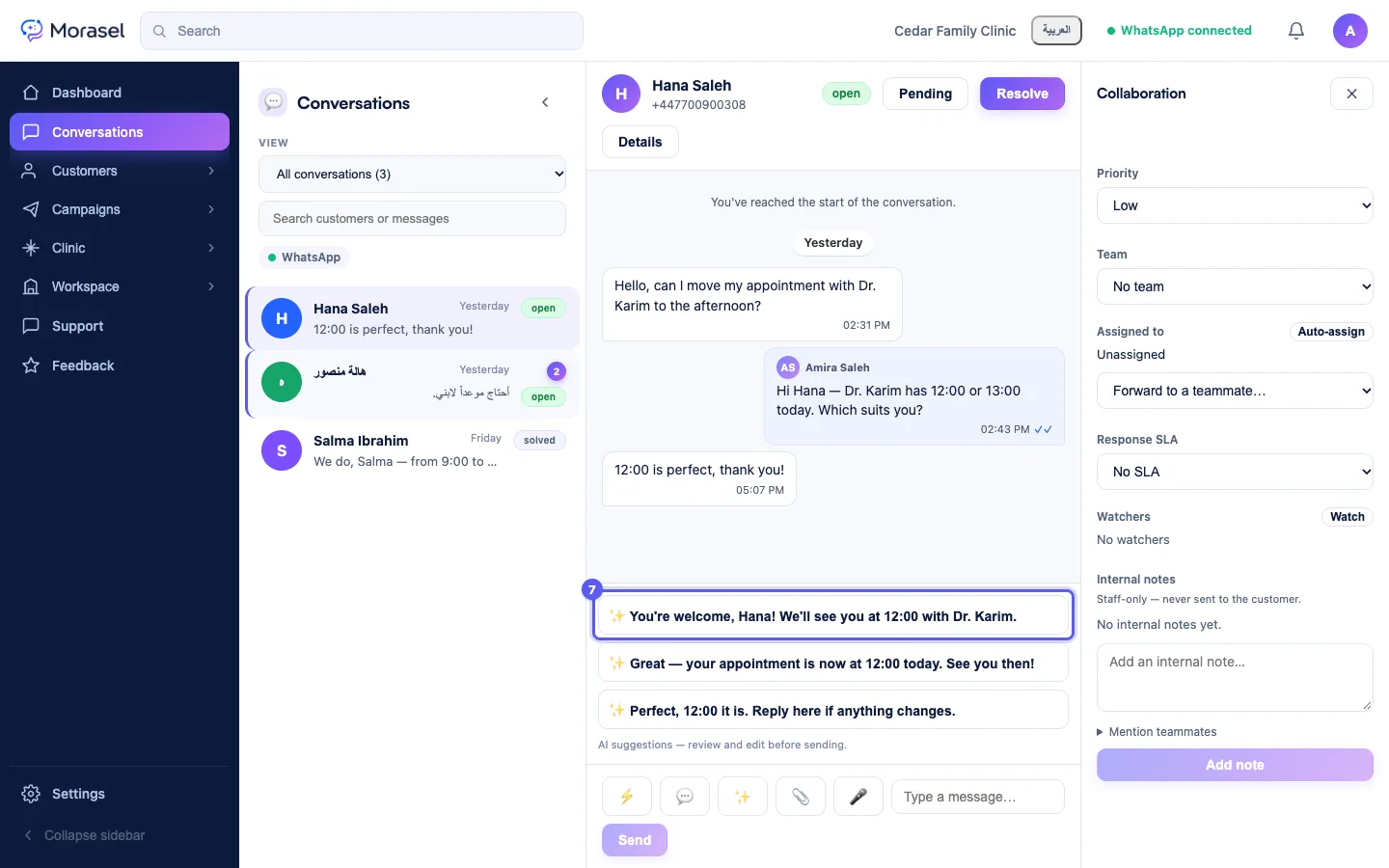
Click the draft you want.
What you should see: The draft moves into the message box; nothing is sent yet.
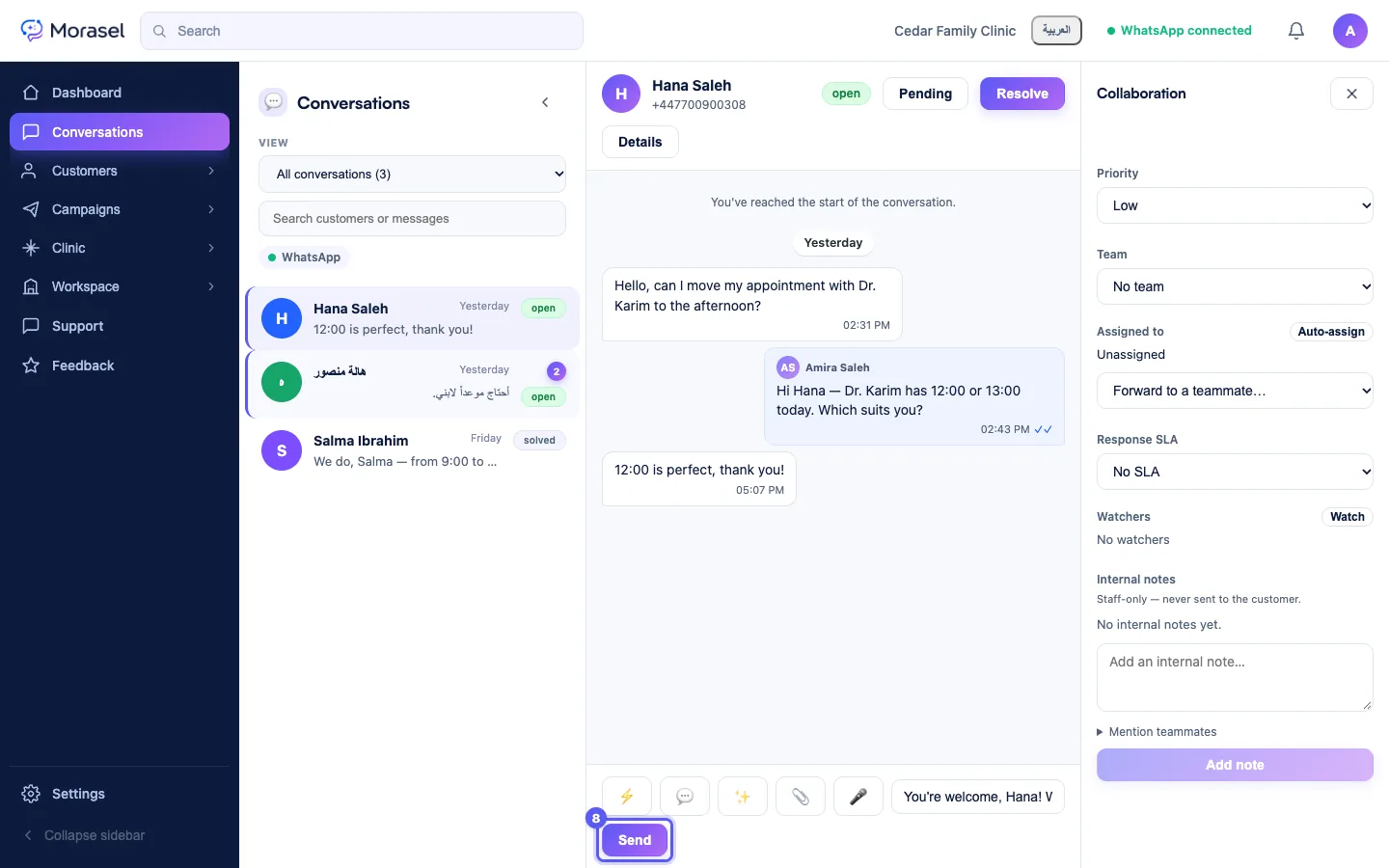
Edit the text if needed, then click Send.
What you should see: Your reply is sent like any other message.


iPhone
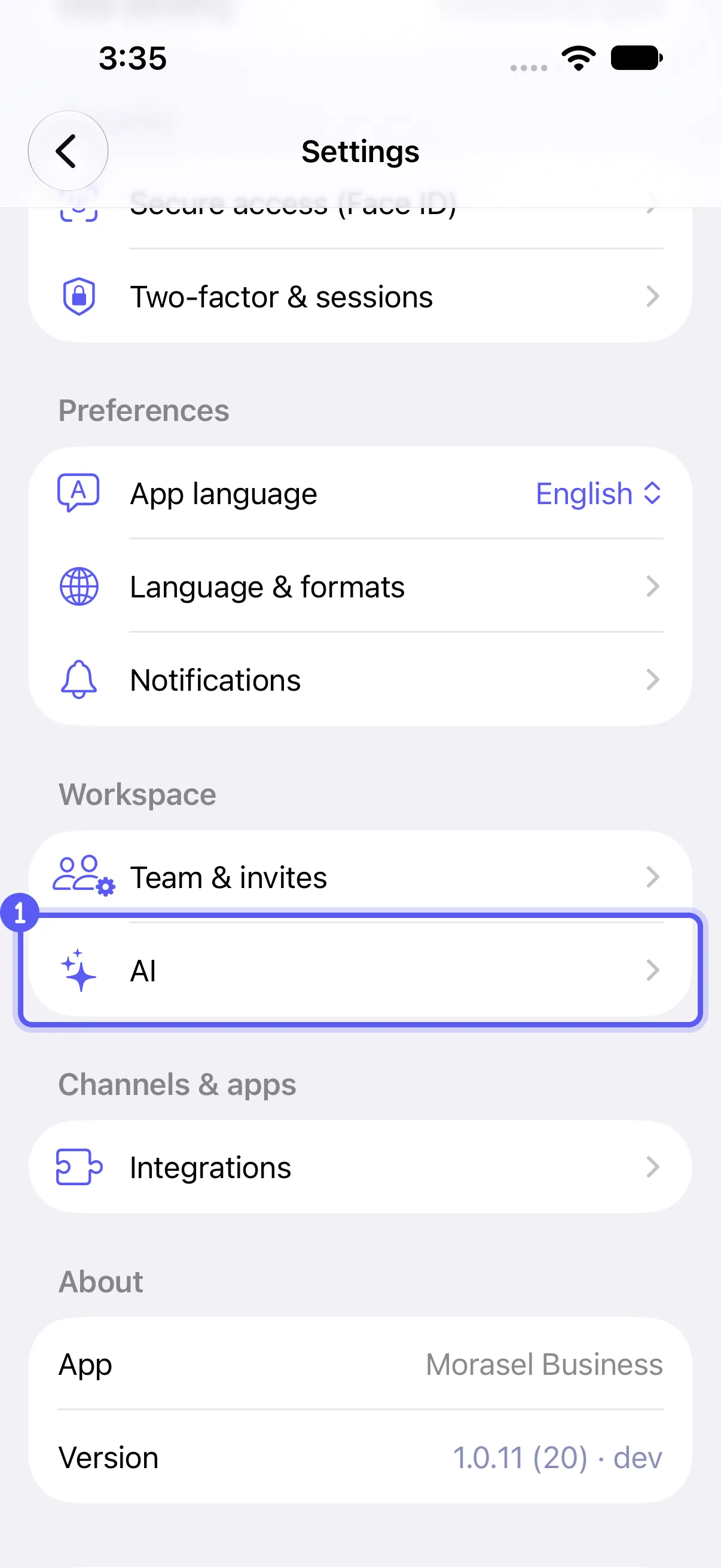
Open Settings and tap AI.
What you should see: AI settings opens with Enable AI assistance for this workspace at the top.
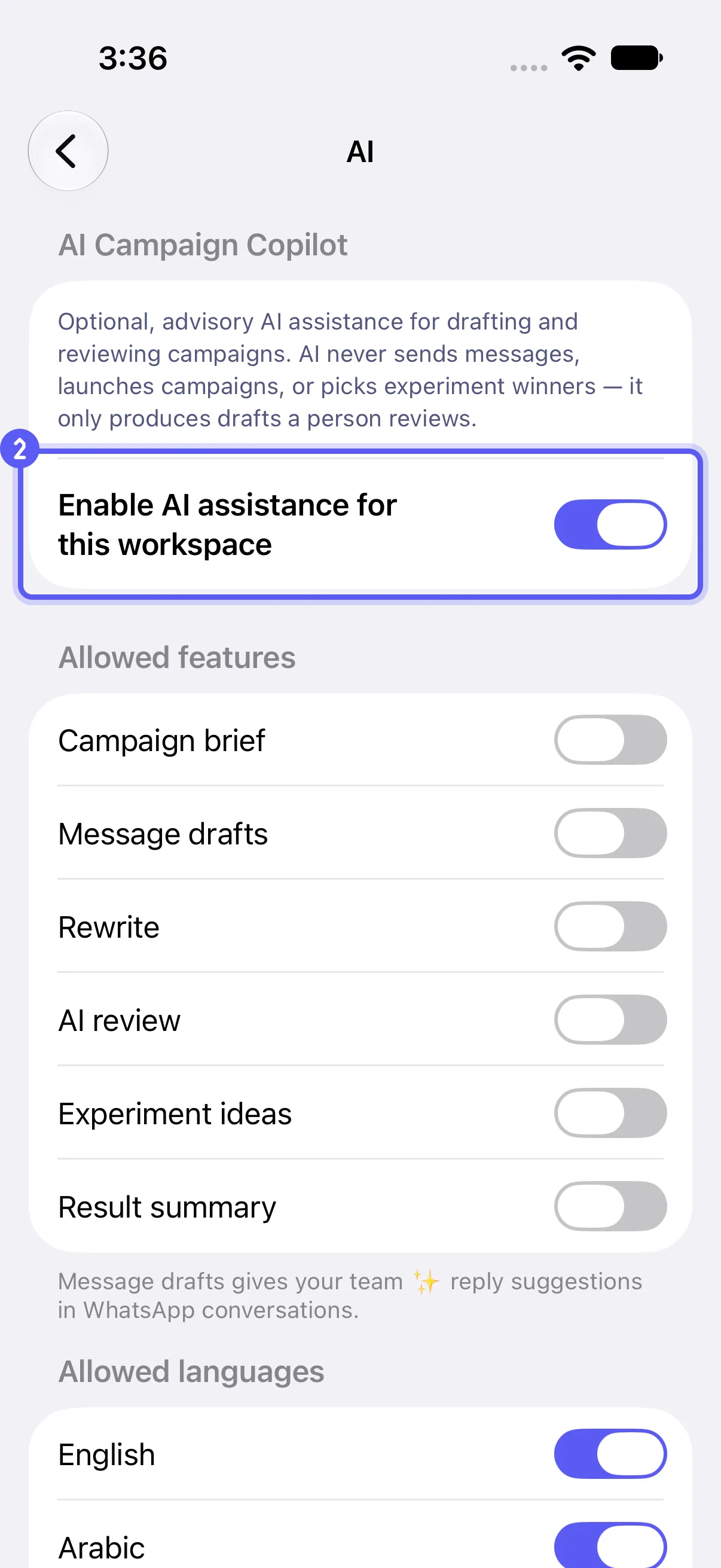
Turn on Enable AI assistance for this workspace.
What you should see: Allowed features and Allowed languages become available.
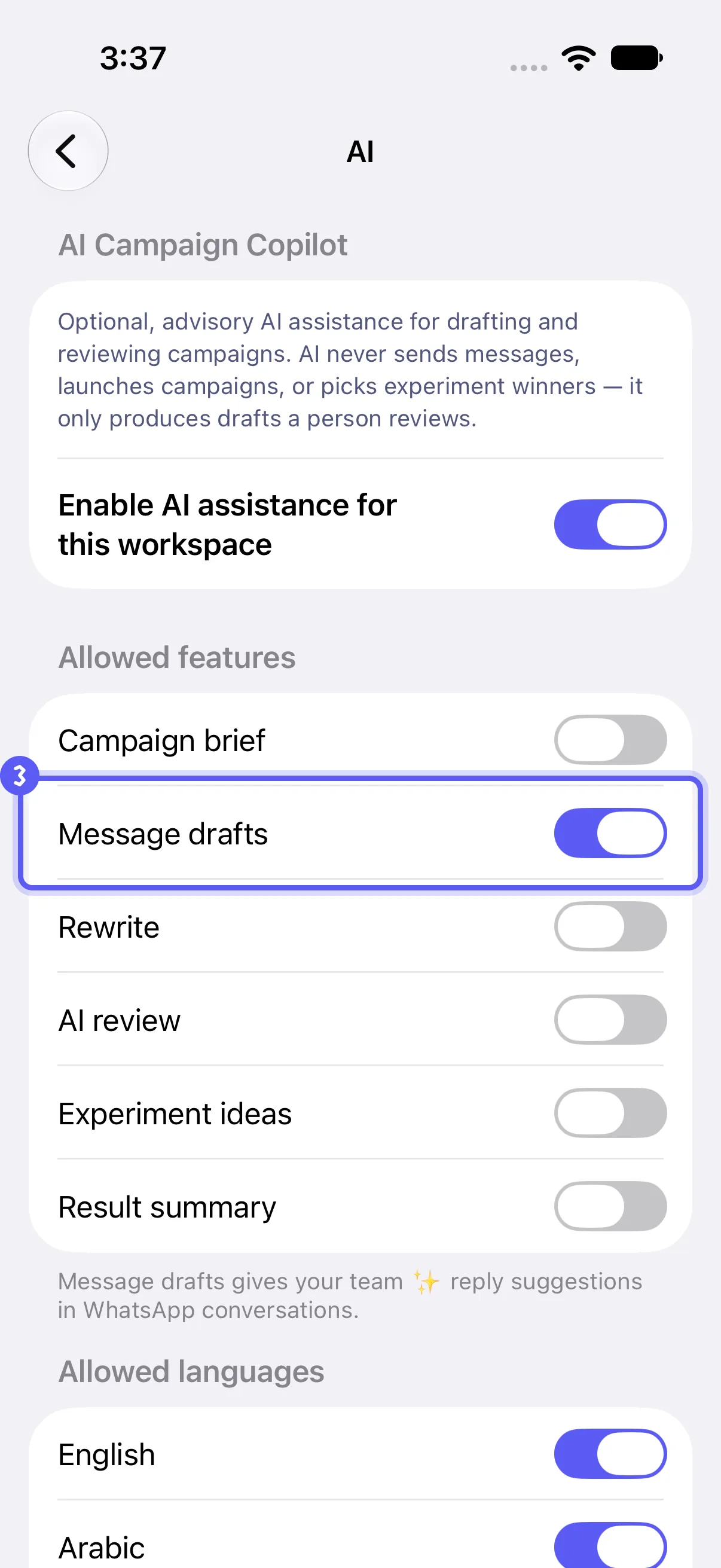
Under Allowed features, turn on Message drafts.
What you should see: Message drafts is on. English and Arabic stay on under Allowed languages.
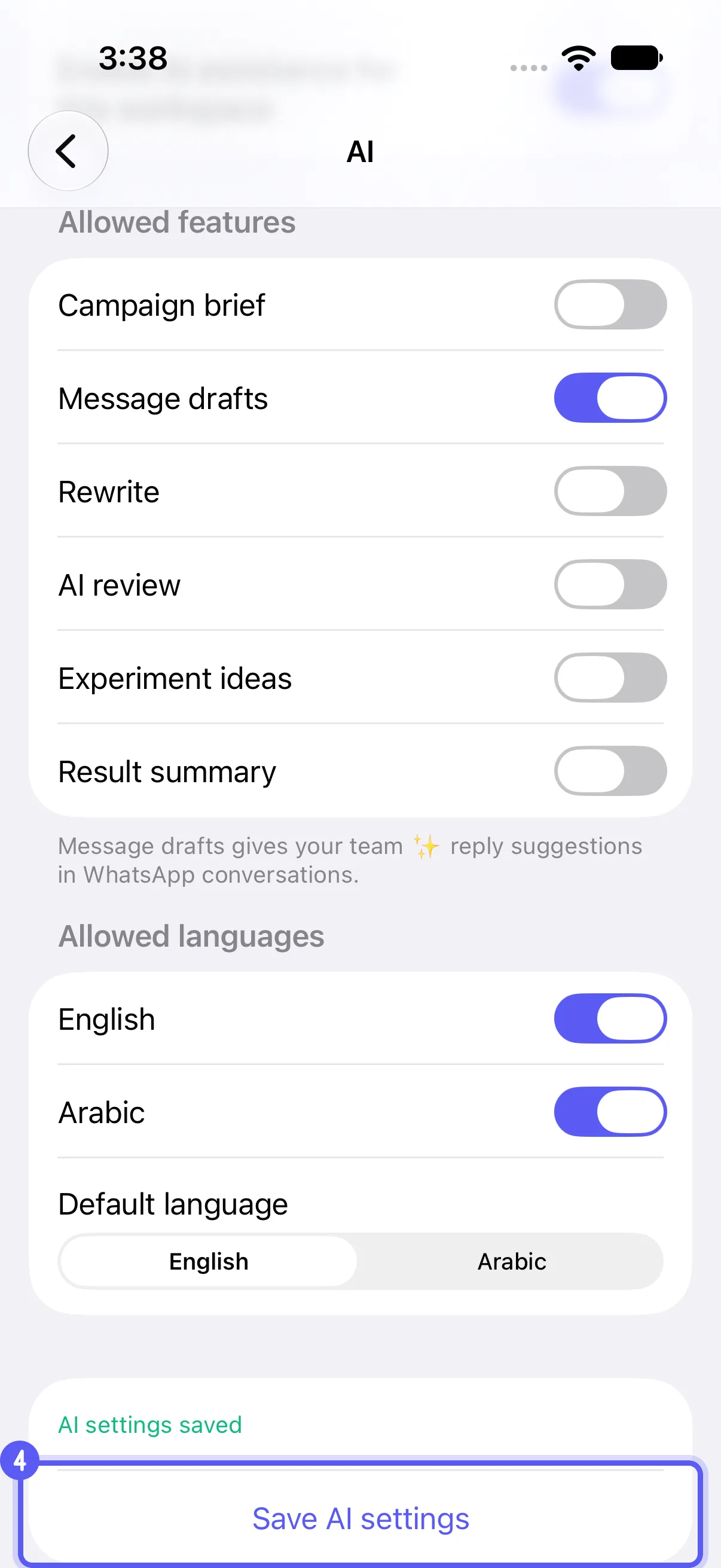
Tap Save AI settings.
What you should see: "AI settings saved" shows above the button. Your team now gets ✨ in WhatsApp conversations, in the app and on the web.
Android
Open Settings and tap AI.
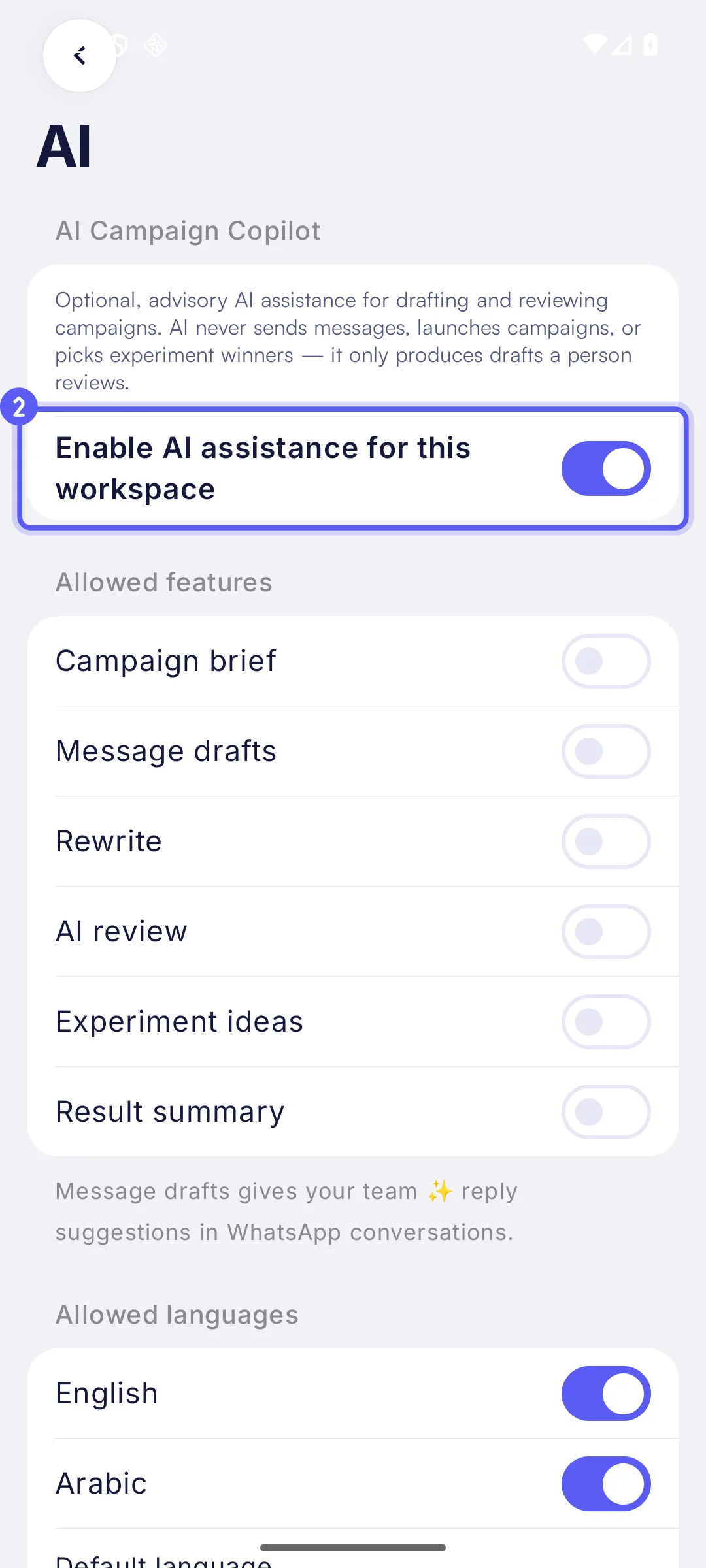
What you should see: AI settings opens with Enable AI assistance for this workspace at the top.
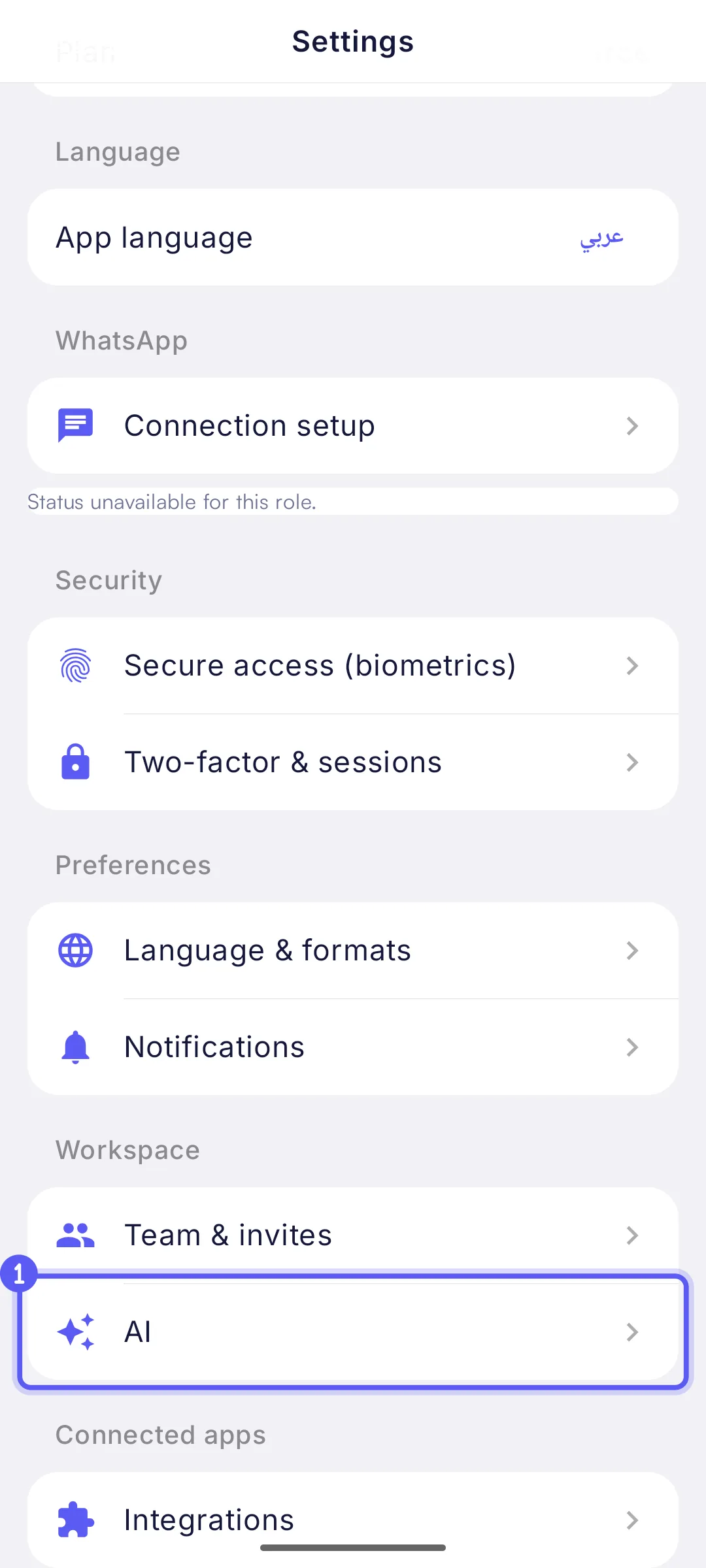
Turn on Enable AI assistance for this workspace.
What you should see: Allowed features and Allowed languages become available.
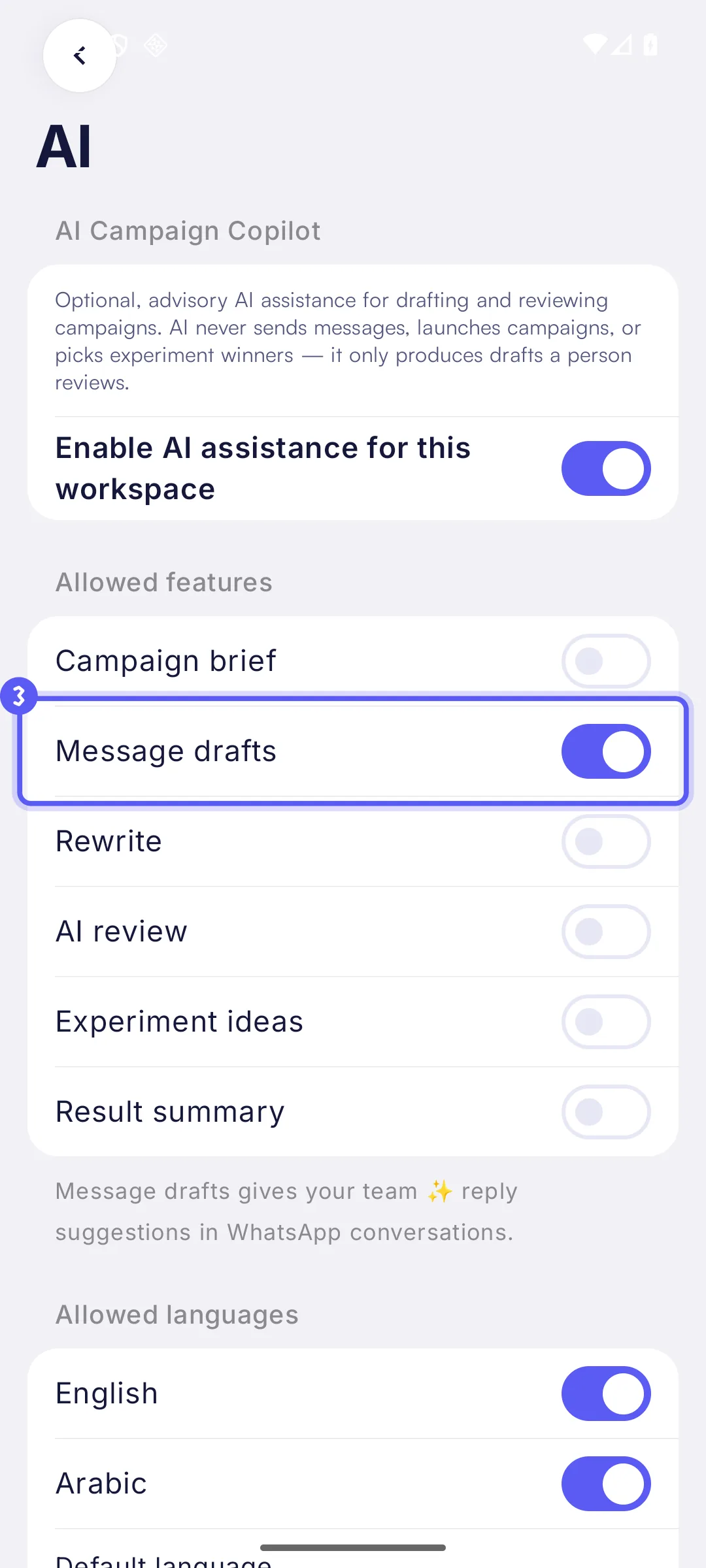
Under Allowed features, turn on Message drafts.
What you should see: Message drafts is on. English and Arabic stay on under Allowed languages.
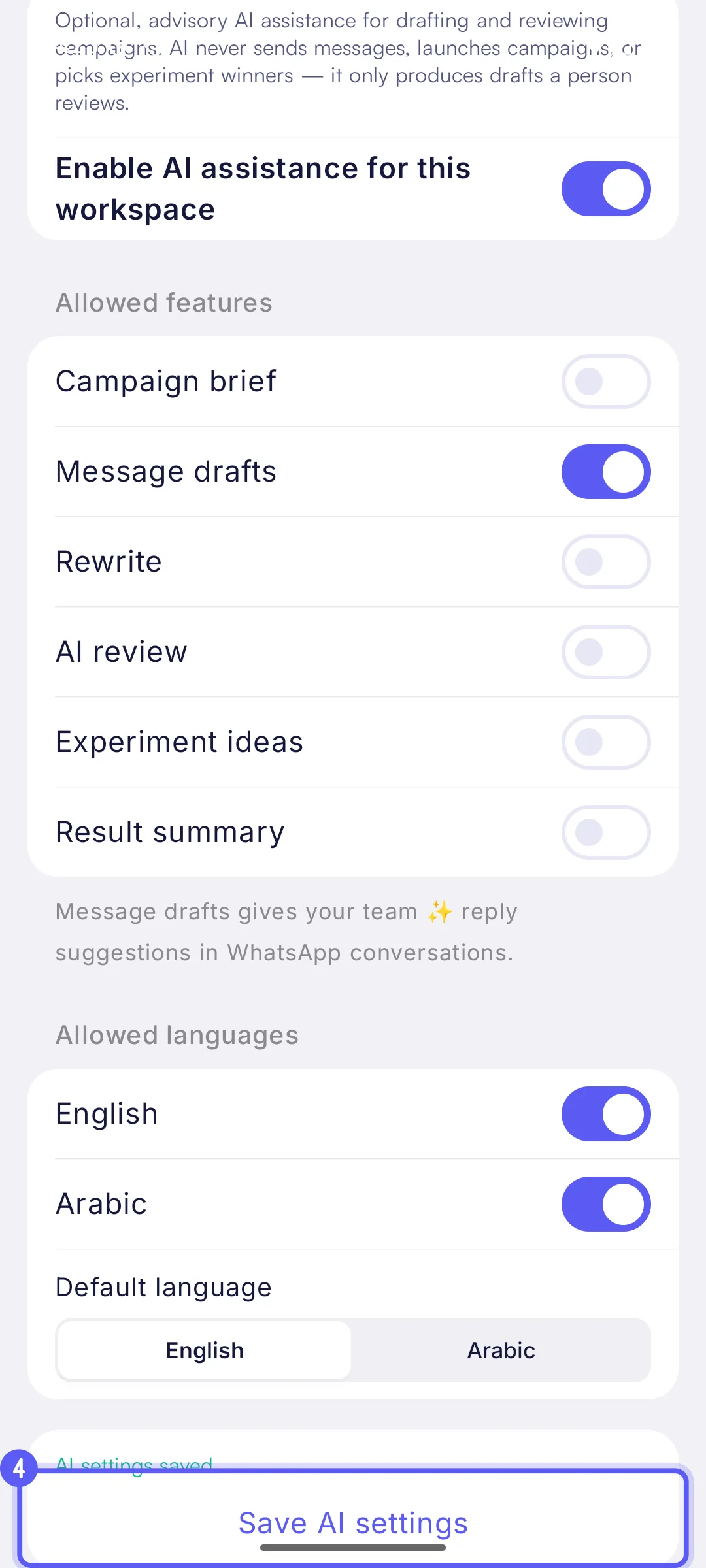
Tap Save AI settings.
What you should see: "AI settings saved" shows above the button. Your team now gets ✨ in WhatsApp conversations, in the app and on the web.
If it didn't work
- There is no AI Campaign Copilot card in Settings, or no AI row in the app's Settings.
- Only a workspace owner or admin can change AI settings. Ask one of them, or ask the owner to make you an admin. Settings → AI is available in the iPhone and Android apps; until your app shows it, use the web app.
- I saved the settings but ✨ does not appear in conversations.
- AI help is a selected pilot and must also be available for your workspace. Ask us from Support in the app.
- ✨ is greyed out in a conversation.
- The customer's 24-hour WhatsApp window is closed, so a free-text reply cannot be sent. Use an approved template instead.
- "No suggestions right now — try again."
- Click ✨ again in a moment. If it keeps failing, write your reply yourself and tell us from Support.
Frequently asked questions
Does AI send messages to my customers?
No. AI only writes drafts. A person picks one, edits it and clicks Send, or ignores it.
Which language are the drafts in?
The customer's language: Arabic when the customer's language is Arabic, English otherwise.
Can agents use ✨, or only admins?
Everyone who can reply to a conversation can use ✨ once an owner or admin has allowed Message drafts. Only owners and admins can change the AI settings.
Can I turn on AI drafts from my phone?
Settings → AI is available on the web app and in the iPhone and Android apps. In the app, open Settings → AI, turn on Enable AI assistance and Message drafts, and tap Save AI settings. It is the same setting as on the web.
Who can turn AI drafts on or off?
The workspace owner and admins. Untick Message drafts, or Enable AI assistance, and save to switch it off for everyone.
Related articles
Last updated · Added: turn on AI message drafts from Settings → AI in the iPhone and Android apps