
Book an appointment from a chat, profile or clinic tab
Reception, admins and owners book visits with one Book appointment panel, wherever they are working: in a patient's WhatsApp chat, on the patient's profile, or in the clinic tab. It has five steps (Patient, Branch, Doctor, Date & time, Confirm), can find the earliest free time across every doctor and branch, and shows the same free times as your WhatsApp booking assistant. Beside each chat and on each profile, the Patient panel shows the person's visits and the staff notes about them. All of this works on the web and in the iPhone and Android apps.
O aplicativo Morasel e seus modelos de mensagem estão em inglês e árabe. Este site também está em português.
Este artigo está disponível apenas em inglês — leia em inglês
Abra esta página no app https://app.morasel.ai/inbox
Three places open the same panel. In a chat, Book appointment books for the people on that WhatsApp number. On a patient's profile, Book appointment, Book for and a person's name, or Book a follow-up with the doctor of an attended visit start with that person (and the follow-up with the same doctor and branch). In the clinic tab, New appointment starts on the day you are looking at.
Two family members on one number, such as a parent and a child, can be booked together: on Check and confirm, click Add another person and pick their visit. Morasel suggests the time right after the first visit at the same branch. One Book books every visit (up to four), and one WhatsApp confirmation lists them all. Until the message for several visits is approved for your workspace, each visit gets its own confirmation and the panel says "Sent as 2 messages".
When a branch asks patients to pay before a visit is confirmed and the patient's 24-hour WhatsApp window is closed, the visit is booked without waiting and marked Patient pays at the clinic.
Morasel never books twice by mistake. If the connection drops while you click Book, the panel says it couldn't confirm the booking and offers Try again, which checks the same booking rather than making a new one. If you close the panel instead, check the schedule before booking again.
Find the earliest time in a specialty
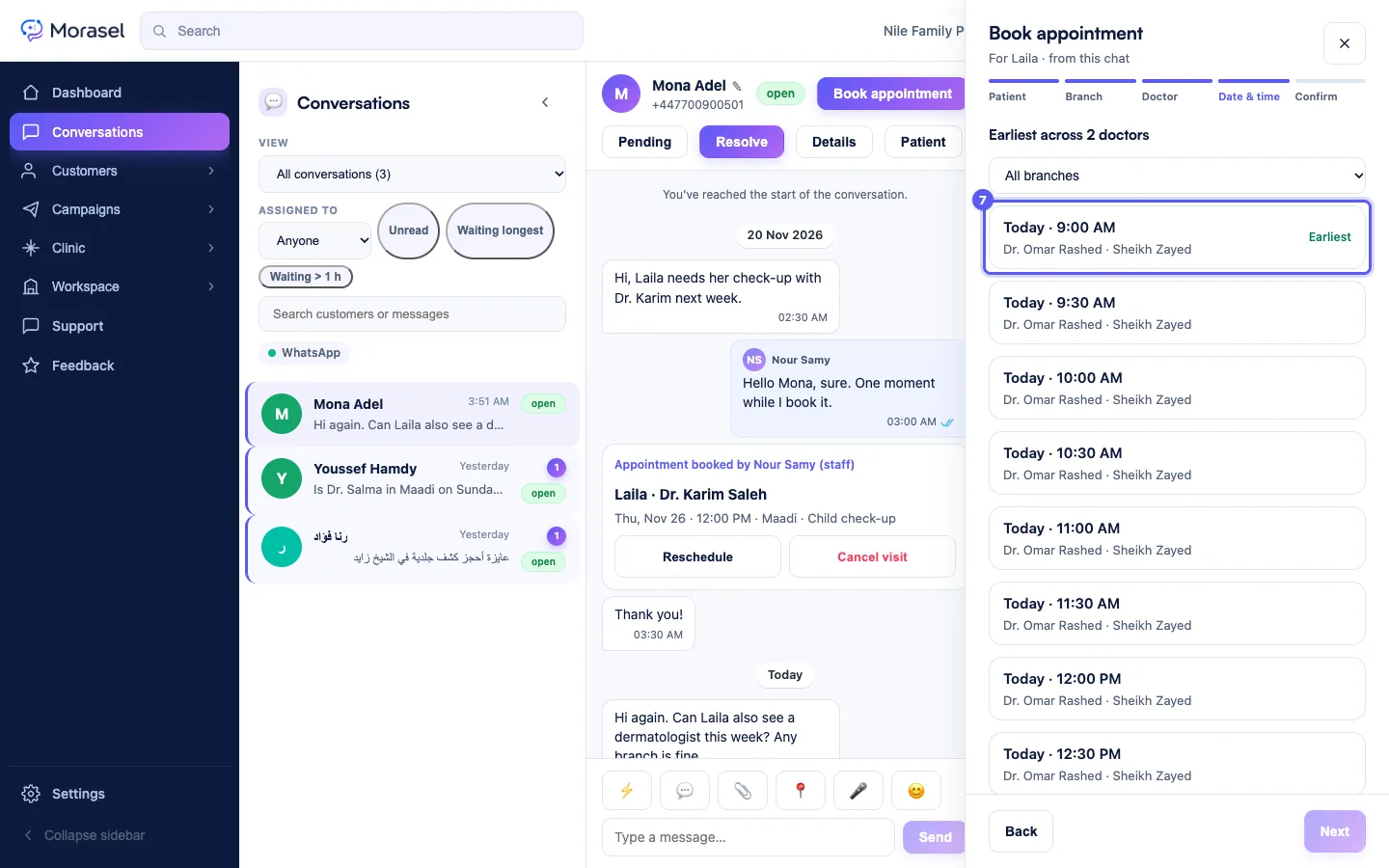
At Doctor, pick the specialty, keep Any doctor, earliest first, and click Next.
O que você deve ver: Date & time lists the earliest openings across every doctor in that specialty and every branch you can see (All branches, or one branch). Each row says when, which doctor and which branch. Pick a row and the panel fills in the branch, doctor and time and goes straight to Check and confirm. Show more loads more openings.

When the doctor is away
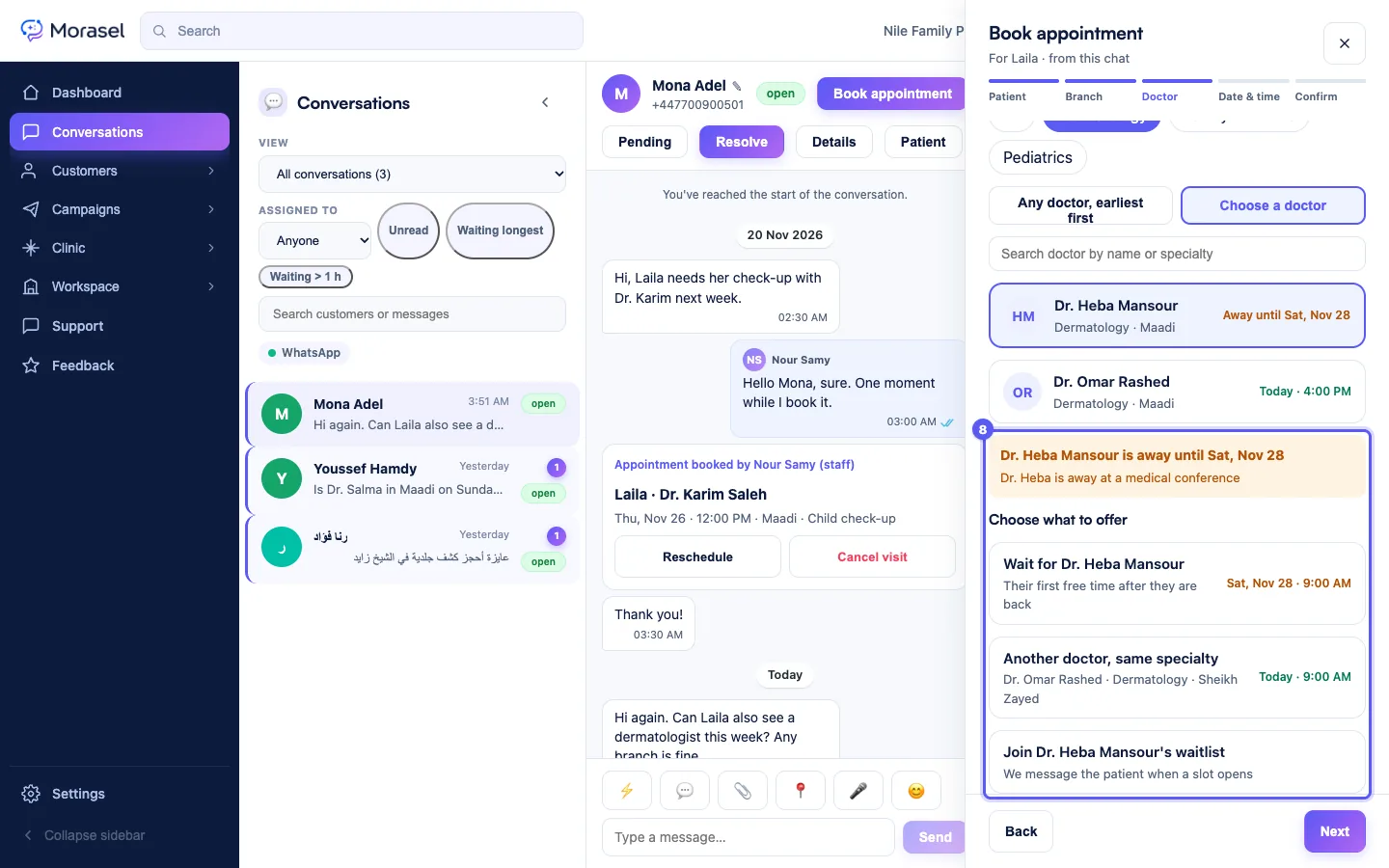
Pick a doctor who shows "Away until" a date.
O que você deve ver: A card shows the reason patients may see and the date the doctor is back, with three choices: Wait for the doctor (their first free time after they return), Another doctor, same specialty (the earliest time with someone else), or Join the doctor's waitlist (where the waitlist is on for your clinic). If you switch doctor, Tell the patient why the doctor changed is filled in with that reason; you can edit it, and it is added to the confirmation only while the patient's 24-hour WhatsApp window is open.

Patient visits and notes
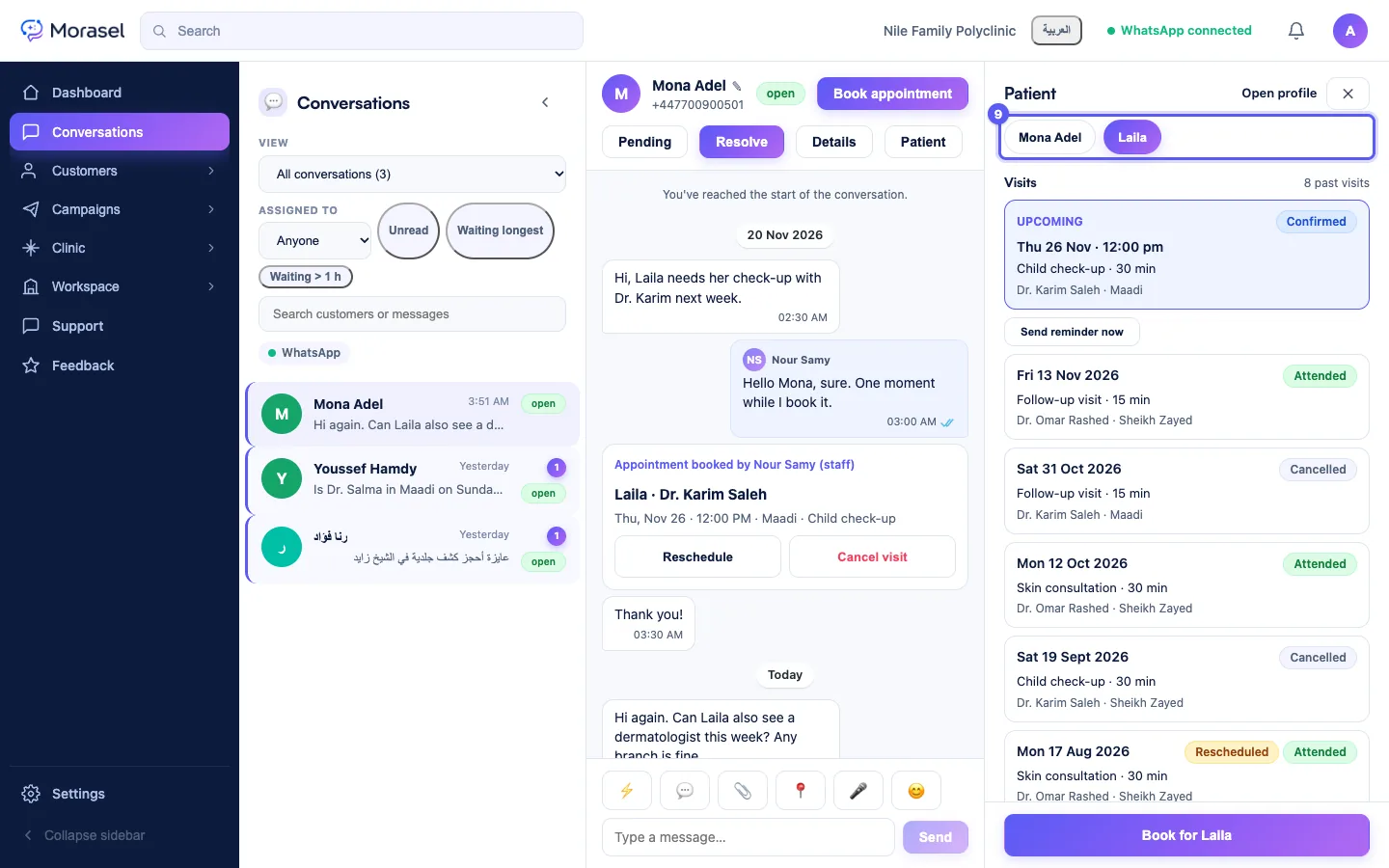
Open a patient's chat. The Patient panel sits beside it (click Patient at the top of the chat if it is closed); pick a person when several people share the number.
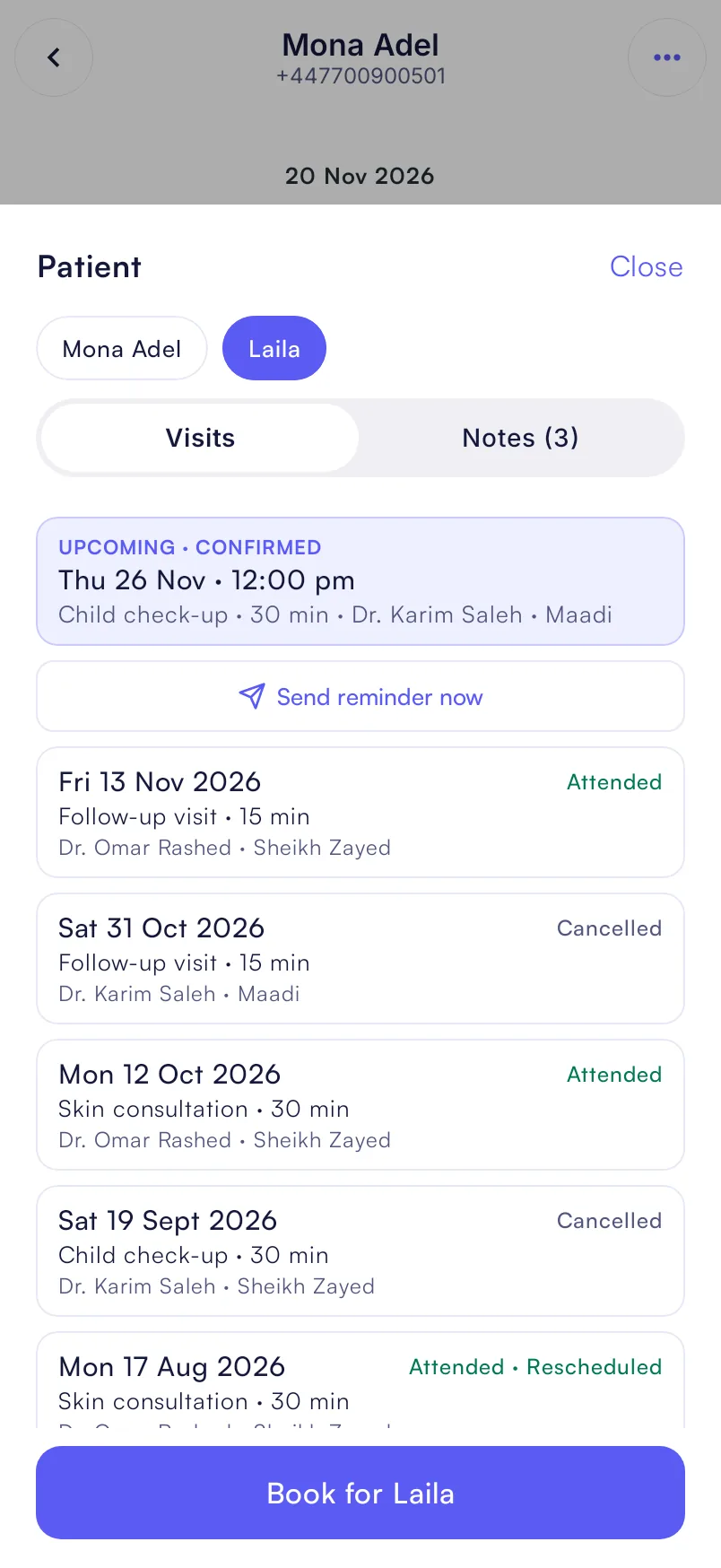
O que você deve ver: The panel shows the upcoming visit on top, then past visits, newest first, five at a time (Load 5 more), each with its status: Attended, No-show, Cancelled or Not recorded, and Rescheduled when it was moved. Click a visit to open it in the clinic tab. Below are the notes about that person, and Book for opens the booking panel for them. Open profile goes to the patient's profile.
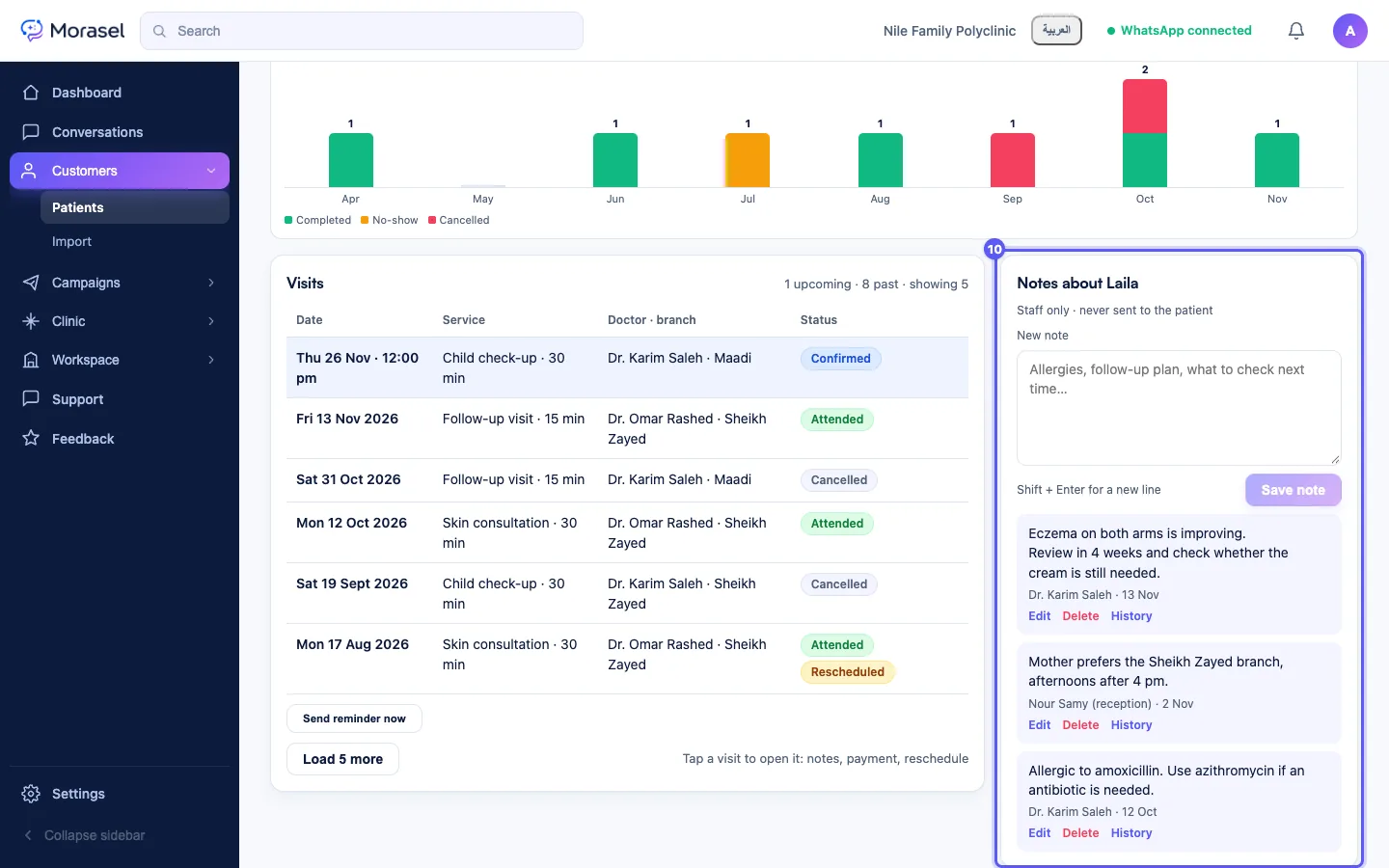
On the patient's profile, read the visits table and write a note in Notes about the patient, then click Save note.
O que você deve ver: The note shows your name and the time, newest first. Notes are staff-only: they are never sent to the patient, never shown in the chat, and never read by AI. You can edit or delete your own notes; owners and admins can edit or delete any note and open History to see earlier versions. A note by reception shows "(reception)" after the name, and a note by someone who has left the team shows "(former staff)".


Export the day to Excel
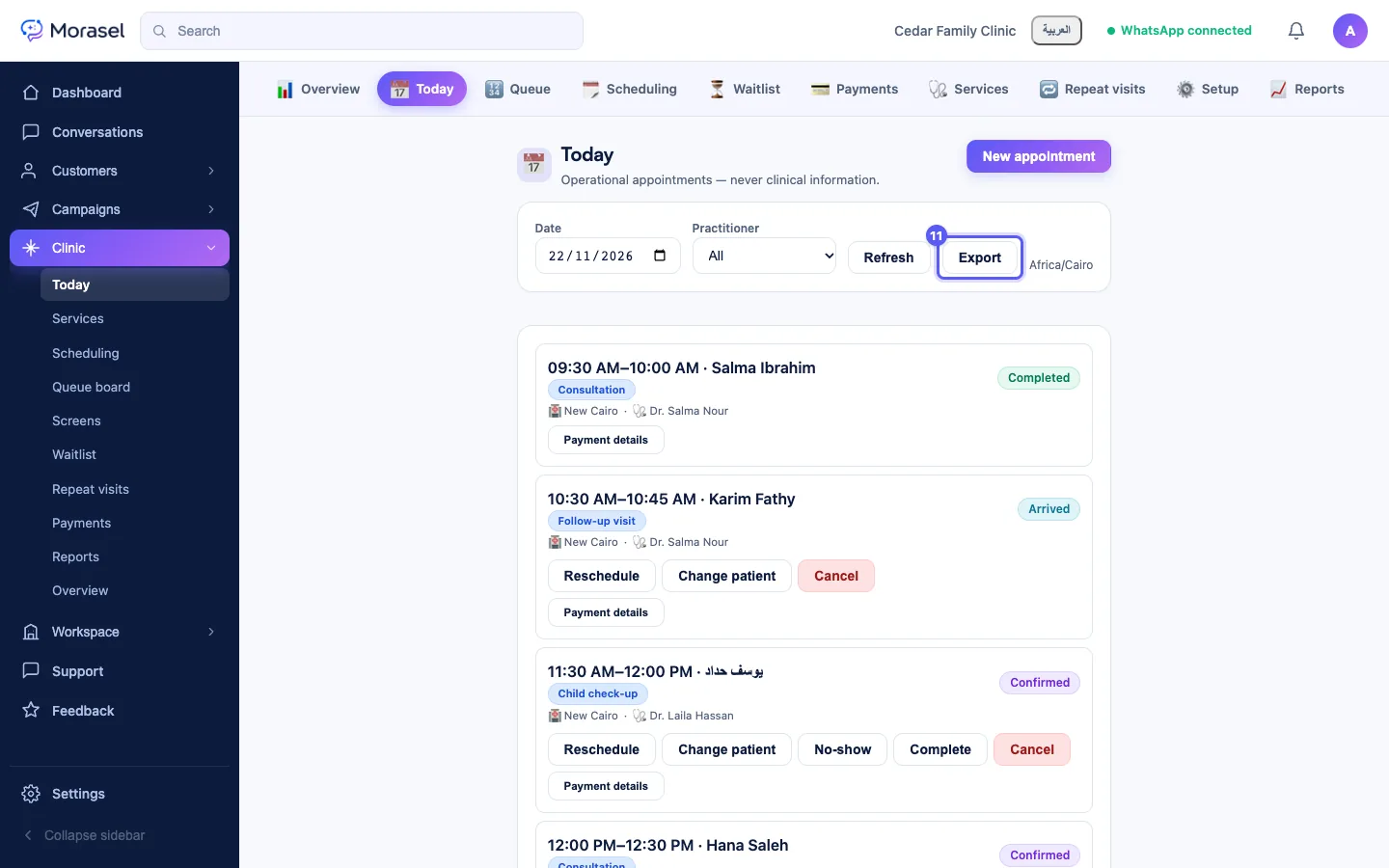
In the clinic tab's Today, pick the day (and a doctor, if you like) and click Export.
O que você deve ver: "Preparing file…" shows, then an Excel file (.xlsx) downloads with the day's visits in the schedule's order: Time, No., Patient, Phone, Doctor, Service, Branch and Status. Times are in the clinic's time zone, and the file follows your app language (an Arabic file reads right to left). Staff notes are never in the file. On a day with no visits, Export is off and the page says "No visits this day". Owners, admins and reception can export. Export is also at the top of the day's schedule nos apps de iPhone e Android, where it opens the share sheet to save or send the file.

Open a patient's profile from a clinic list
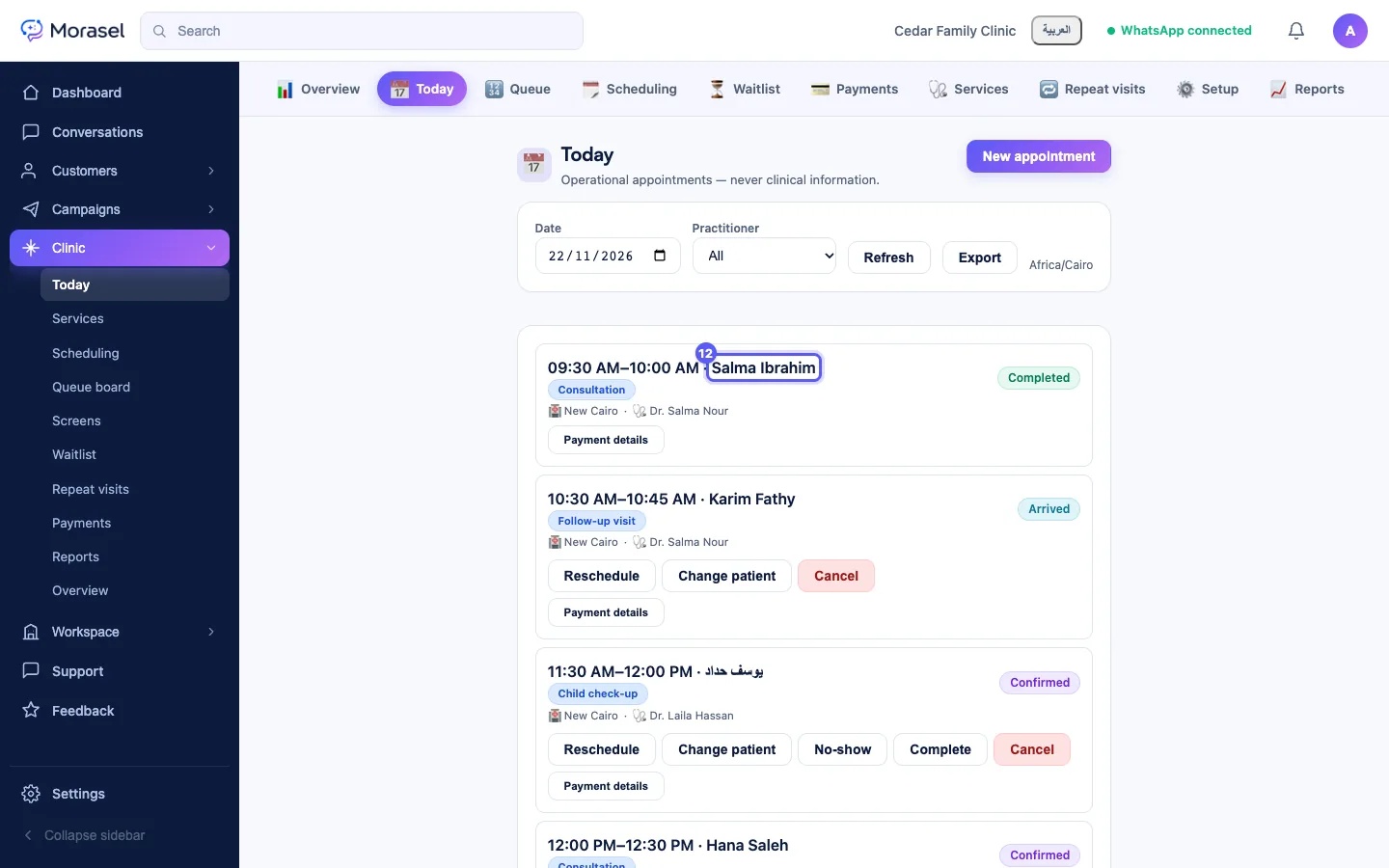
In Today, the queue, the waitlist or Repeat visits, click a patient's name.
O que você deve ver: The patient's profile opens, with their visits, notes and details. A visit booked for a family member opens the profile of the person who owns the WhatsApp number, which lists the family. The name is a link for staff who can see patients; for others it is plain text. Tapping the name opens the profile over the list nos apps de iPhone e Android; there, the walk-in waiting list shows numbers only.

No seu dispositivo
Web
Open the patient's chat in Conversations and click Book appointment at the top of the chat.
O que você deve ver: The Book appointment panel opens on the right, at Patient: "Who is the appointment for?". It lists the people on this WhatsApp number (the account holder first, then family members on the same number) and Someone new. When the number has only one person, this step is skipped.
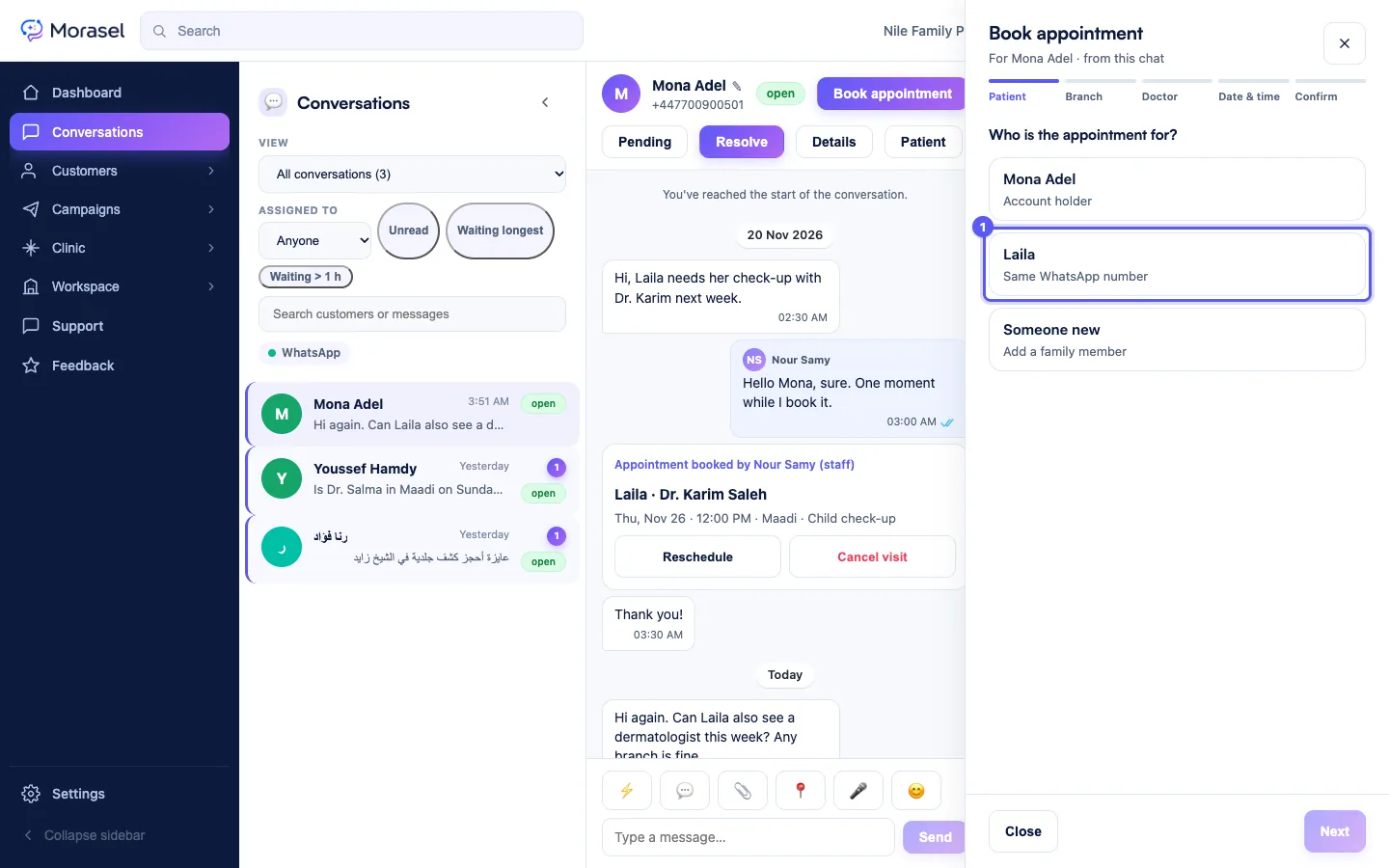
Pick the person, click Next, then pick the branch.
O que você deve ver: Clinic and branch lists each branch with its next free time. A clinic with one branch skips this step.
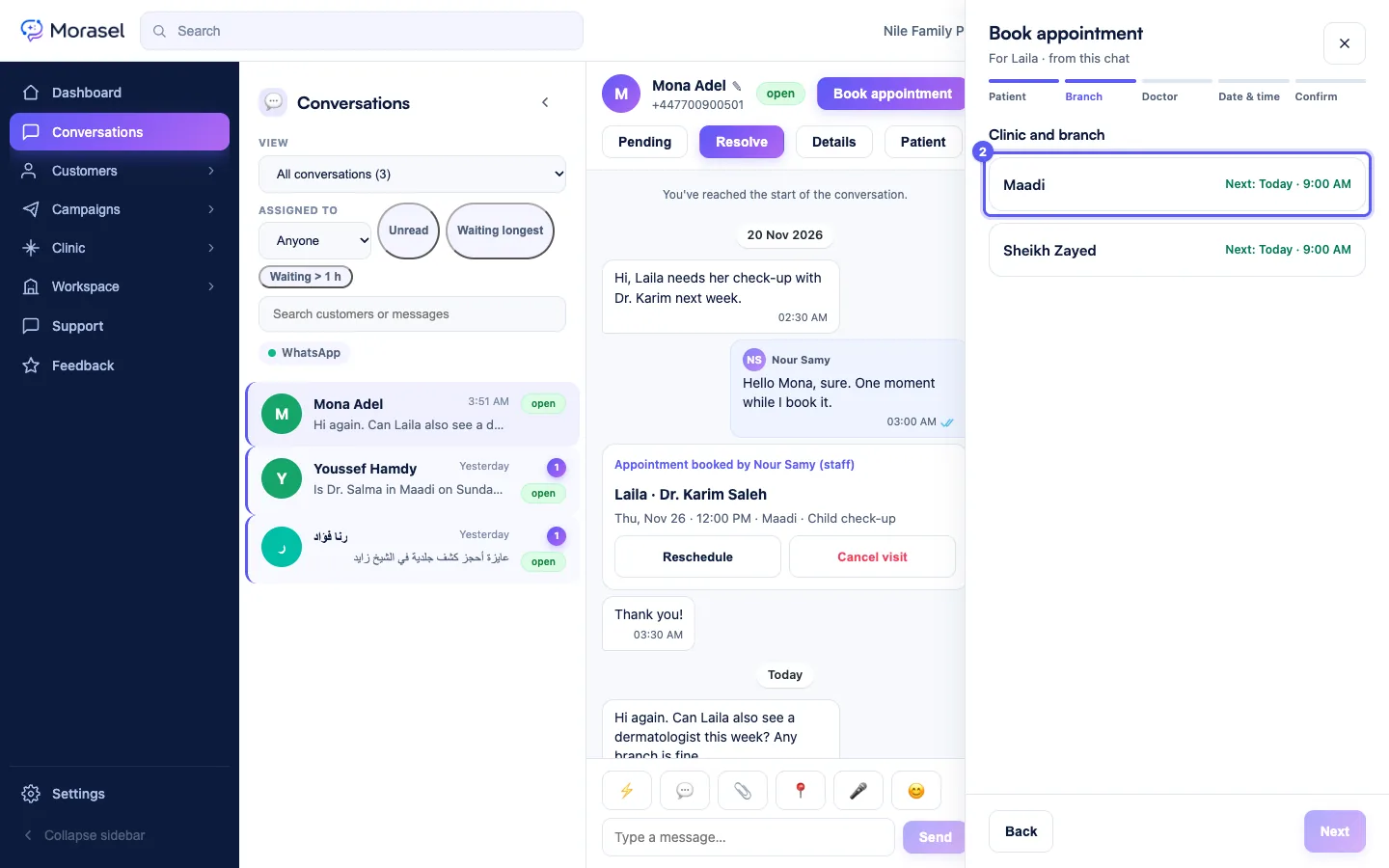
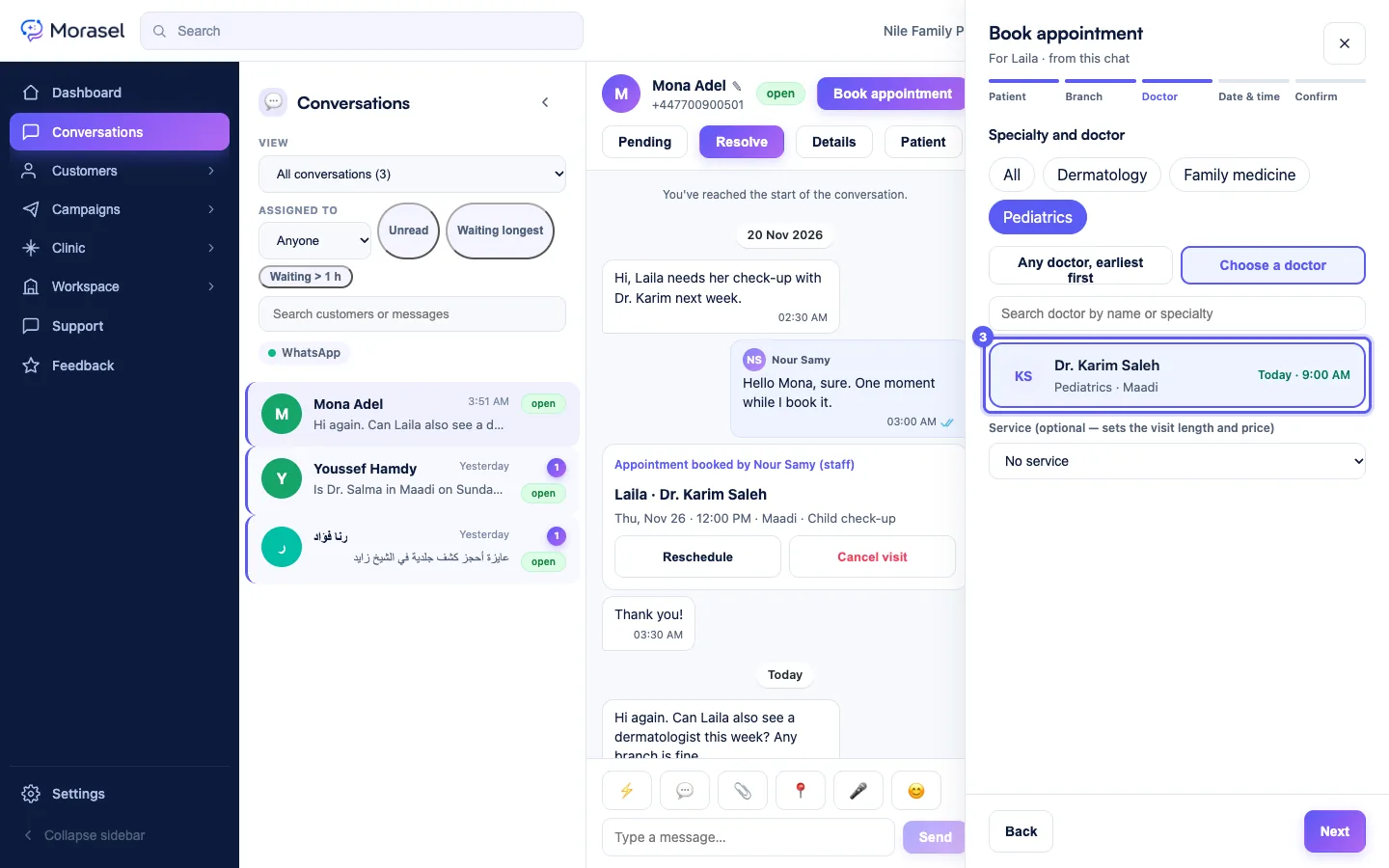
Click Next. Pick a specialty, then choose Choose a doctor and pick the doctor, or search by name or specialty.
O que você deve ver: Each doctor shows their next free time, or "Away until" a date. Any doctor, earliest first finds the earliest time in the specialty instead (see below). An optional service under the list sets the visit's length.
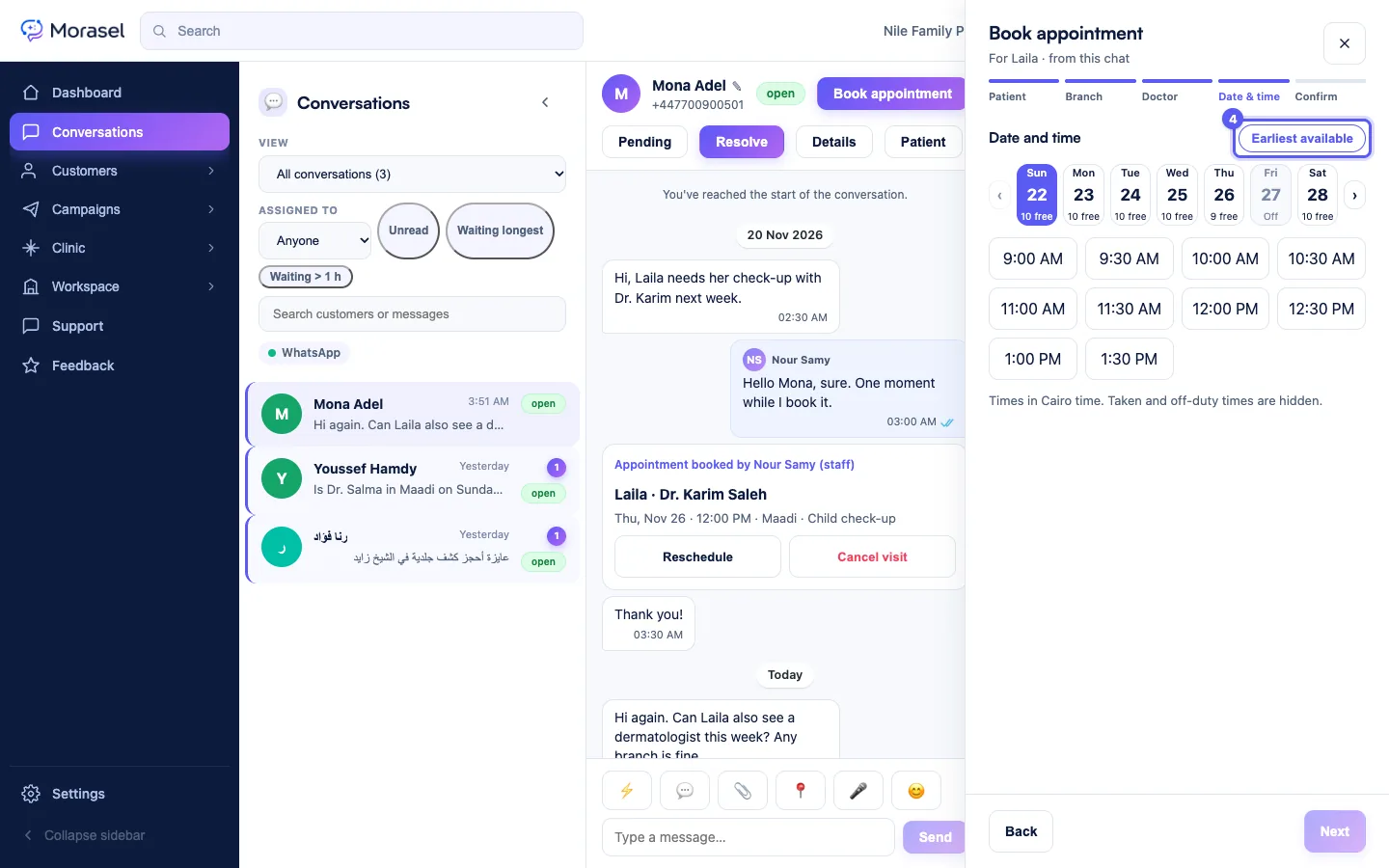
Click Next and pick a time. Earliest available lists the soonest openings; Show the full calendar shows the week.
O que você deve ver: Each day in the week strip reads how many times are free, Full, Off or Away, and the free times show below it. Times are in the clinic's time zone, for example "Times in Cairo time". On a full day you can add the patient to the waitlist, where the waitlist is on for your clinic.
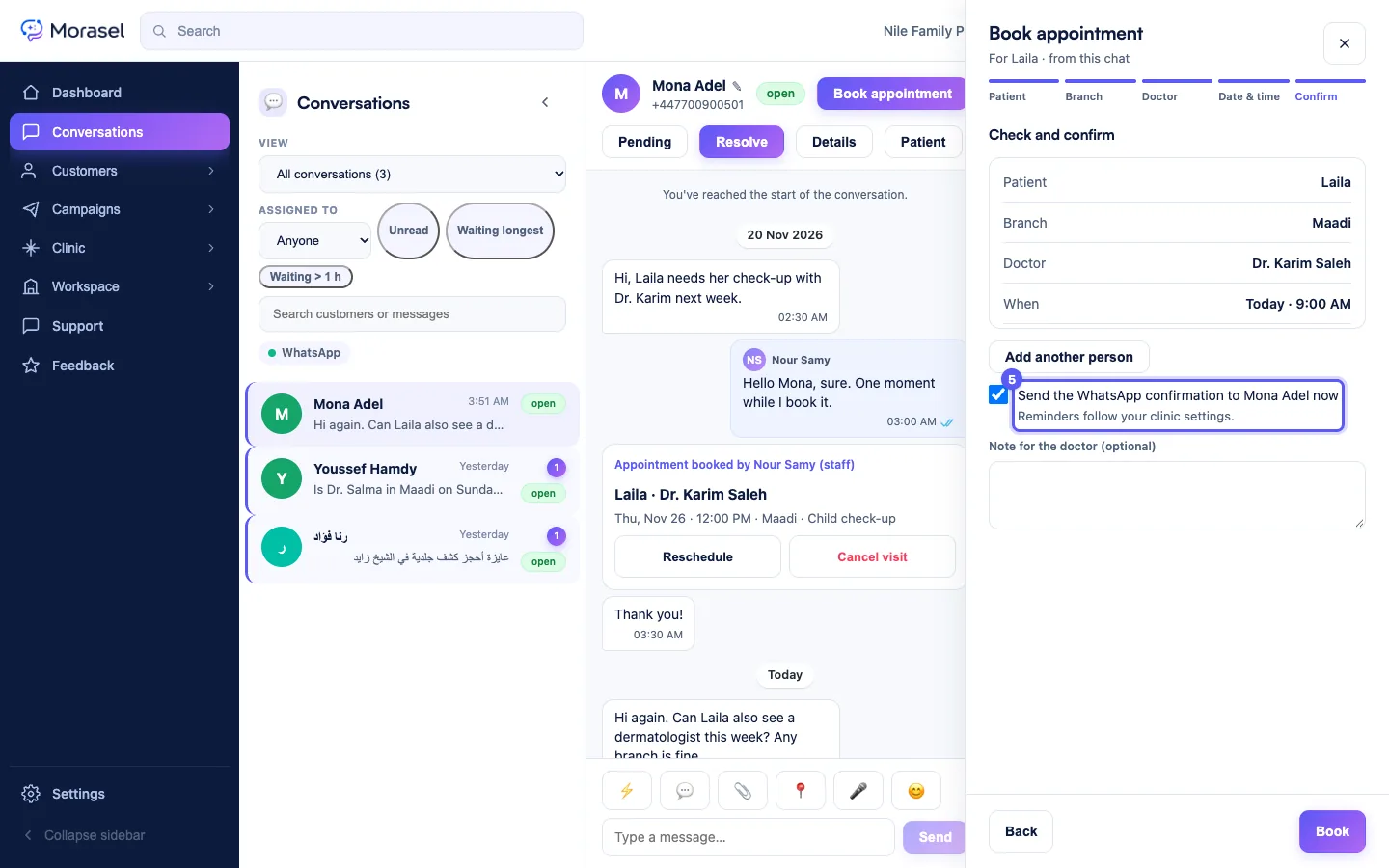
On Check and confirm, read the summary, leave Send the WhatsApp confirmation ticked (or untick it), add a note for the doctor if you like, and click Book.
O que você deve ver: The panel shows Booked and closes. The patient gets one WhatsApp confirmation for the booking. The note for the doctor is never sent: your team reads it as Note for the doctor in the visit's details (Visit details in the clinic tab on the web, the appointment screen in the apps). Add another person books a second family member in the same go.
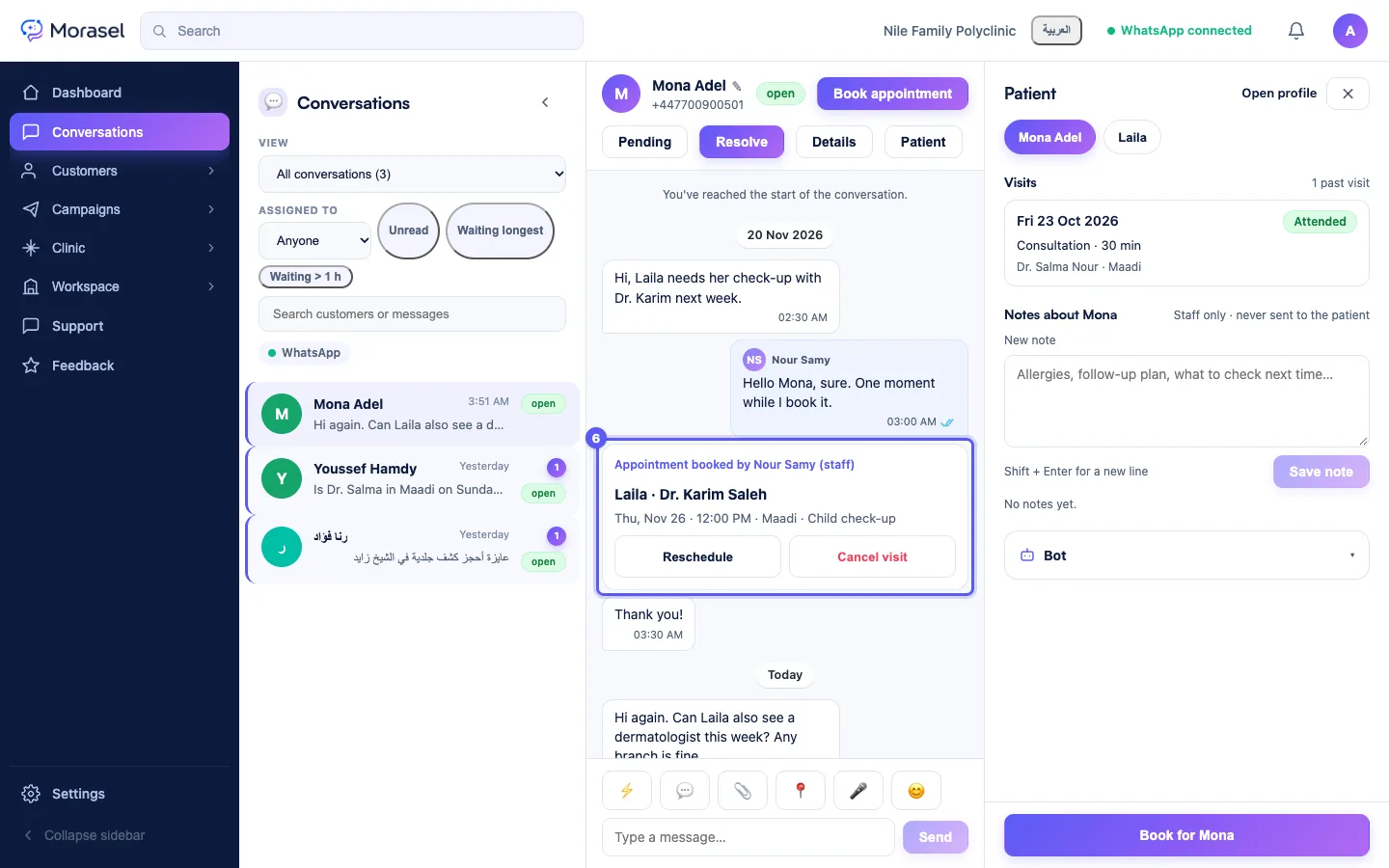
Look at the chat after booking.
O que você deve ver: A card in the chat reads "Appointment booked by" and the staff member's name, with each visit's person, doctor, date, time, branch and current status. Reschedule opens the panel at Date & time for that visit, and Cancel visit cancels it after you confirm. The card is for your team only: it is never sent to the patient.


iPhone
In a chat, tap the ⋯ menu and then Book appointment. You can also start from a patient's profile or the clinic tab.
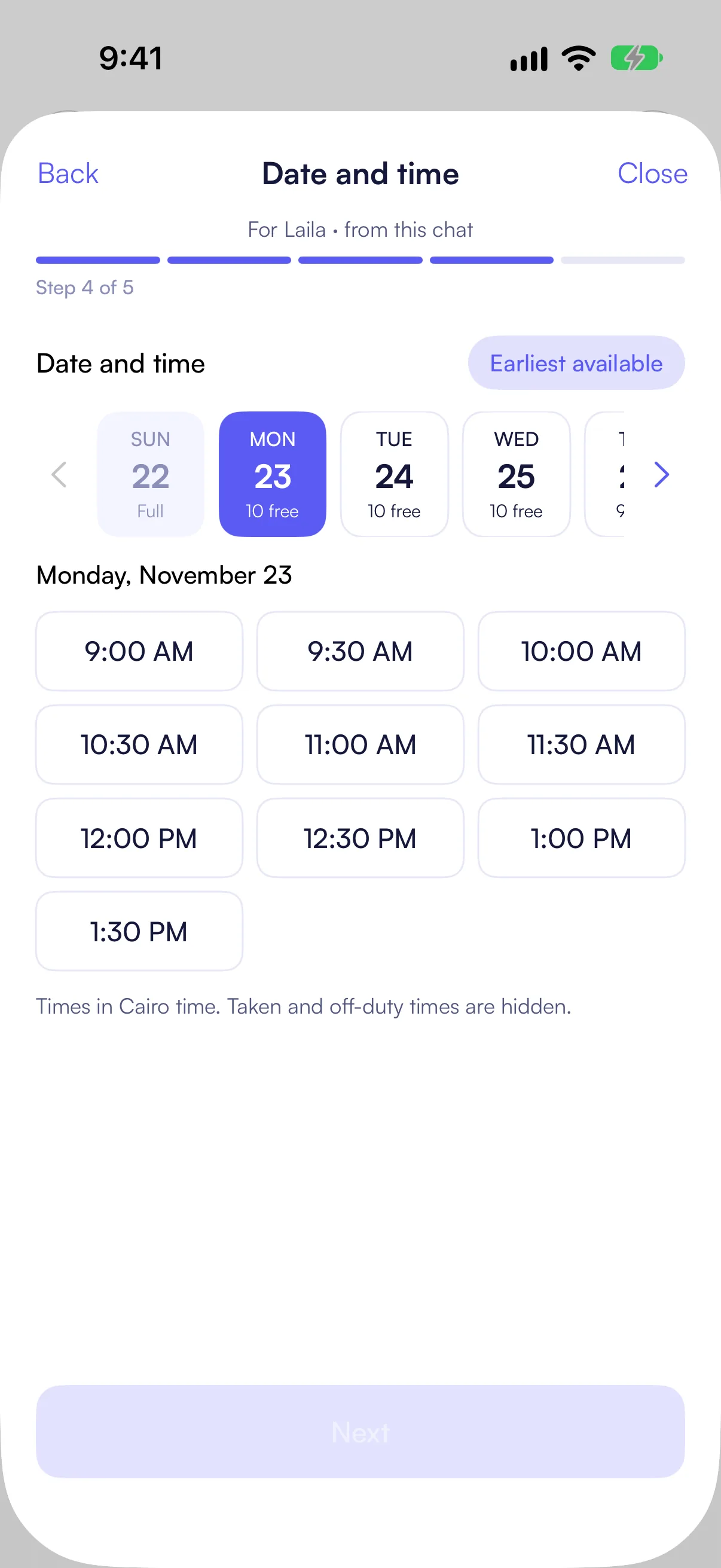
O que você deve ver: The same five steps open as a full-height sheet, with the step number at the top. Date & time shows the week strip and the free times, and Earliest available lists the soonest openings.
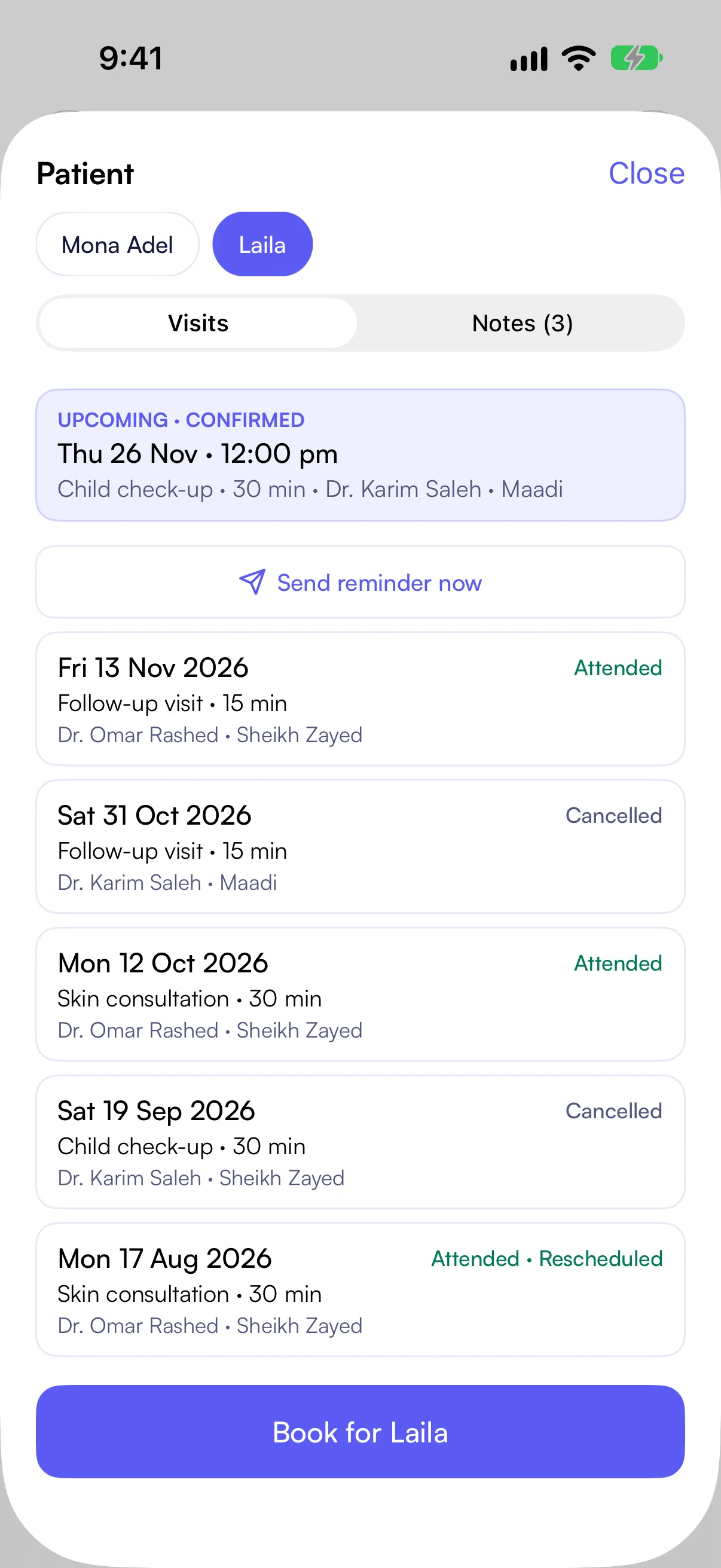
In a chat, tap the ⋯ menu and then Patient.
O que você deve ver: The Patient sheet shows the people on the number, then Visits and Notes. The upcoming visit is on top. Book for and the person's name opens the booking sheet for that person.
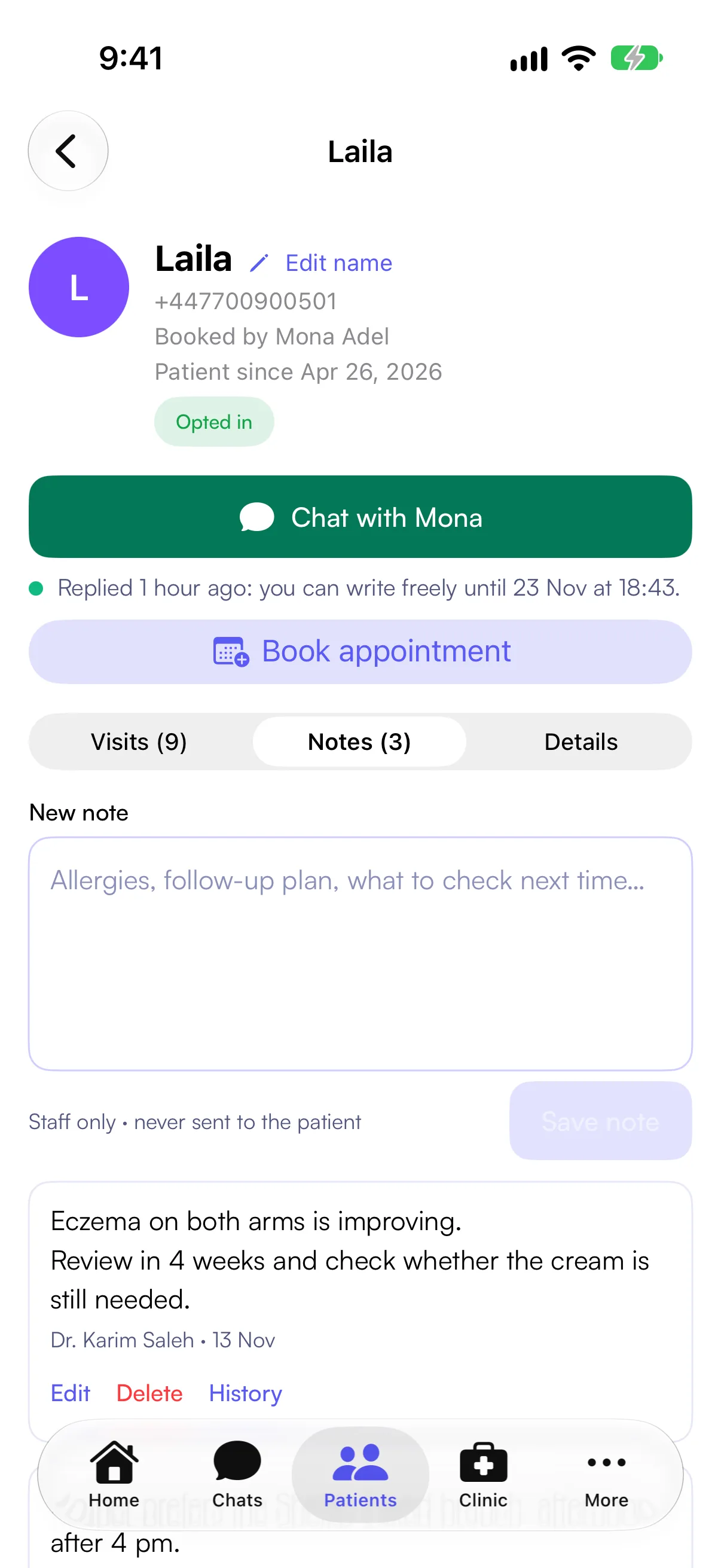
Open the patient's profile and tap Notes.
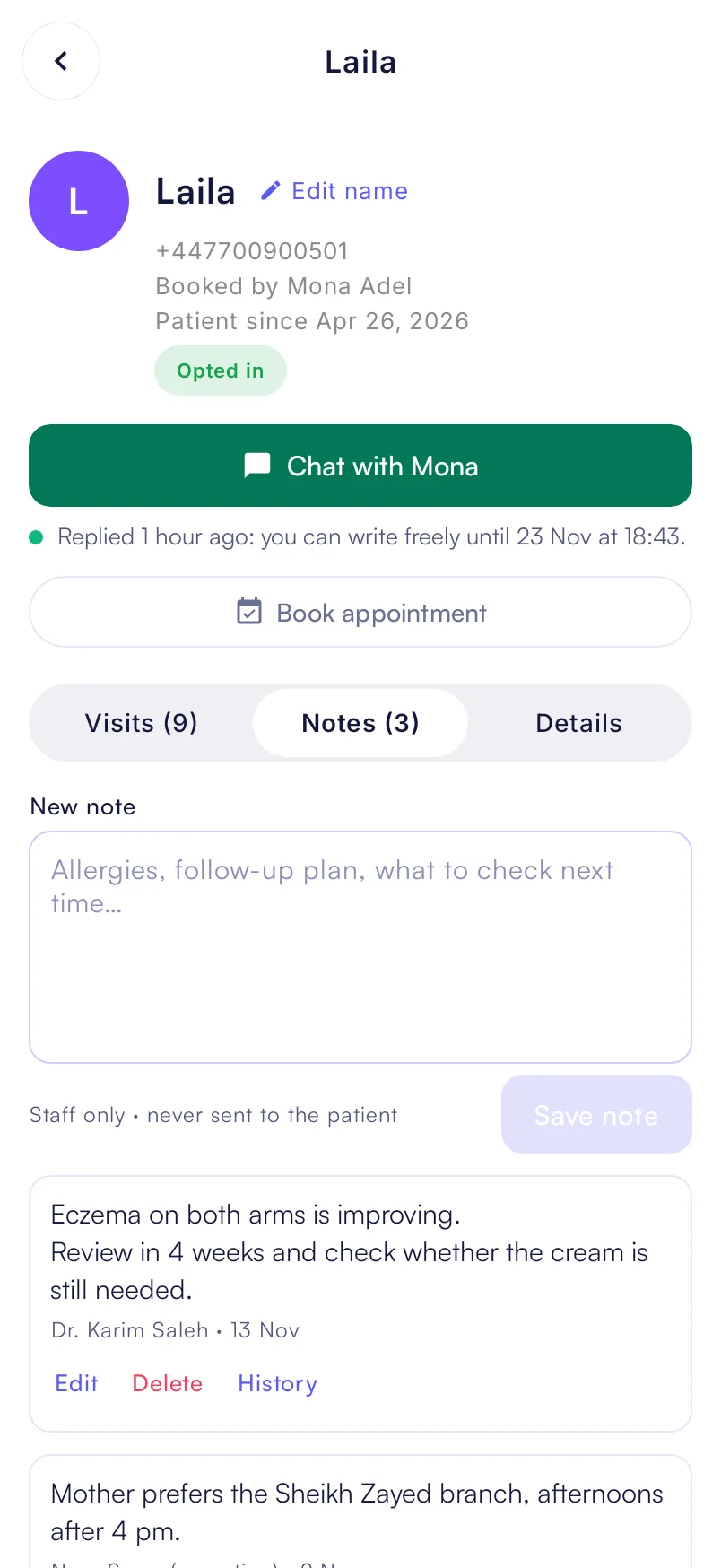
O que você deve ver: The profile has three tabs: Visits, Notes and Details. Notes has a box for a new note, "Staff only · never sent to the patient", and the saved notes below.
Android
In a chat, tap the ⋮ menu and then Book appointment. You can also start from a patient's profile or the clinic tab.
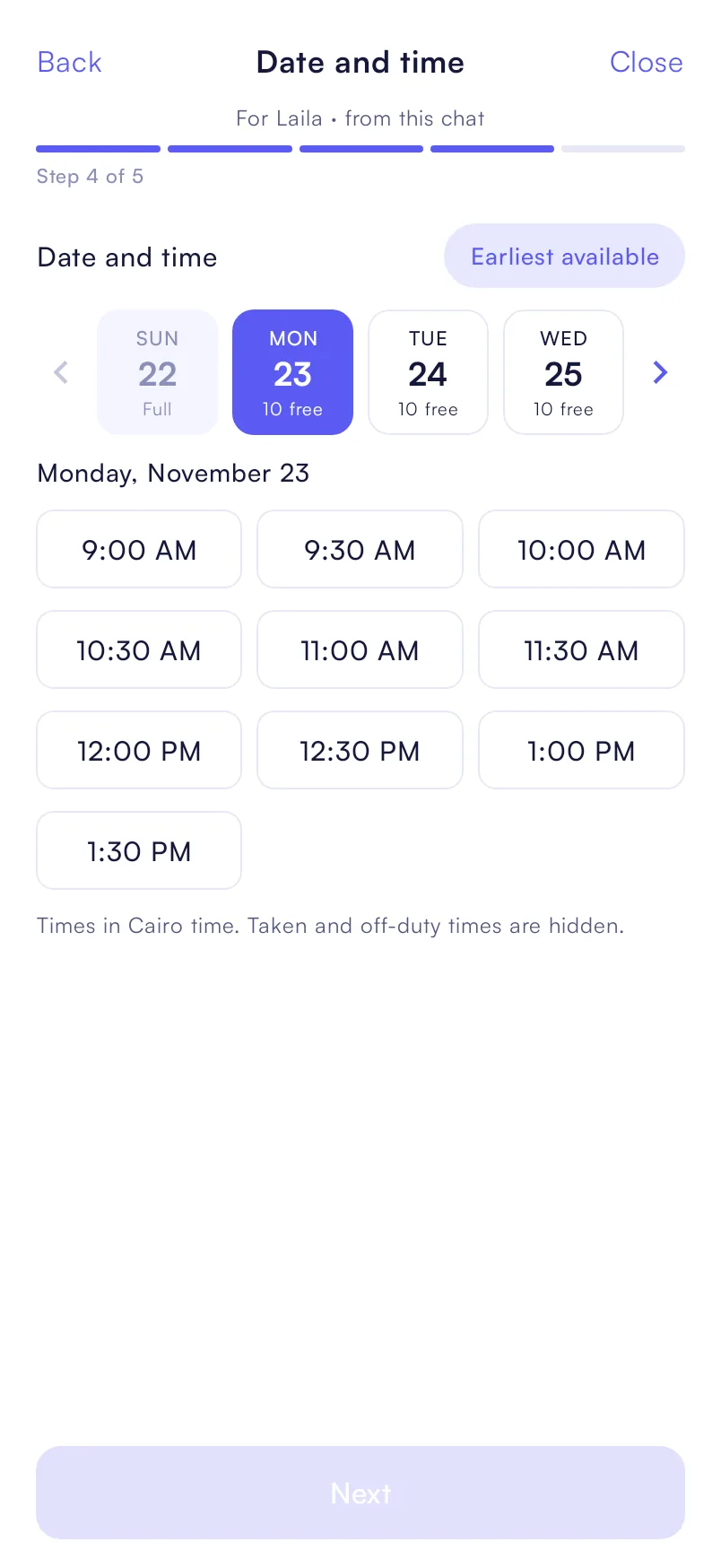
O que você deve ver: The same five steps open as a full-height sheet, with the step number at the top. Date & time shows the week strip and the free times, and Earliest available lists the soonest openings.
In a chat, tap the ⋮ menu and then Patient.
O que você deve ver: The Patient sheet shows the people on the number, then Visits and Notes. The upcoming visit is on top. Book for and the person's name opens the booking sheet for that person.
Open the patient's profile and tap Notes.
O que você deve ver: The profile has three tabs: Visits, Notes and Details. Notes has a box for a new note, "Staff only · never sent to the patient", and the saved notes below.
Se não funcionou
- There is no Book appointment button in the chat.
- It shows in a clinic workspace's WhatsApp chats for team members who can book, and not on imported chat history. An owner or admin can switch booking on or off for one person in Team & Access ("Can book, confirm, reschedule and cancel appointments").
- The time I picked says "Just taken".
- Someone else booked it a moment earlier, from the clinic or on WhatsApp. The panel shows the next free time; pick it or choose another.
- The panel says WhatsApp is disconnected.
- The visit is still booked, and the confirmation waits until your WhatsApp number is connected again. Reconnect it in Settings or ask your workspace owner.
- I can't edit someone else's note.
- Only the note's author, an owner or an admin can edit or delete a note. Write a new note instead, or ask an admin.
Perguntas frequentes
Who can book appointments with the panel?
Owners, admins and reception (the Agent role) can book, reschedule and cancel visits from the start. An owner or admin can switch that off for one person in Team & Access.
Does the panel show the same free times as the WhatsApp assistant?
Yes. The panel and the WhatsApp booking assistant read the same availability, so they never disagree about what is free, including doctors' working hours, time off and visits booked a moment ago. O agendamento pelo WhatsApp fica ativo em todas as clínicas assim que o número de WhatsApp é conectado.
Does the patient get a message when I book?
Yes, when Send the WhatsApp confirmation is ticked (it is by default): one confirmation per booking, in the patient's language, with the usual reminder before the visit. Untick it to book without a message. A patient who asked not to be messaged gets nothing, and the panel says "Not sent: opted out".
Who can see the staff notes about a patient?
Everyone on the clinic team: doctors, reception, admins and owners, on the web and in the iPhone and Android apps. The patient never sees them, they are never sent on WhatsApp, and AI never reads them. The author can edit or delete their own note, and owners and admins can edit or delete any note and see its earlier versions in History.
Is this an electronic health record?
No. Morasel is not an electronic health record: it has no charting, diagnoses, results or prescriptions. Notes are short free-text notes for your team, kept beside the patient's visits.
Can I book a time outside the doctor's normal slots, or repeat visits?
Not from the panel: it offers the doctor's free times only. For a custom time or a series of repeat visits, use Custom time or repeat visits in the clinic tab.
Can I fix a patient's name on their profile?
Yes. Edit name beside the name on the patient's profile renames the person the profile shows. For the person who owns the WhatsApp number it works like ✎ in the chat, and WhatsApp never changes it back; staff who can reply to chats can do it. For a family member on the same number it renames only that person, and needs the "Add, edit and import contacts" permission. The person's visits show the new name in the schedule straight away.
Can I book from a free time on the clinic's schedule?
Yes, in any clinic that books by time. On Clinic → Schedule, click "+ book" on a free time: this panel opens on that speciality, doctor, day and time, so you only choose the patient. See "Clinic Schedule: every doctor's day side by side".
A parent booked for their child under their own name. How do I move the visit to the child?
Use Change patient, not Edit name: Edit name would rename the parent. In the clinic tab, click Change patient on the visit in Today (or open the visit in the Schedule and choose Change patient). "This visit is for someone else" lists the people on that WhatsApp number; pick the child, or click Add someone else and type their name, then click Save. The visit and its reminders move to the child on the same number, with the same time, doctor and service, and nothing is sent to the patient. Owners, admins and reception can do it; a visit that is over can't be changed. It works no app web e nos apps de iPhone e Android. On iPhone and Android, open the visit from Today and tap Change patient, or long-press the visit in the Schedule and choose Change patient.
How do I book an online visit?
At an Online branch, book it like any visit: by time slot or by queue number, as the branch is set up. The patient's messages never carry an address or a map, and the patient gets a join link on WhatsApp once the visit is confirmed. See "Run an online clinic with meeting links".
Artigos relacionados
Última atualização · New: the shared Book appointment panel and the Patient panel are on for every clinic, on the web and in the iPhone and Android apps