
Connect your WhatsApp Business number
Morasel works on your own WhatsApp Business number, so customers keep messaging the number they know. You connect it once, from the web app, through Meta's sign-up window. Only the workspace owner or an admin can do this. Have a Facebook login, your business details and the phone that receives the number's verification code ready.
O aplicativo Morasel e seus modelos de mensagem estão em inglês e árabe. Este site também está em português.
Este artigo está disponível apenas em inglês — leia em inglês
Abra esta página no app https://app.morasel.ai/whatsapp-setup
Passos
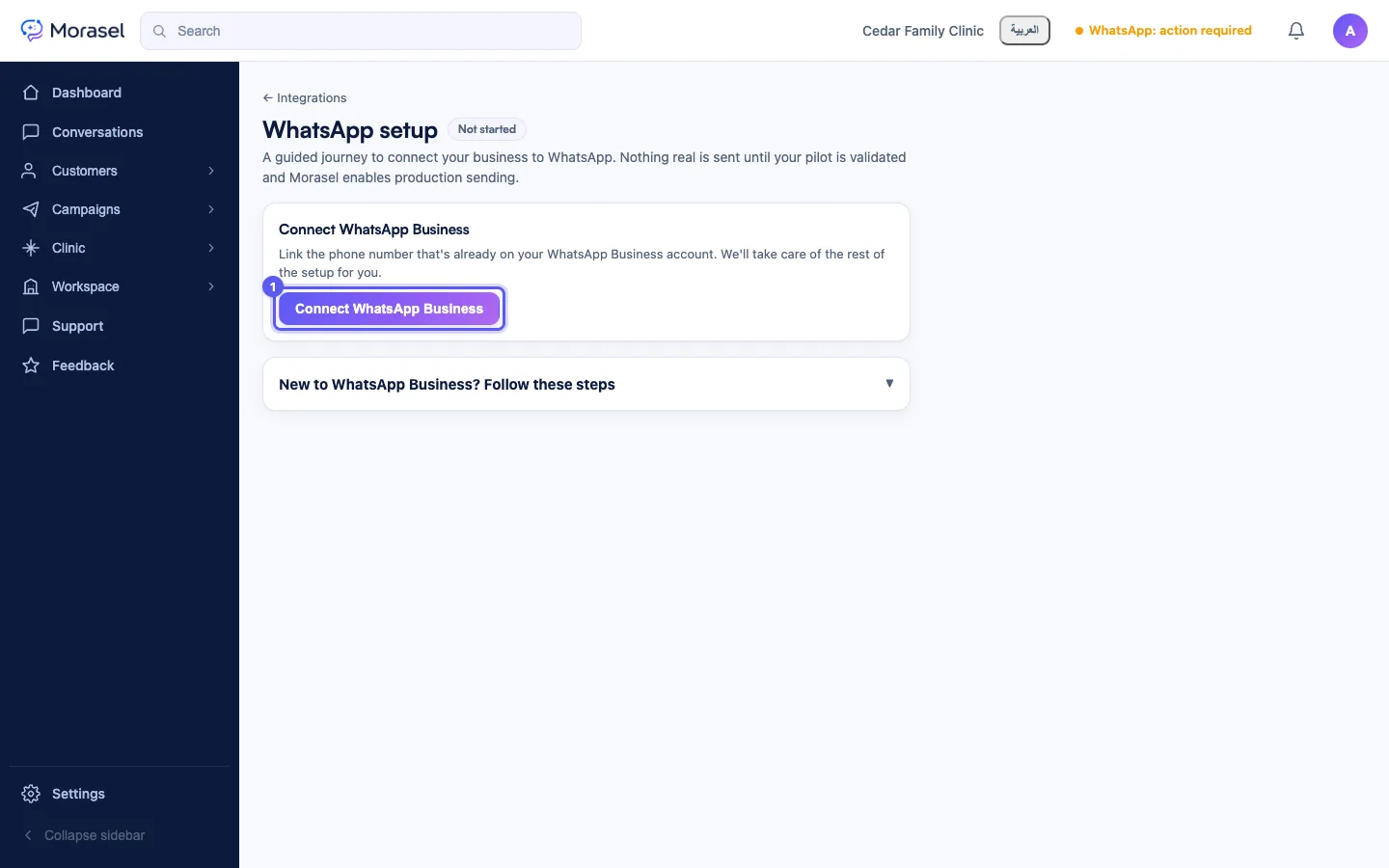
Open WhatsApp setup in the web app and click Connect WhatsApp Business.
O que você deve ver: The Connect WhatsApp Business card shows a note that a secure Meta window will open, and a Continue with Meta button.
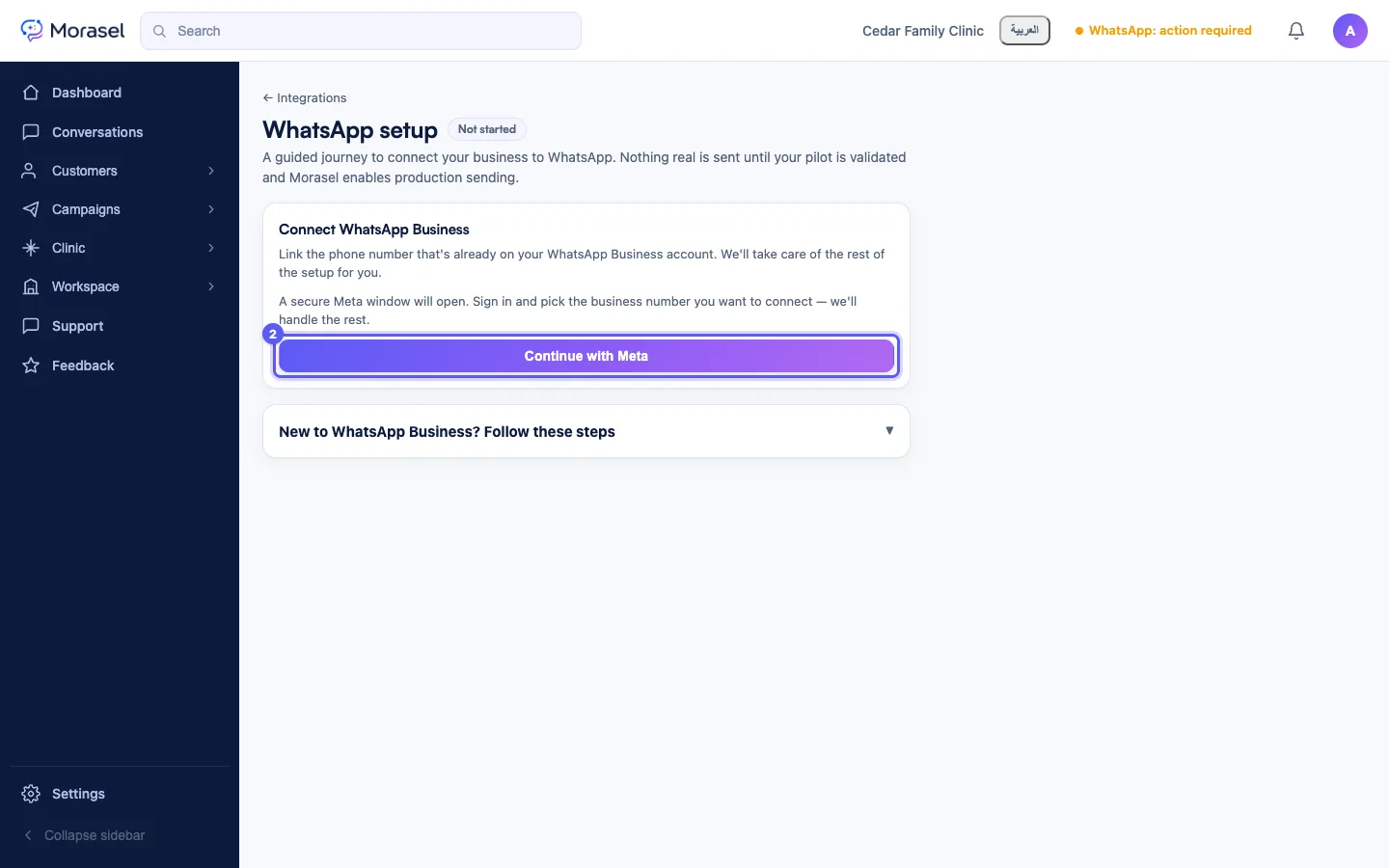
Click Continue with Meta. Meta's window guides you through the next steps; first, sign in with your Facebook account.
O que você deve ver: Meta's sign-up window opens over the page. If your workspace offers it, Morasel first asks whether you already use this number in the WhatsApp Business app; answer it to enable the button.
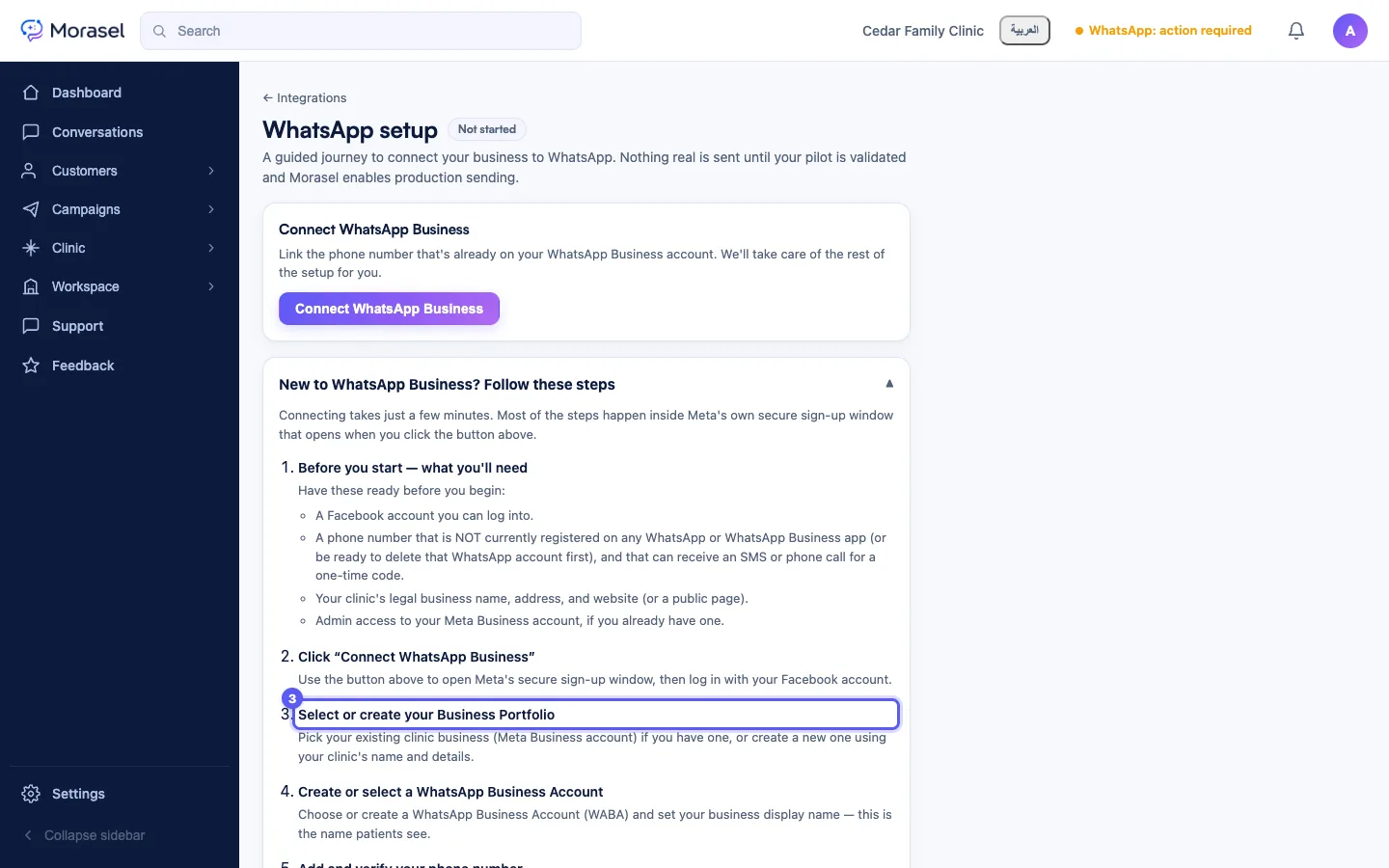
In Meta's window, choose your Business Portfolio, or create one with your business's name and details.
O que você deve ver: Meta moves on to the WhatsApp Business Account. The guide New to WhatsApp Business? Follow these steps on this page lists the same steps.
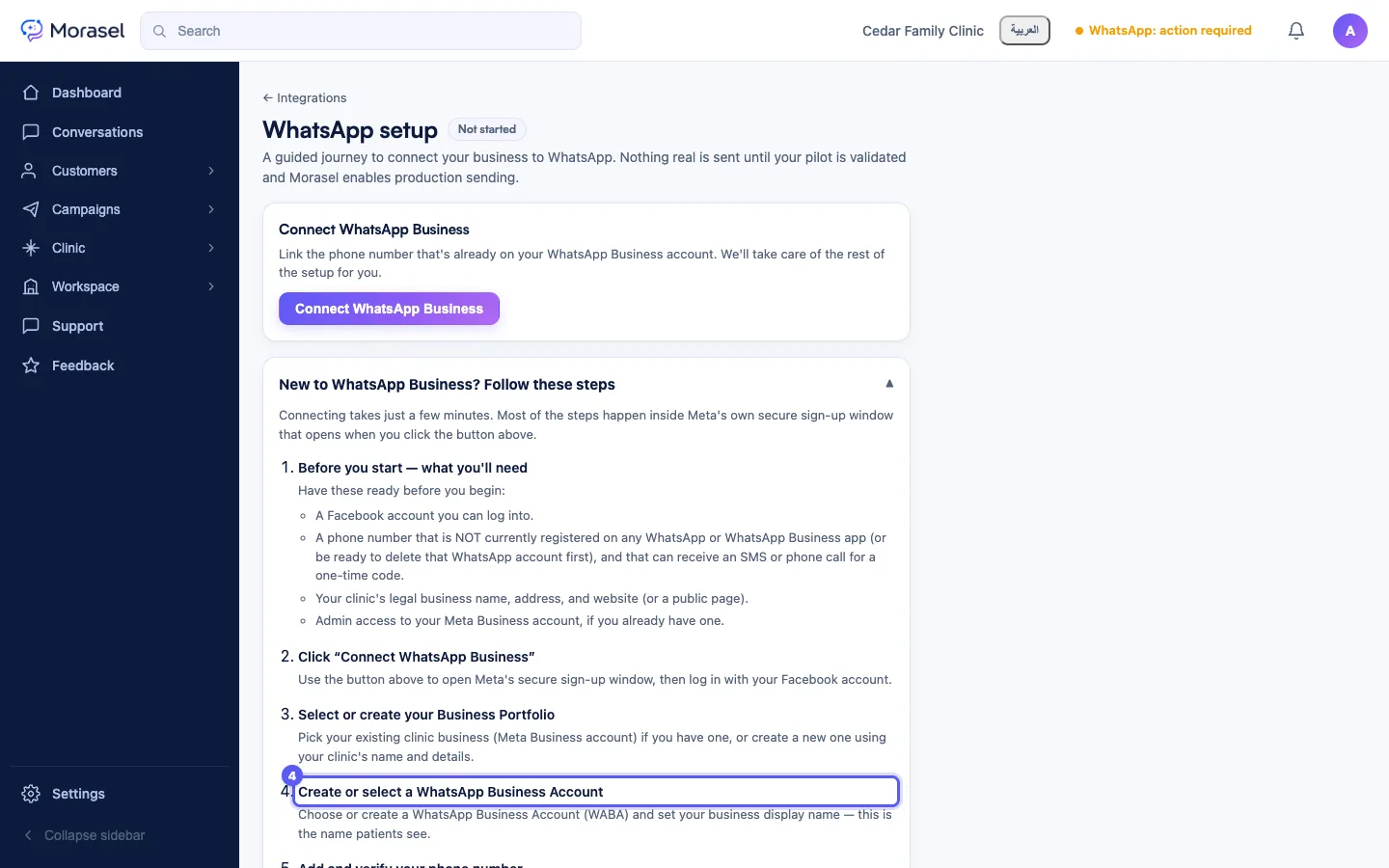
Choose or create your WhatsApp Business Account and set the business display name customers will see.
O que você deve ver: Meta asks for the phone number to connect.
In Meta's window, enter your number and verify it with the 6-digit code Meta sends by SMS or voice call.
O que você deve ver: Meta confirms the number and shows the permissions Morasel asks for.
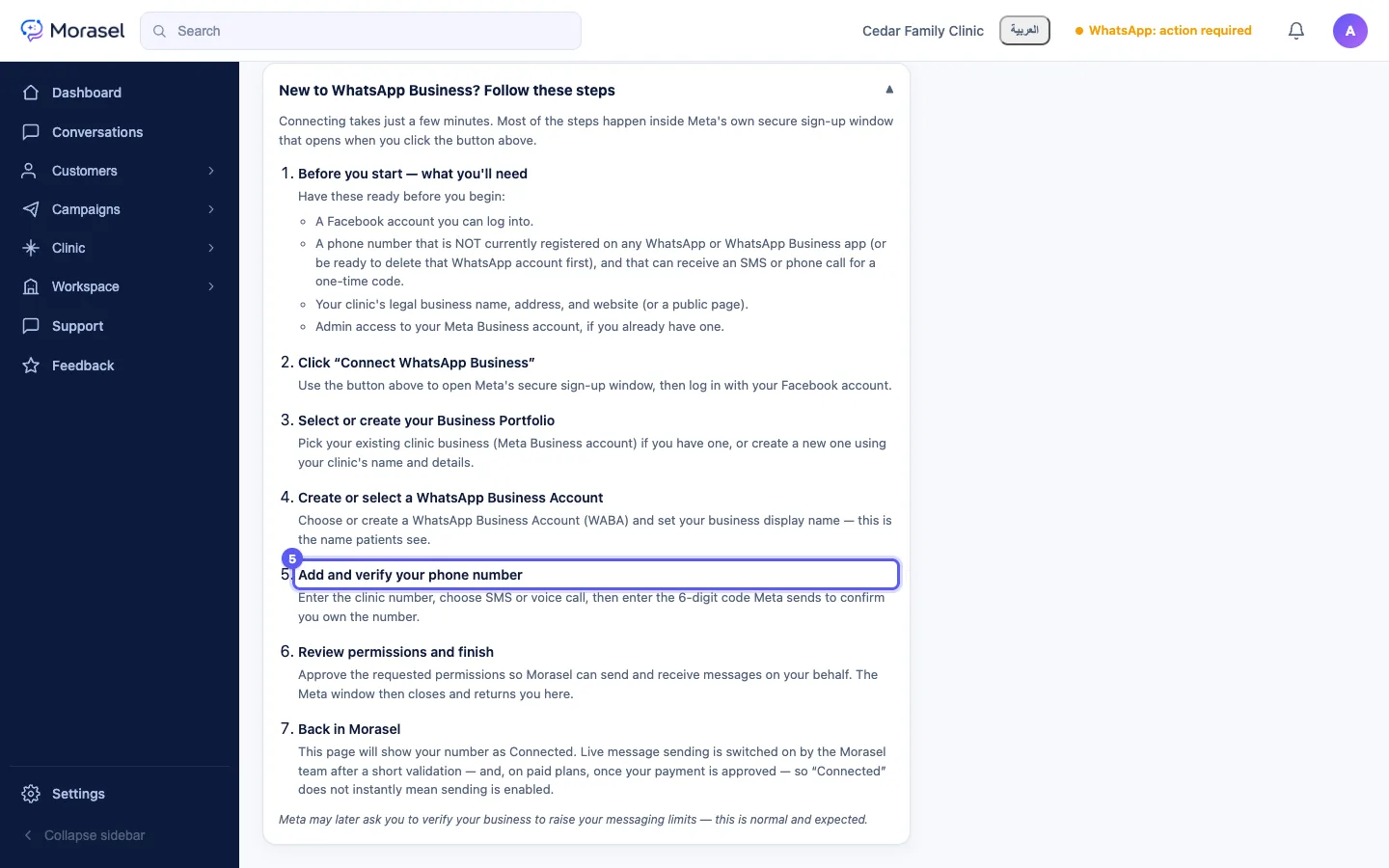
Approve the permissions and finish.
O que você deve ver: Meta's window closes by itself and returns you to WhatsApp setup.
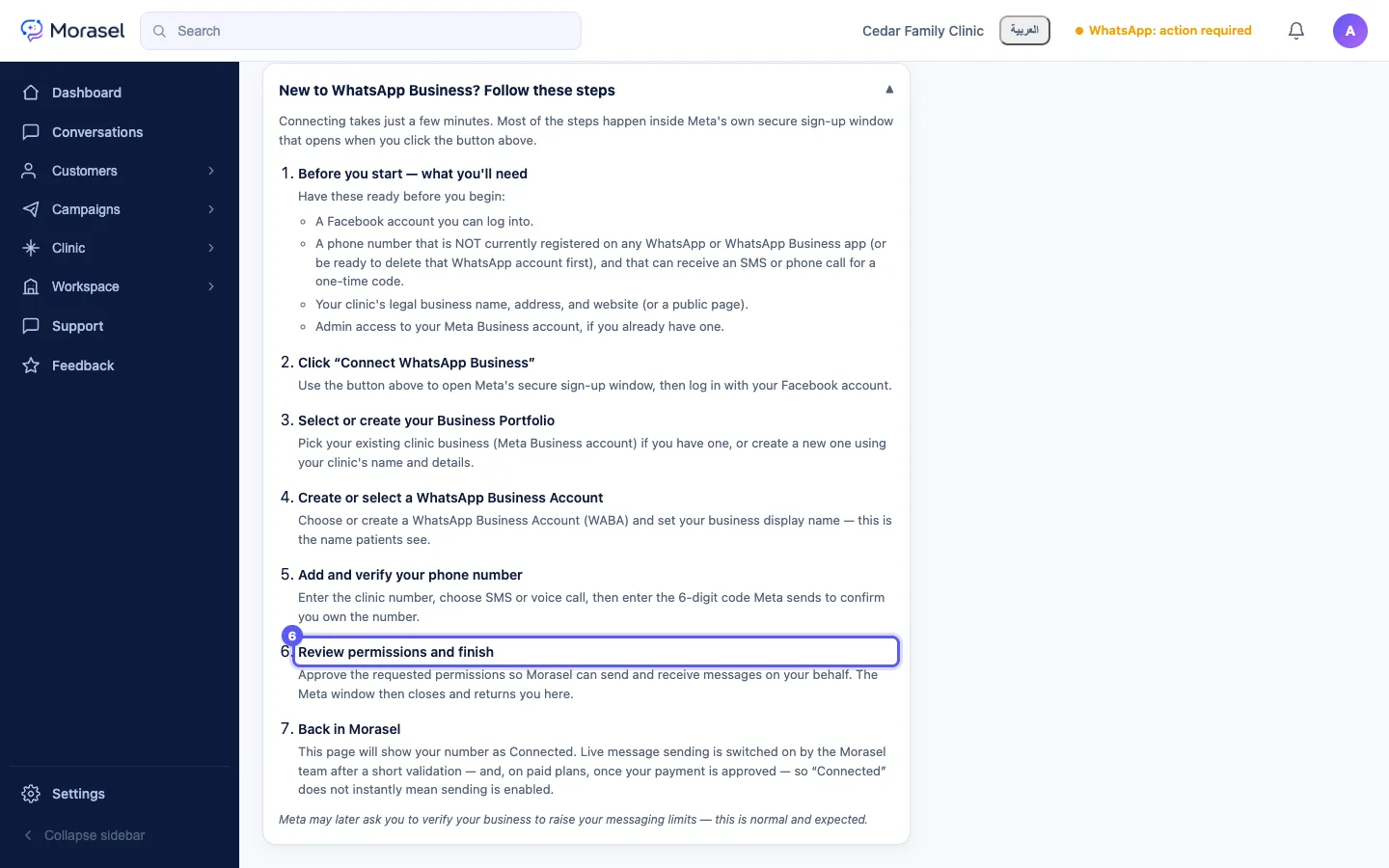
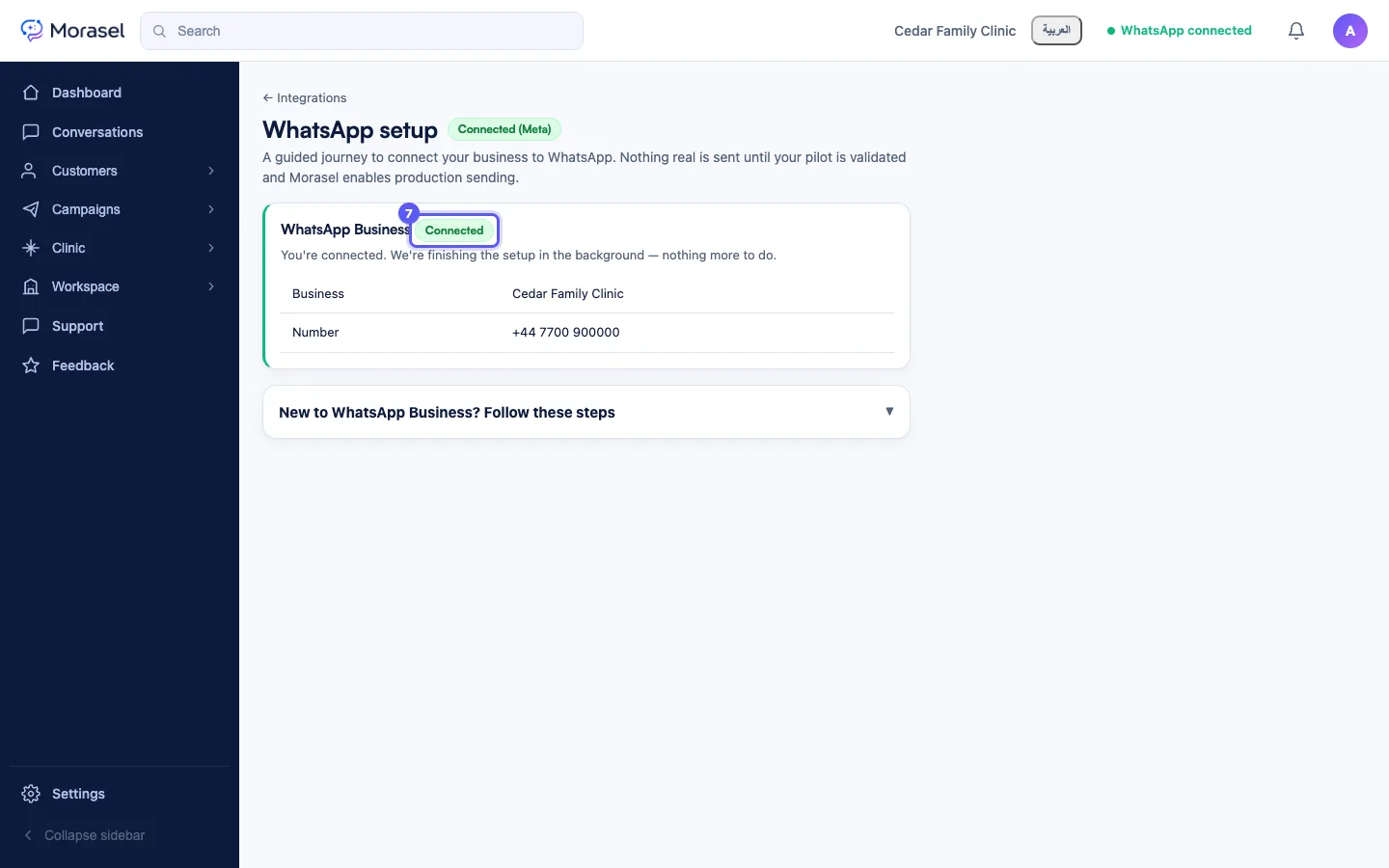
Check the WhatsApp Business card on WhatsApp setup.
O que você deve ver: It shows a green Connected badge with your business name and number: "You're connected. We're finishing the setup in the background — nothing more to do."


Se não funcionou
- There is no Connect WhatsApp Business button, only "Only owners and admins can run the setup."
- Your role is Agent. Ask the workspace owner or an admin to connect the number, or to make you an admin.
- Continue with Meta stays greyed out.
- Answer the question above it (whether you already use this number in the WhatsApp Business app). If there is no question, reload the page and click Connect WhatsApp Business again.
- Meta says the number is already registered on WhatsApp.
- A number used in the WhatsApp or WhatsApp Business app must be deleted from that app first, or connected as an app number when Morasel asks whether you use the WhatsApp Business app. Otherwise use a number that is not on WhatsApp.
- The verification code never arrives.
- In Meta's window choose the other method (SMS or voice call) and check that the phone can receive calls or texts on that number.
- The window closed but the page does not say Connected.
- Wait a minute and reload WhatsApp setup. If it still is not connected, start again with Connect WhatsApp Business, or write to us from Support in the app.
- You closed Meta's window and the page still says Waiting for Meta.
- Tap Start again under the button, then Continue with Meta.
- Meta says several accounts were shared.
- Start again and pick only one WhatsApp Business account in Meta's window.
Perguntas frequentes
Can I keep using my current WhatsApp Business number?
Yes. You connect your own number, so customers keep messaging the number they already know.
Does Connected mean messages are sent straight away?
Not always. Live sending is switched on by the Morasel team after a short validation and, on paid plans, once your payment is approved, so Connected does not instantly mean sending is enabled.
Can I connect WhatsApp from the iPhone or Android app?
Yes. In the iOS or Android app, open WhatsApp setup and tap Connect: Meta's sign-up opens in your browser, because it needs a web browser to run. Finish it there, then come back to the app, which updates by itself. You can also connect from the web app at app.morasel.ai. Once it is connected, your team uses it from the web, iOS and Android apps.
Will Meta ask me to verify my business?
Meta may later ask you to verify your business to raise your messaging limits. This is normal and is done in your Meta Business account.
Who can connect or change the WhatsApp number?
The workspace owner and admins. Agents see the connection status but cannot change it.
What does imported chat history look like?
If you connect a number you already use in the WhatsApp Business app, its chats and contacts appear in Morasel. Each customer has one chat: their imported history sits above their new messages, and when you or the customer write again, you continue that same chat. Photos, voice notes and files show "open WhatsApp on the phone to view it", except recent ones: Meta sends the media for about the last 14 days. A message WhatsApp did not share at all, such as some photos or button messages, shows "Message not shown here — open WhatsApp on the phone to view it". A shared contact shows its name and number. Group chats are not synced.
Can I get the older photos and voice notes into Morasel after connecting?
Yes, for a number connected from the WhatsApp Business app. WhatsApp doesn't sync every photo, voice note and file, so some imported messages say "open WhatsApp on the phone to view it". An owner or admin can export that chat from the phone with "Include media" and upload the zip in the chat on the web app (Details, then Import chat export). Morasel attaches the files that match and adds the older messages your history is missing. Nothing is sent to the customer. See "Recover older WhatsApp photos from a chat export".
Artigos relacionados
Última atualização · Added: recovering older WhatsApp photos, voice notes and files from a chat export (web app, owners and admins)