
Invite a teammate and choose their role
Teammates join your workspace through an invite link tied to their mobile number. When your workspace's WhatsApp invite message is approved as a utility message, Morasel also sends the invite to their WhatsApp from your workspace's number as you click Invite. If it isn't, nothing is sent and you share the link yourself. The link is shown to you either way. Morasel does not email invites yet. The owner can invite agents, admins and other owners; an admin can invite agents.
L’application Morasel et ses modèles de messages sont en anglais et en arabe. Ce site est aussi disponible en français.
Cet article n’est disponible qu’en anglais — lisez-le en anglais
Ouvrez cette page dans l’app https://app.morasel.ai/team
Étapes
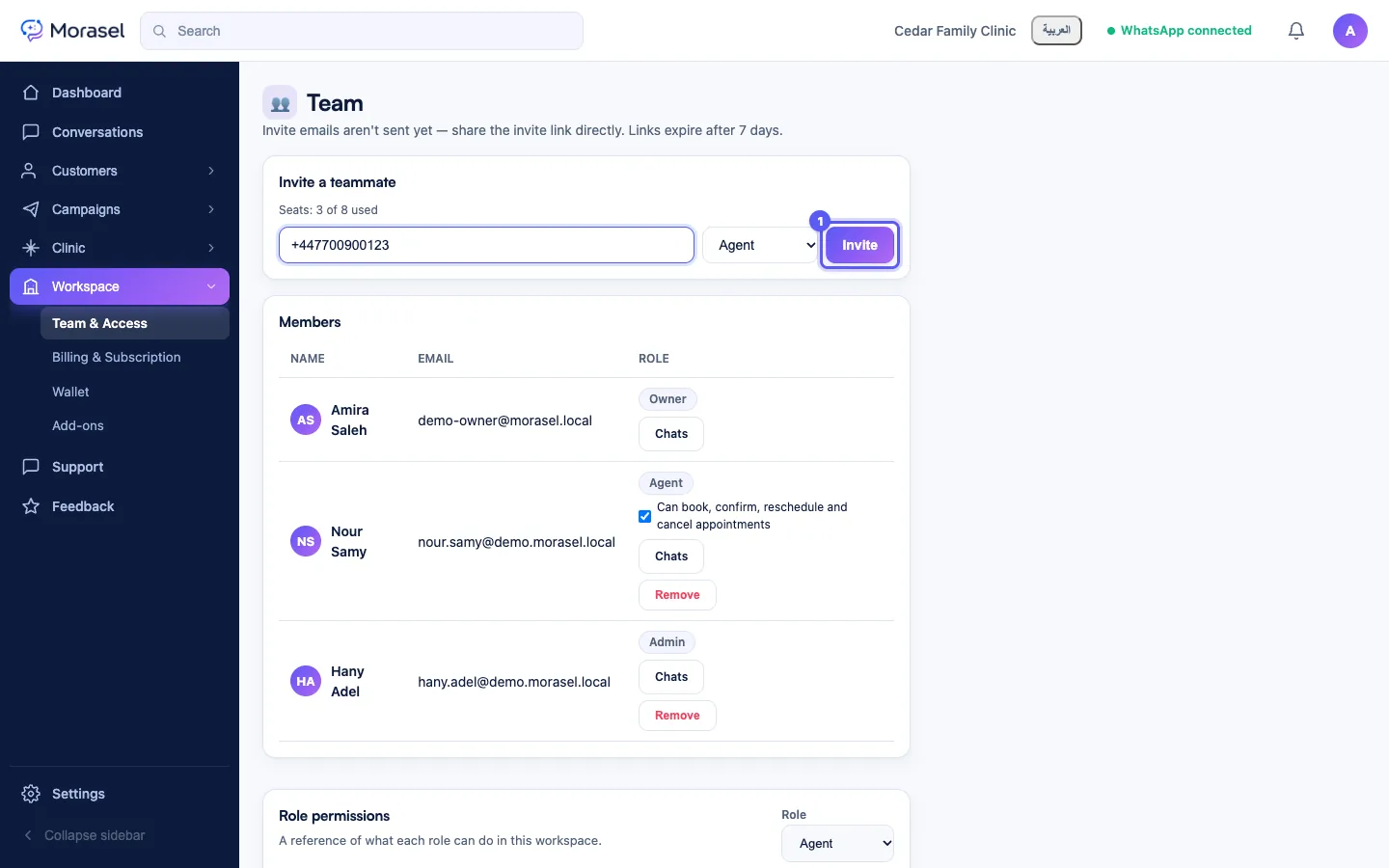
Open Team & Access and, under Invite a teammate, type the person's mobile number in international format, starting with + and the country code.
Ce que vous devez voir : The Invite button becomes clickable once the number is complete. Seats: … of … used shows how many seats your plan has left.
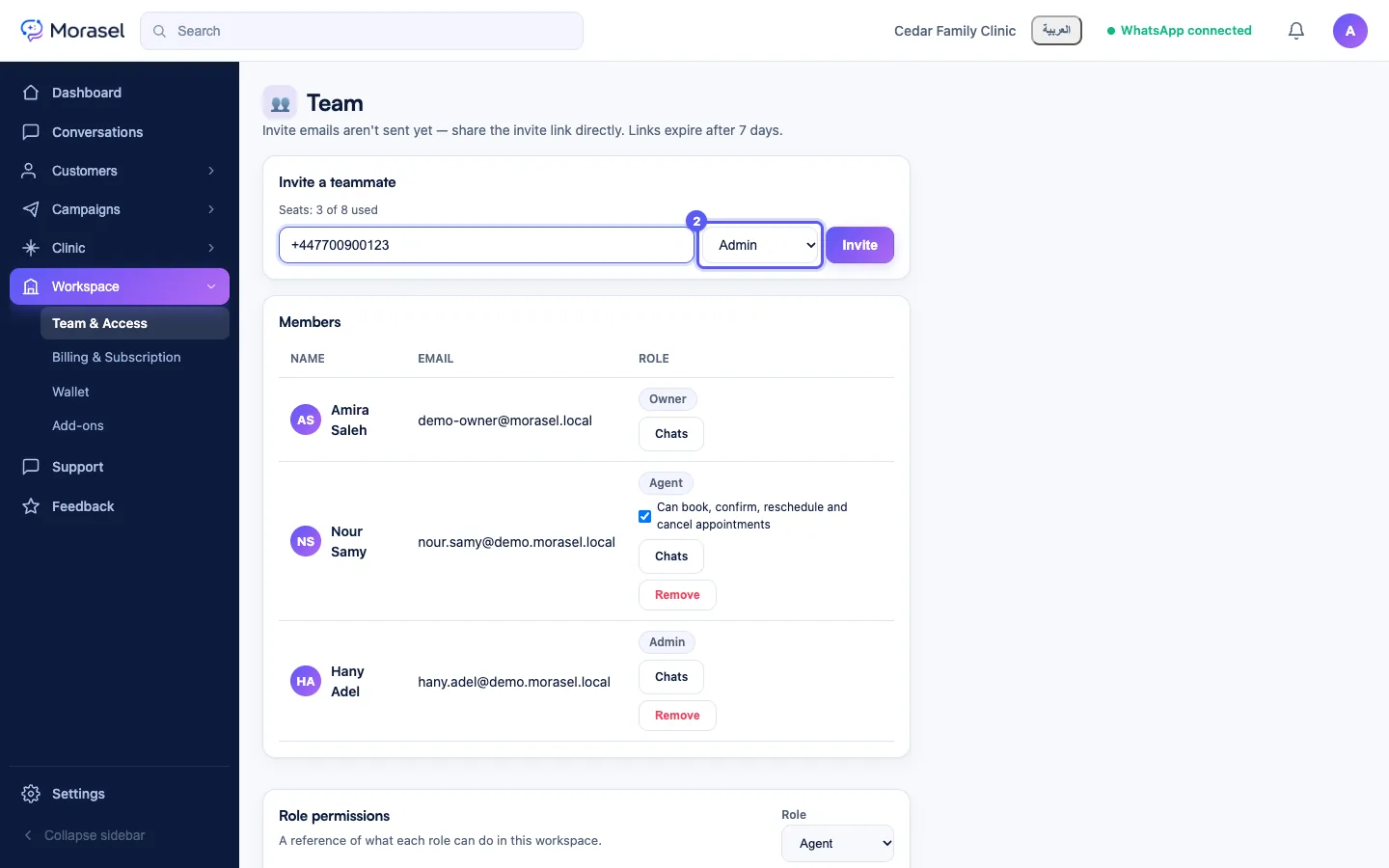
Choose the role in the Role list next to the number: Agent, Admin or Owner.
Ce que vous devez voir : The list shows the role you picked. An admin sees Agent only.
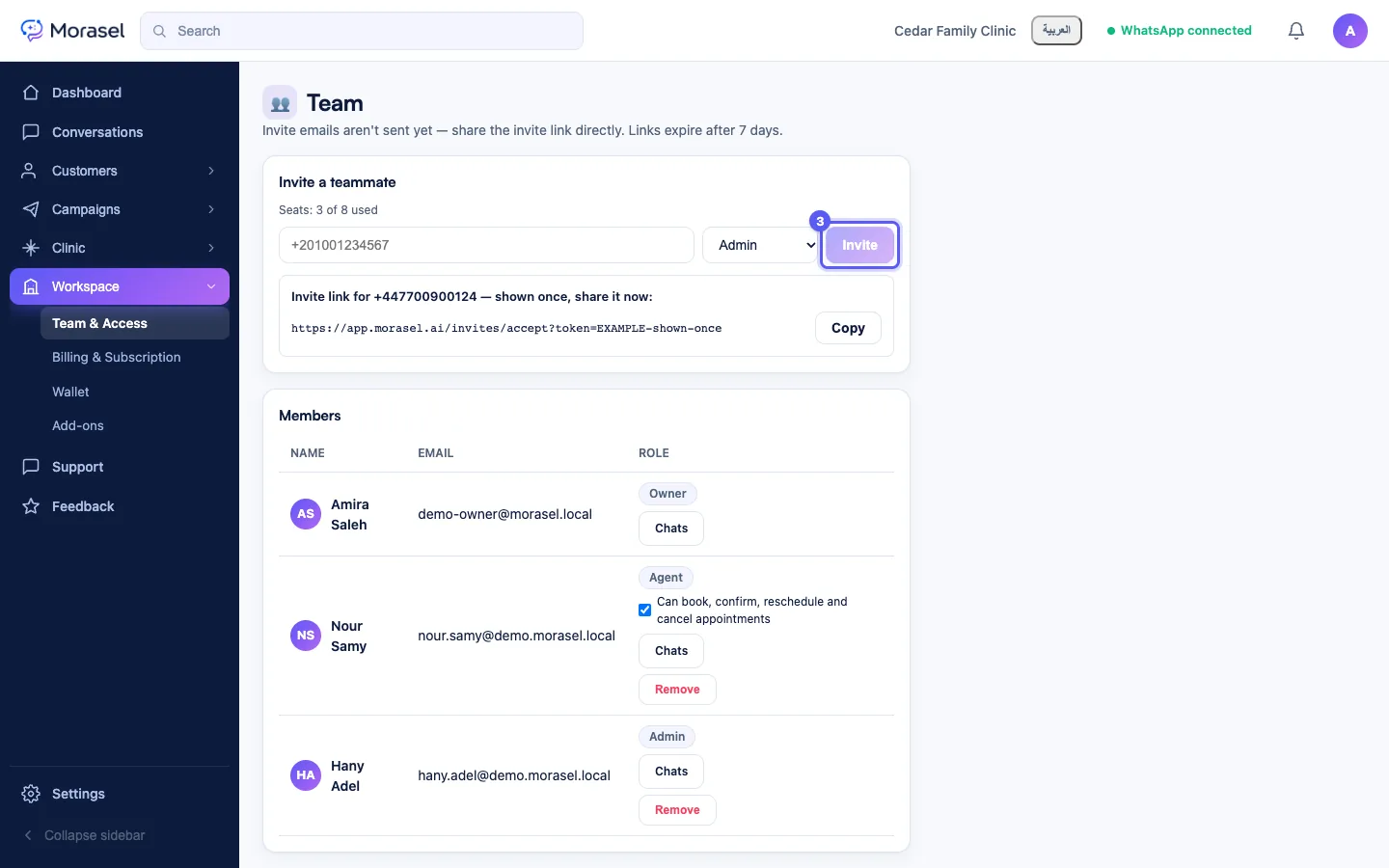
Click Invite.
Ce que vous devez voir : A box appears: "Invite link for +… — shown once, share it now:" with the link and a Copy button.
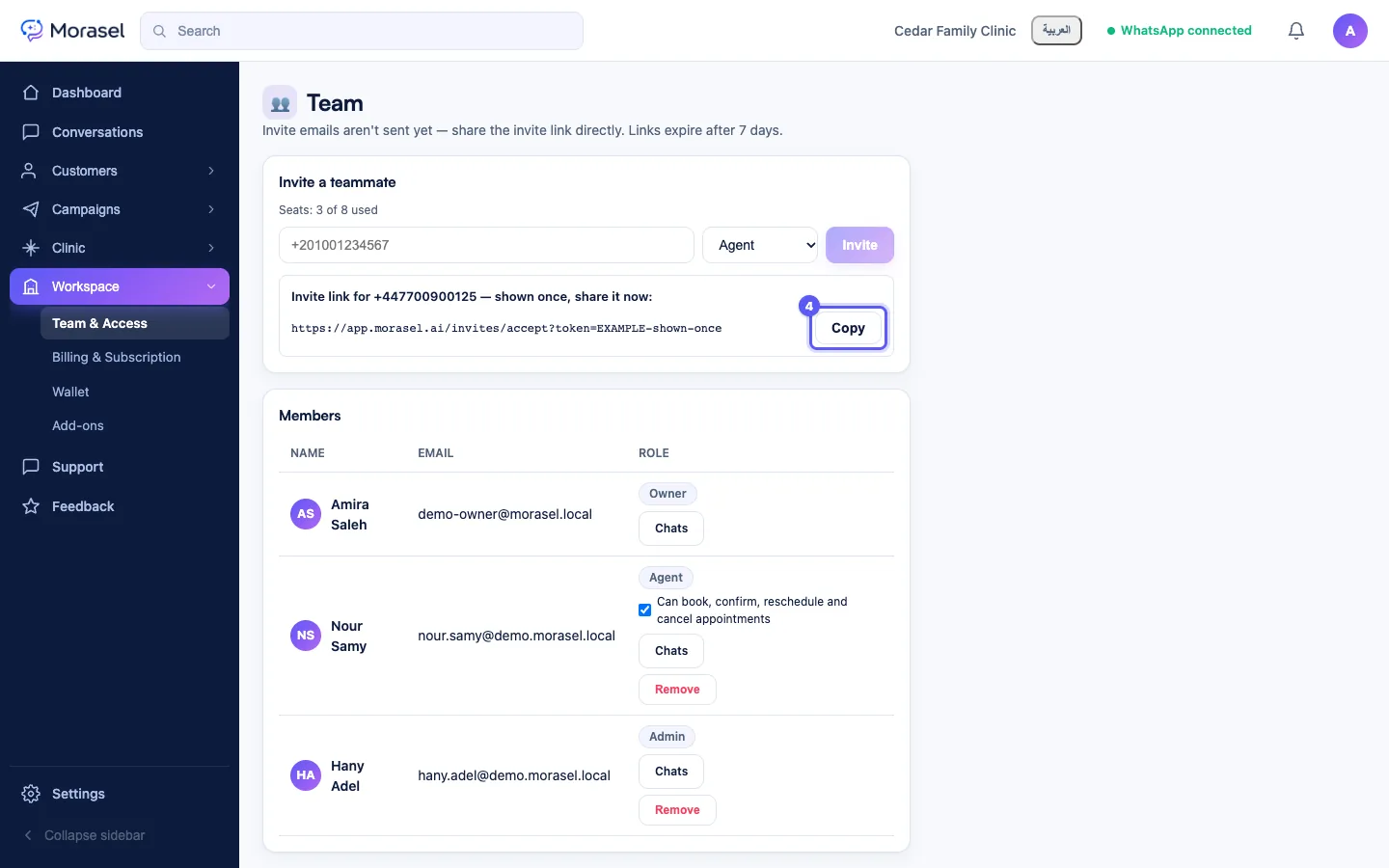
Click Copy and send the link to your teammate.
Ce que vous devez voir : The button changes to Copied ✓. Your teammate opens the link and signs in with that same mobile number to join.
Check the Invites list on the same page.
Ce que vous devez voir : The invite is listed as Pending until it is accepted. Copy link and Resend each make a new link, shown in the box above for you to share (neither sends a WhatsApp message, and the old link stops working); Revoke, on a pending invite, cancels it.
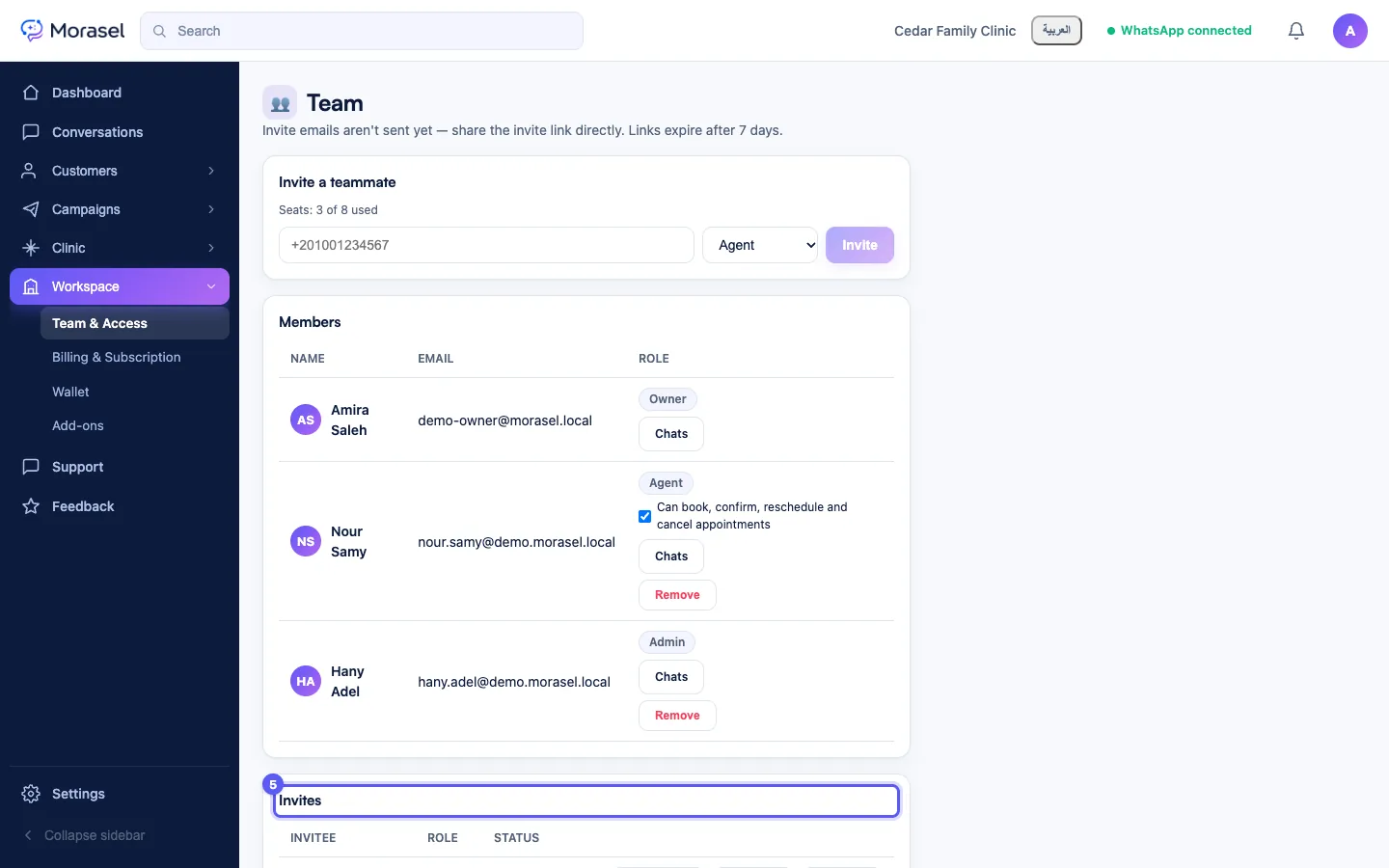


Remove a member
Under Members, find the teammate and click Remove on their row.
Ce que vous devez voir : Remove shows on rows you are allowed to remove: an owner sees it on every other member, an admin on agents only. It never shows on your own row.
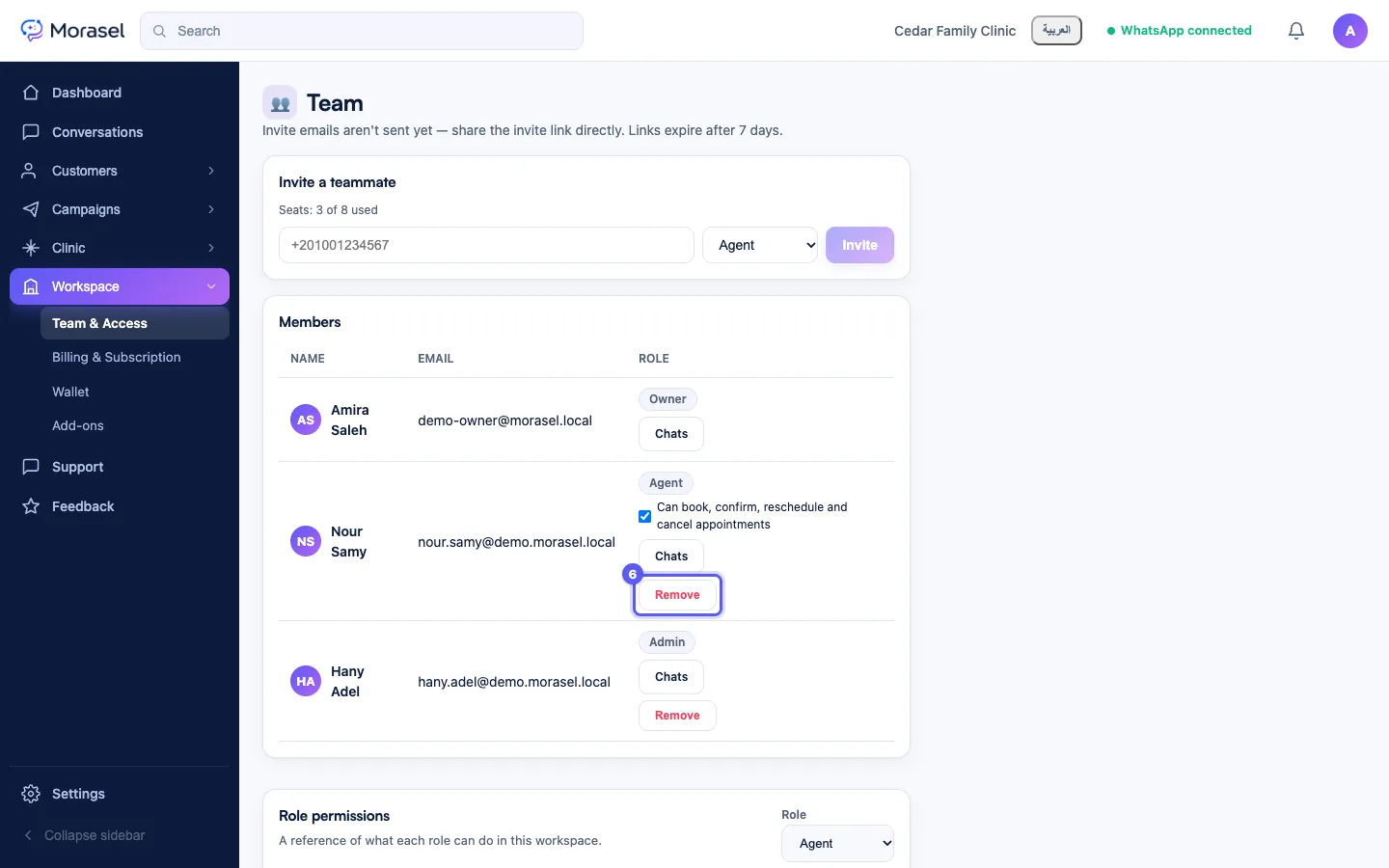
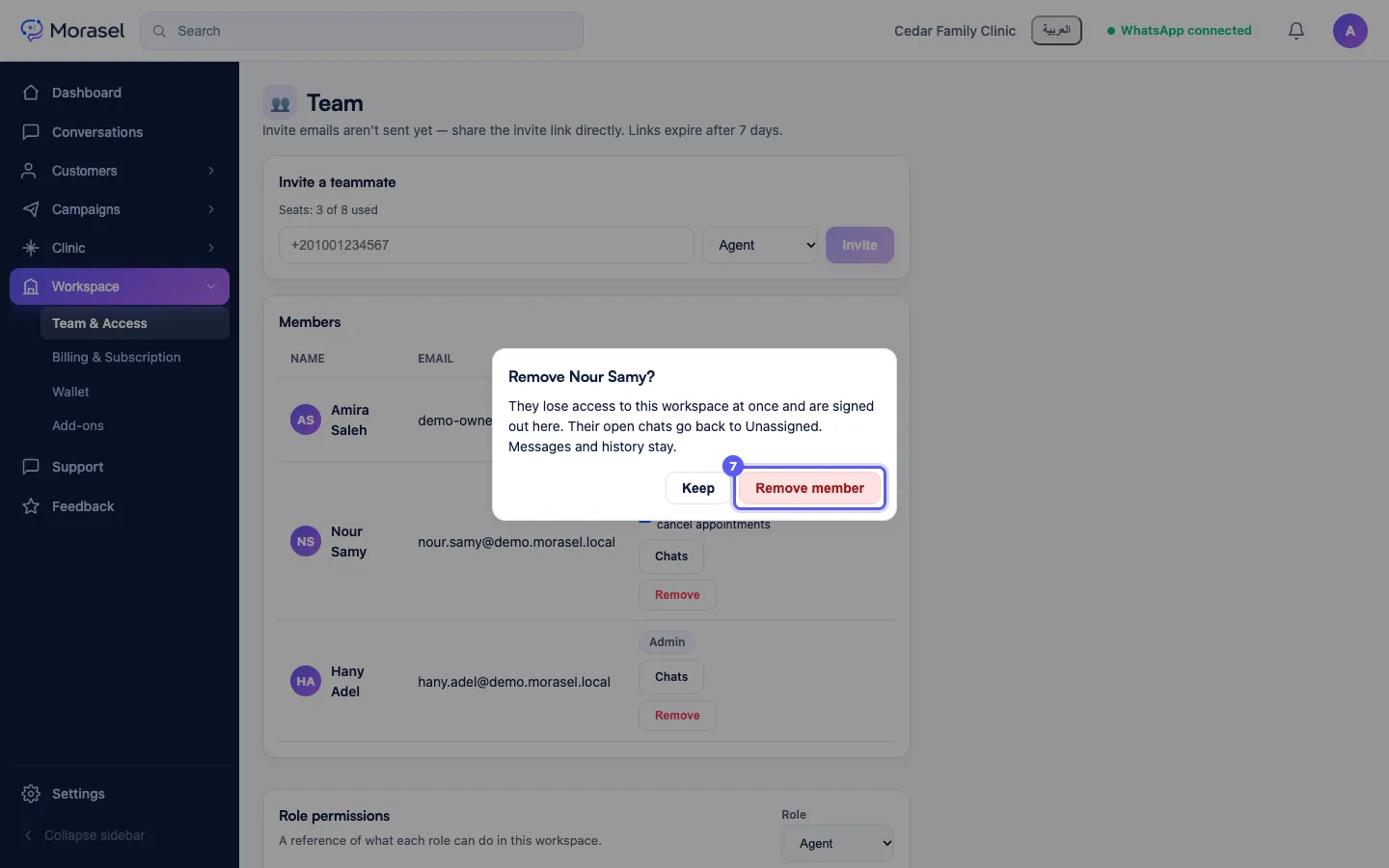
Check the name in the box that opens, then click Remove member.
Ce que vous devez voir : The teammate leaves the list and "… was removed." appears. They lose access to the workspace at once and are signed out of it, their open chats go back to Unassigned, and their seat is free for someone new. Messages and history stay.


Si cela n’a pas fonctionné
- I only see "Only owners and admins can invite teammates."
- Your role is Agent. Ask the workspace owner or an admin to send the invite.
- The Invite button stays greyed out.
- Write the number in international format with no spaces, for example +447700900123. If it says all seats are used, free a seat (remove a member or revoke a pending invite), or ask the workspace owner to add seats on Add-ons & extras (Seats to add) or upgrade the plan. An extra user is $10 a month on Commerce and $5 a month on Clinics, Care and Hospitality; a plan already at its most users needs a higher plan.
- I lost the invite link.
- A link is shown only once. In the Invites list, click Copy link to make a new one; the previous link stops working.
- My teammate says the link has expired.
- Links expire after 7 days. Click Resend or Copy link next to the invite; a new link appears in the box at the top, ready to share.
- Admin is not in the Role list.
- Only the workspace owner can invite admins and owners. Ask the owner to send that invite.
- There is no Remove button on a teammate's row.
- Only owners and admins remove members, and an admin removes agents only. Ask the workspace owner to remove an admin or another owner. Drivers are removed from the Drivers list, and a workspace always keeps at least one owner.
Questions fréquentes
What can each role do?
The owner can do everything, including deleting the workspace. An admin runs the team, settings and channels. An agent answers customers in the inbox. The Role permissions card at the bottom of Team & Access lists exactly what each role can do in your workspace.
When do I see the Driver and Order agent roles?
Only in an online-store workspace on Commerce Pro or Max: drivers and order agents are included in those plans and switch on with them, and each counts as a user. Other workspaces never show these roles. Drivers and order agents work in the mobile app and need its latest version; an older app shows "Update Morasel to continue".
Does Morasel send the invite on WhatsApp?
Sometimes. When your workspace's WhatsApp invite message is approved as a utility message, your teammate gets the invite on WhatsApp from your workspace's number, with an Accept invite button, as soon as you click Invite. Until then nothing is sent, so copy the link and share it yourself. The link always appears on screen too, so you can send it again if the message doesn't arrive. Resend and Copy link only make a new link to share.
Does my teammate need an email address?
No. The invite is tied to their mobile number, and they can sign in with a one-time code or by messaging us on WhatsApp, without a password.
Do invites use a seat?
Yes. Members, drivers, order agents and pending invites all count towards your plan's users, shown as Seats: … of … used above the invite form. Clinics Core goes up to 5 users, Commerce Core up to 5 users, Commerce Pro up to 20 users and Commerce Max up to 25 users. To move to a smaller plan, your workspace must first fit its limits (users and stores). When you move to a smaller plan, the extra users you already have are added as paid extra users, up to the plan's limit. To fit, remove members (Remove) or revoke pending invites (Revoke) in Team & Access. Former teammates whom Morasel keeps only to name who wrote the chats imported from your previous WhatsApp tool can't sign in and don't count.
Can I invite teammates from the iPhone or Android app?
Yes. The Team screen in the mobile apps has the same invite: choose phone, enter the number, pick the role and share the link. Remove, with the same rules, and in a clinic the "Can book, confirm, reschedule and cancel appointments" switch are available sur l’app web et dans les apps iPhone et Android.
In a clinic, can reception book appointments?
Yes. An agent can book, confirm, reschedule and cancel appointments and check patients in from the start, sur l’app web et dans les apps iPhone et Android. To take that away from one person, an owner or admin switches off "Can book, confirm, reschedule and cancel appointments" on their row in Team & Access. That is all it adds: no-shows, completing visits, payments (including confirming a booking that is waiting for its payment), the waitlist's settings and offers, recall and the clinic's setup stay with admins and owners.
What happens to a removed teammate's chats?
Their open chats go back to Unassigned so the rest of the team can pick them up. Past messages, notes and history stay as they were. If you invite the same person again later, they rejoin with the role you choose.
Articles associés
Dernière mise à jour · Invites can now arrive on WhatsApp when your workspace's invite message is approved as a utility message (otherwise you share the link); Reception can reschedule appointments too; Added: the extra-user price for each app, the most users on each plan, that drivers and order agents are included on Commerce Pro and Max and count as users, and that a smaller plan needs your workspace to fit it first and adds the extra users you already have as paid extra users; how to fit (Remove or Revoke in Team & Access); and that former teammates kept only for imported chats don't count; also, remove a member yourself (sur l’app web et dans les apps iPhone et Android) and what clinic reception can do