
Recover older WhatsApp photos from a chat export
When you connect a number you already use in the WhatsApp Business app, WhatsApp shares your recent history but not all of its photos, voice notes and files. Those messages show "open WhatsApp on the phone to view it". You can fill them in: export that one chat from the phone with "Include media", then upload the zip in Morasel. Owners and admins can do this from the web app, one chat at a time. Morasel matches each file to its message, attaches it, and adds any older messages the export has that your history doesn't. Nothing is sent to the customer.
L’application Morasel et ses modèles de messages sont en anglais et en arabe. Ce site est aussi disponible en français.
Cet article n’est disponible qu’en anglais — lisez-le en anglais
Ouvrez cette page dans l’app https://app.morasel.ai/inbox
Étapes
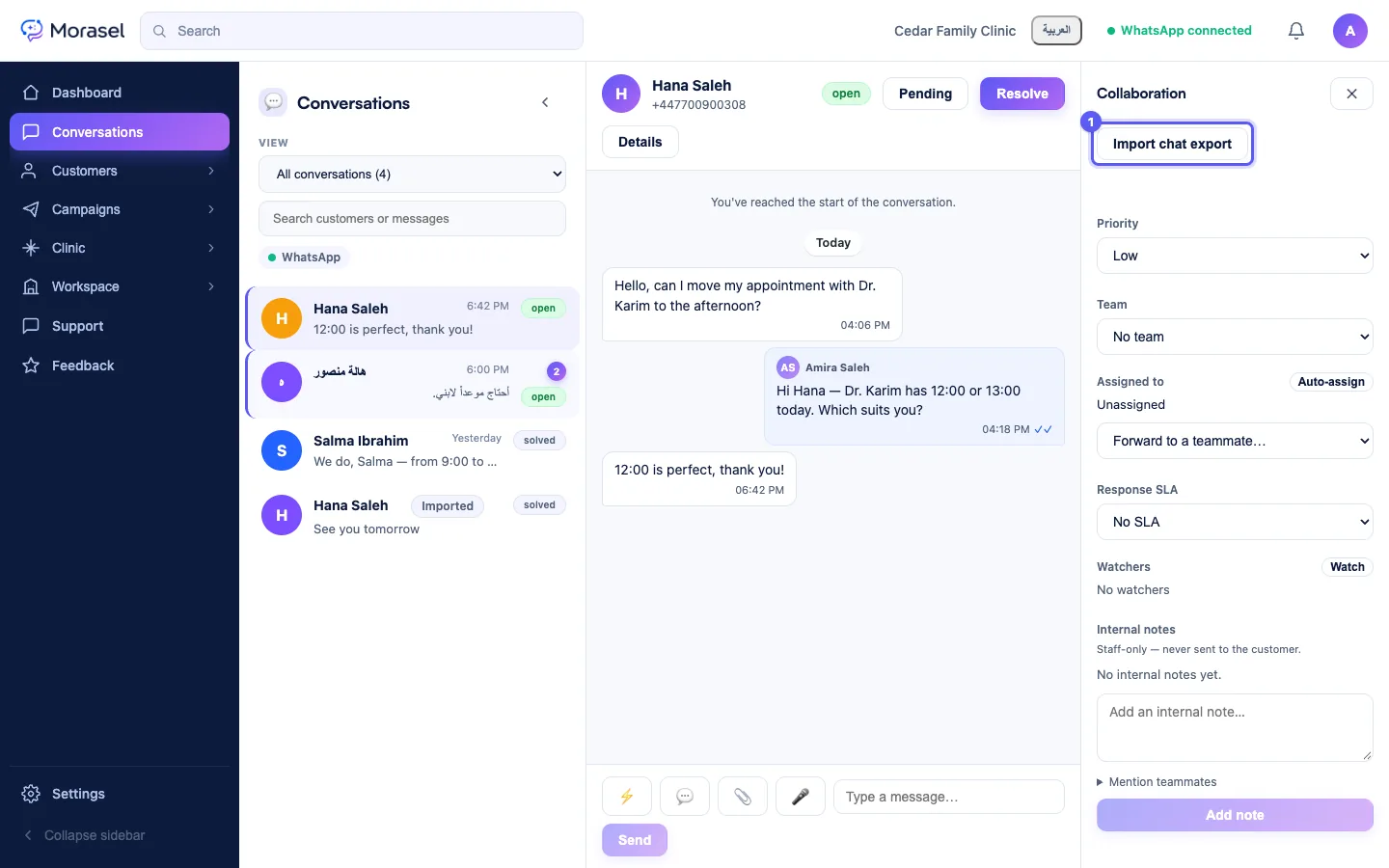
Open the customer's chat, click Details, then click Import chat export.
Ce que vous devez voir : The Collaboration panel opens on the right, with the button right under its title. You only see it if you are an owner or admin, the number is connected from the WhatsApp Business app, and the chat has messages that say "open WhatsApp on the phone to view it". A dialog opens.
Export this chat from the WhatsApp Business app on the phone.
Ce que vous devez voir : The dialog lists the steps. iPhone: open the chat, tap the customer's name, then Export chat → Include media. Android: open the chat, tap ⋮ → More → Export chat → Include media. Save the zip, or send it to the computer you are using. Choose "Include media": an export without media has nothing to attach.
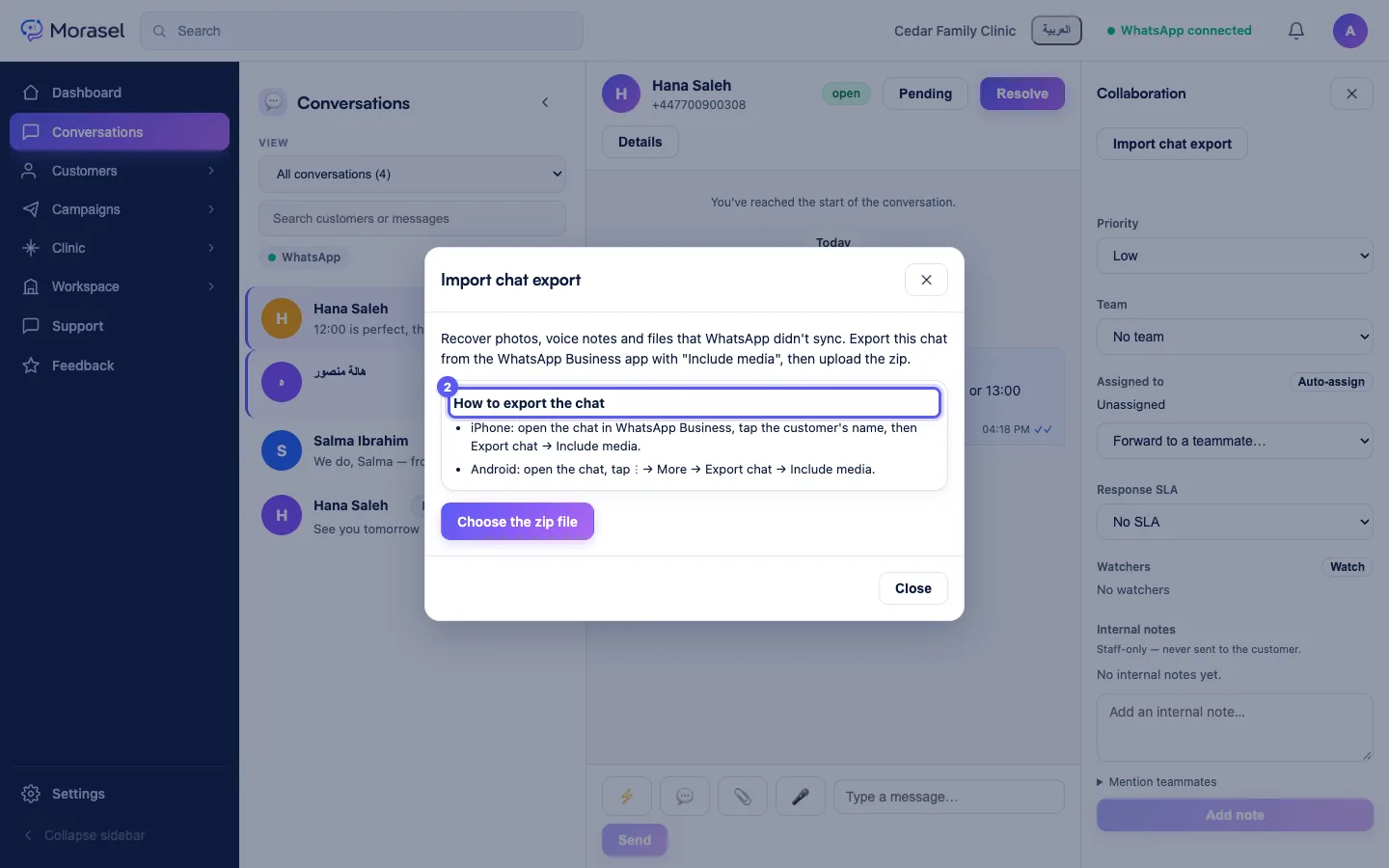
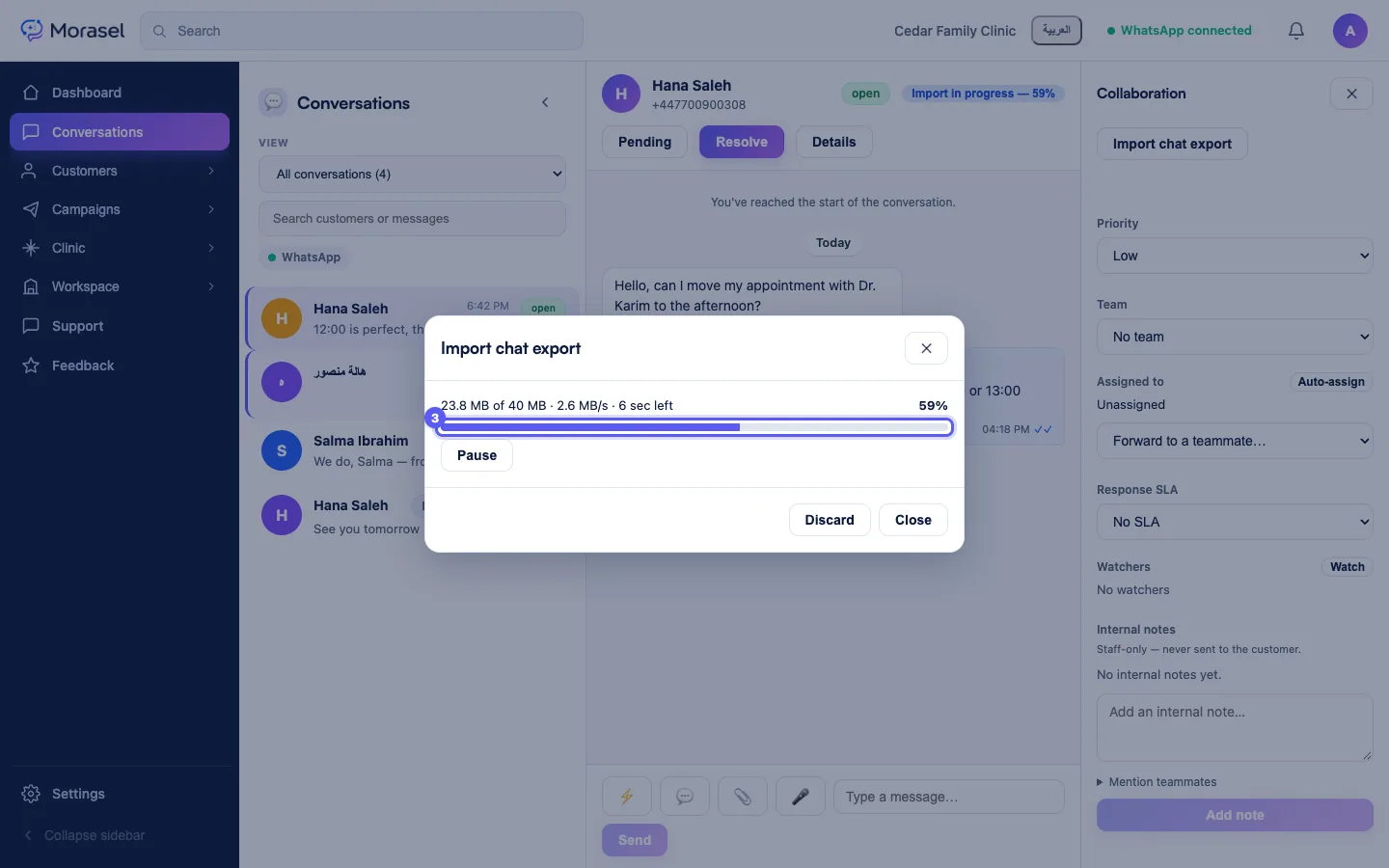
Click Choose the zip file and pick the export.
Ce que vous devez voir : The upload starts and a bar shows how much is sent, the speed and the time left. There is no fixed size limit, so a large export just takes longer. You can pause it or close the dialog: pick the same file again and the upload continues where it stopped.
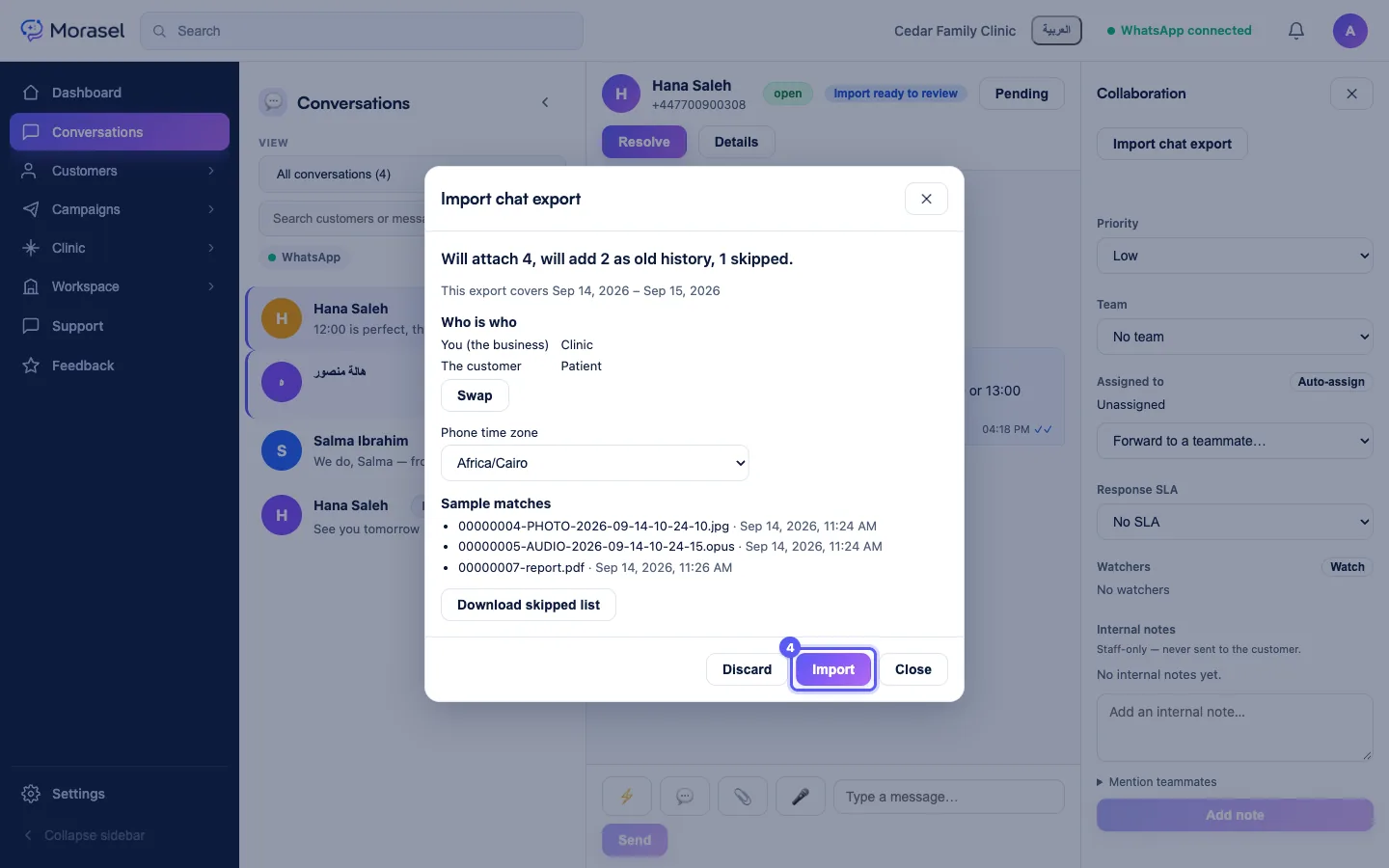
Check the preview, then click Import.
Ce que vous devez voir : Morasel reads the export and checks it is this chat. The preview says how many files it will attach, how many older messages it will add as old history (the ones from before your synced history) and how many it will skip, with the dates the export covers, who is who and a few sample matches. Swap the two names if they are the wrong way round, and choose the phone's time zone if the suggested one is wrong.
Watch the import.
Ce que vous devez voir : The dialog shows the stage (Reading the export, Matching messages, Attaching media, Adding old history) with its own bar and the counts so far. A large export takes longer. You can leave the page: the import keeps running, and an "Import in progress" badge in the chat brings you back.
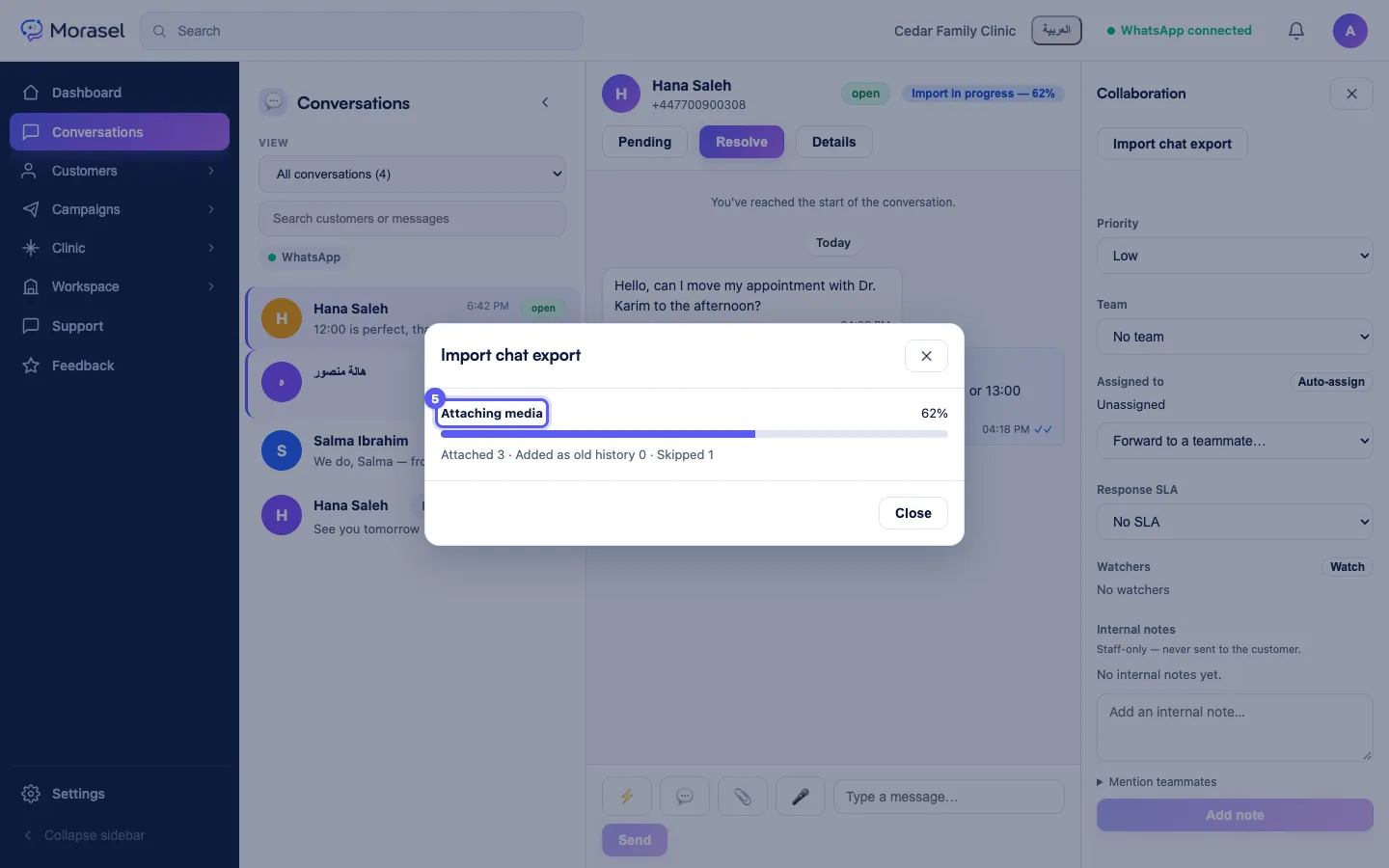
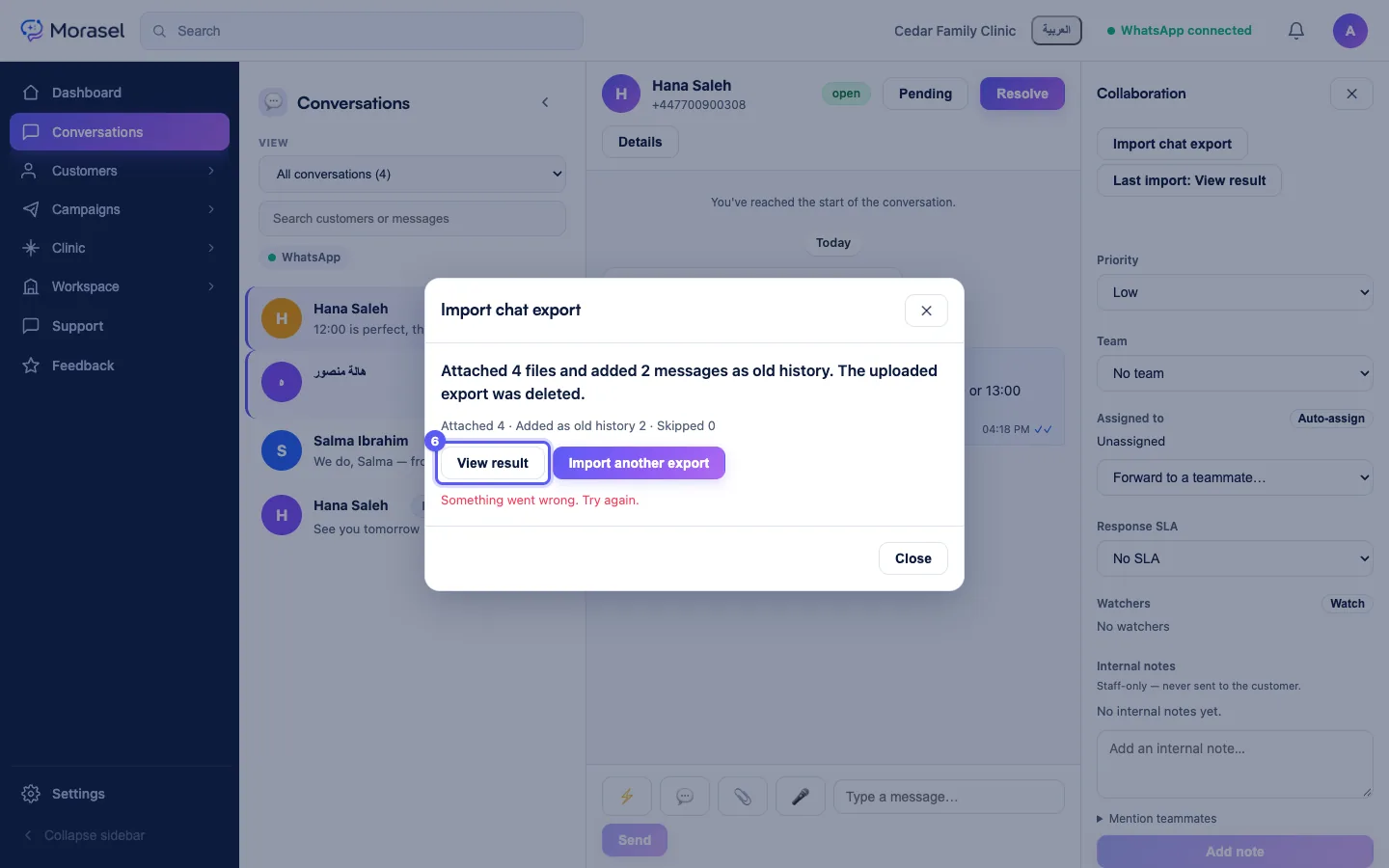
Read the result.
Ce que vous devez voir : The dialog says how many files were attached and how many messages were added as old history, and that the uploaded export was deleted. Click View result to see what was skipped and why, or Download skipped list. Imported messages show "From chat export" in the chat.


Si cela n’a pas fonctionné
- There is no Import chat export button.
- Only owners and admins see it, on the web app. It also needs a number connected from the WhatsApp Business app and a chat with messages that say "open WhatsApp on the phone to view it". If all of that is true and it still isn't there, contact support.
- Morasel says the export doesn't overlap enough with the chat.
- Morasel compares the export with the messages it already has, to be sure it is the same chat. Export a longer period from the phone, the whole chat if you can, and upload the new zip.
- Morasel says the export has no media, is from a group chat, or doesn't look like this chat.
- Export the right chat again. It must be a one-to-one chat with this customer, exported with "Include media". Only one-to-one chats can be imported.
- Some photos still say "open WhatsApp on the phone to view it".
- Photos sent all at once as an album can stay that way: when Morasel cannot tell which album photo a file belongs to, it skips them on purpose instead of guessing. Every skipped file is listed with its reason under View result.
- The upload stopped, or you closed the page.
- Open the chat and the dialog again and pick the same file: the upload continues where it stopped. An upload you never finish is removed after 24 hours.
- Another import is running, or the chat was imported 3 times today.
- A workspace imports one chat export at a time: wait for it to finish, or open that chat to discard it. A chat can be imported 3 times a day; try again tomorrow.
Questions fréquentes
Who can import a chat export?
Owners and admins, on the web app. The iOS and Android apps don't have it. It works for numbers connected from the WhatsApp Business app; the button doesn't appear for other numbers.
Is there a size limit?
There is no fixed limit. A large export takes longer to upload and to import, and you can leave the page while it runs: the import keeps going.
Does the customer get anything?
No. Importing only fills in the chat on your side. Nothing is sent to the customer, nobody gets a notification, and the unread count and the 24-hour reply window don't change.
What happens to the file I uploaded?
It is deleted as soon as the import finishes, and an upload you never finish is deleted after 24 hours. Deleted exports are also removed from storage versions within about 2 days. The photos, voice notes and files attached to the chat are kept like any other media in the workspace, and are removed when the workspace is deleted.
What does the import add besides files?
Messages in the export that are older than your synced history are added as old history, so the chat reads in order. Messages already in the chat are never duplicated or changed. Imported messages show "From chat export".
Articles associés
Dernière mise à jour · First version