
Deliveries: locations, drivers and reconciliation
When a customer shares their location on WhatsApp, or your team knows the exact spot, put it on the order. Drivers then navigate to that pin instead of guessing from the shipping address. Staff who manage deliveries can do this, and so can order agents on the orders they open. Giving orders to drivers needs the Assign delivery automation on, so start with step 1. Drivers and delivery are available on Commerce Pro and Max.
O aplicativo Morasel e seus modelos de mensagem estão em inglês e árabe. Este site também está em português.
Este artigo está disponível apenas em inglês — leia em inglês
Abra esta página no app https://app.morasel.ai/commerce/orders
Passos
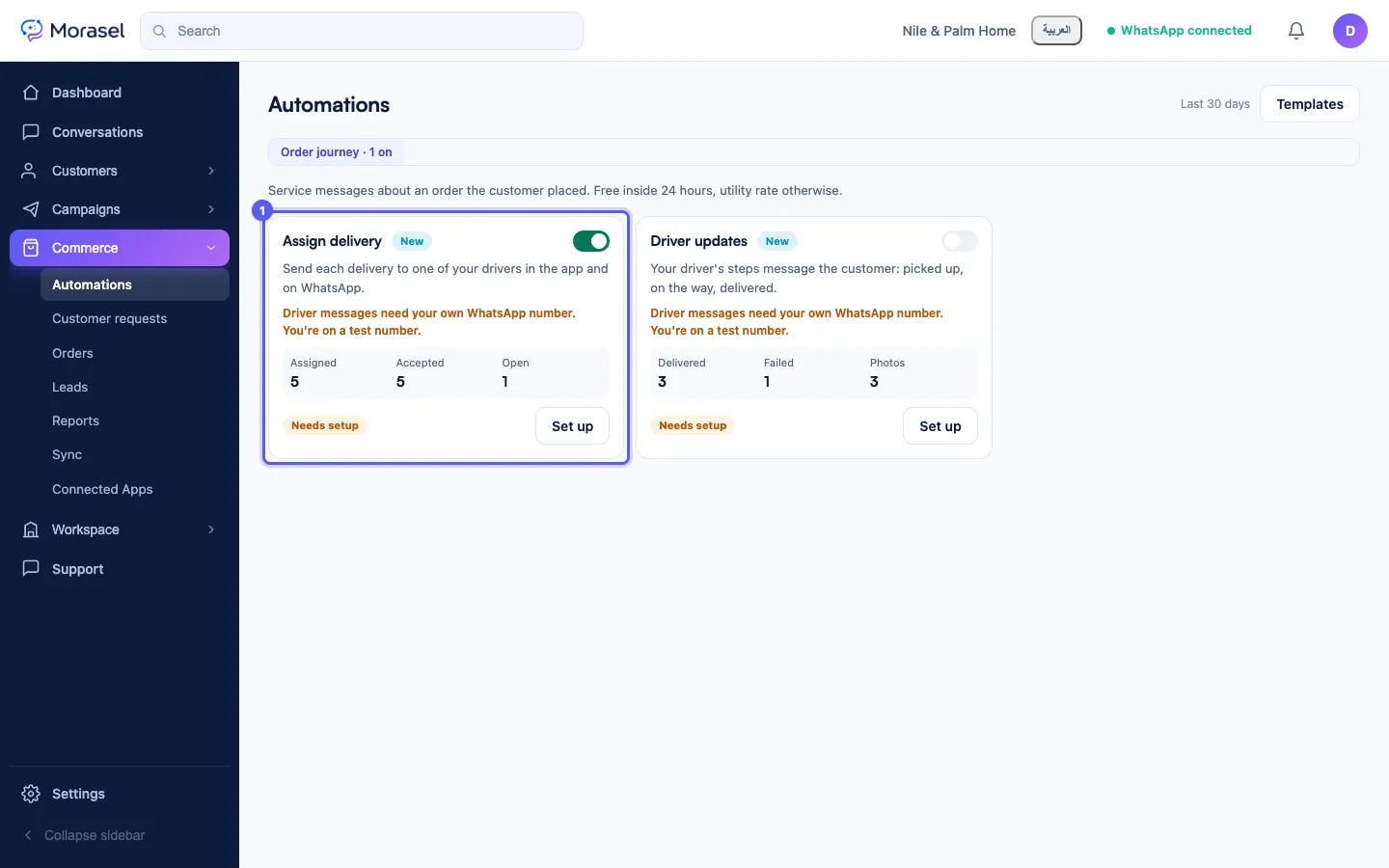
Before you give orders to drivers, turn on Assign delivery. On the web, open Commerce → Automations and, on the Order journey tab, find the Assign delivery card. Turn its switch on, then click Turn on to confirm. Only the owner or an admin can turn it on.
O que você deve ver: The switch is on and the card reads On. While Meta approves the driver messages, the card reads Waiting for approval, even before you turn it on; once the switch is on, you can give orders to drivers either way. If the switch can't be turned on, the card names the missing step, such as Connect a WhatsApp number or Add your drivers first: click Set up and finish it (drivers are added by phone in Team & Access), then come back. If your workspace is on a test WhatsApp number, the card reads "Driver messages need your own WhatsApp number. You're on a test number.": connect your store's own number first. If your store uses order agents and has given Morasel permission to fulfil orders in Shopify, marking a delivery Delivered also marks its items fulfilled there.
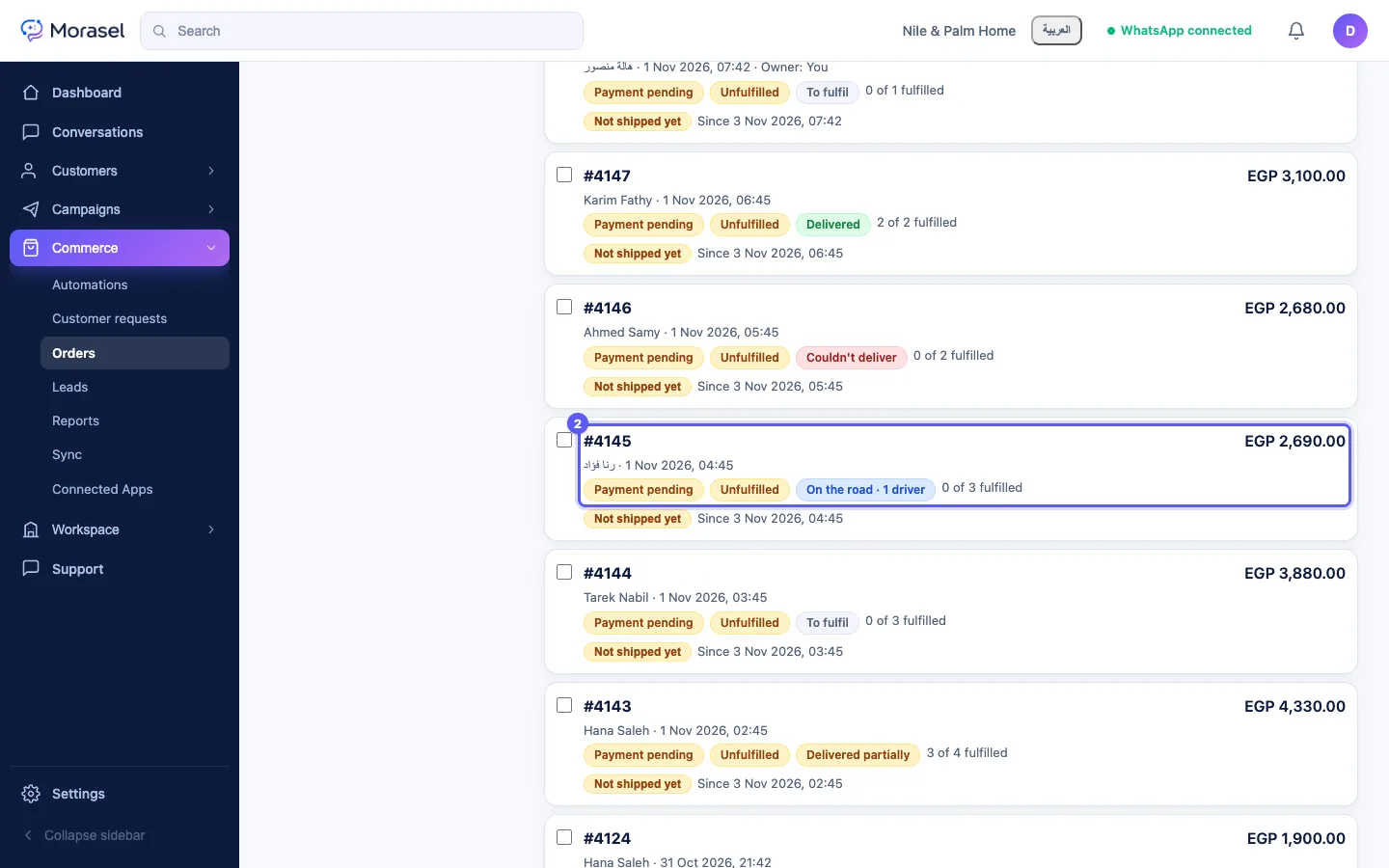
Open Commerce → Orders and click the order (it is under All orders if Needs attention doesn't list it).
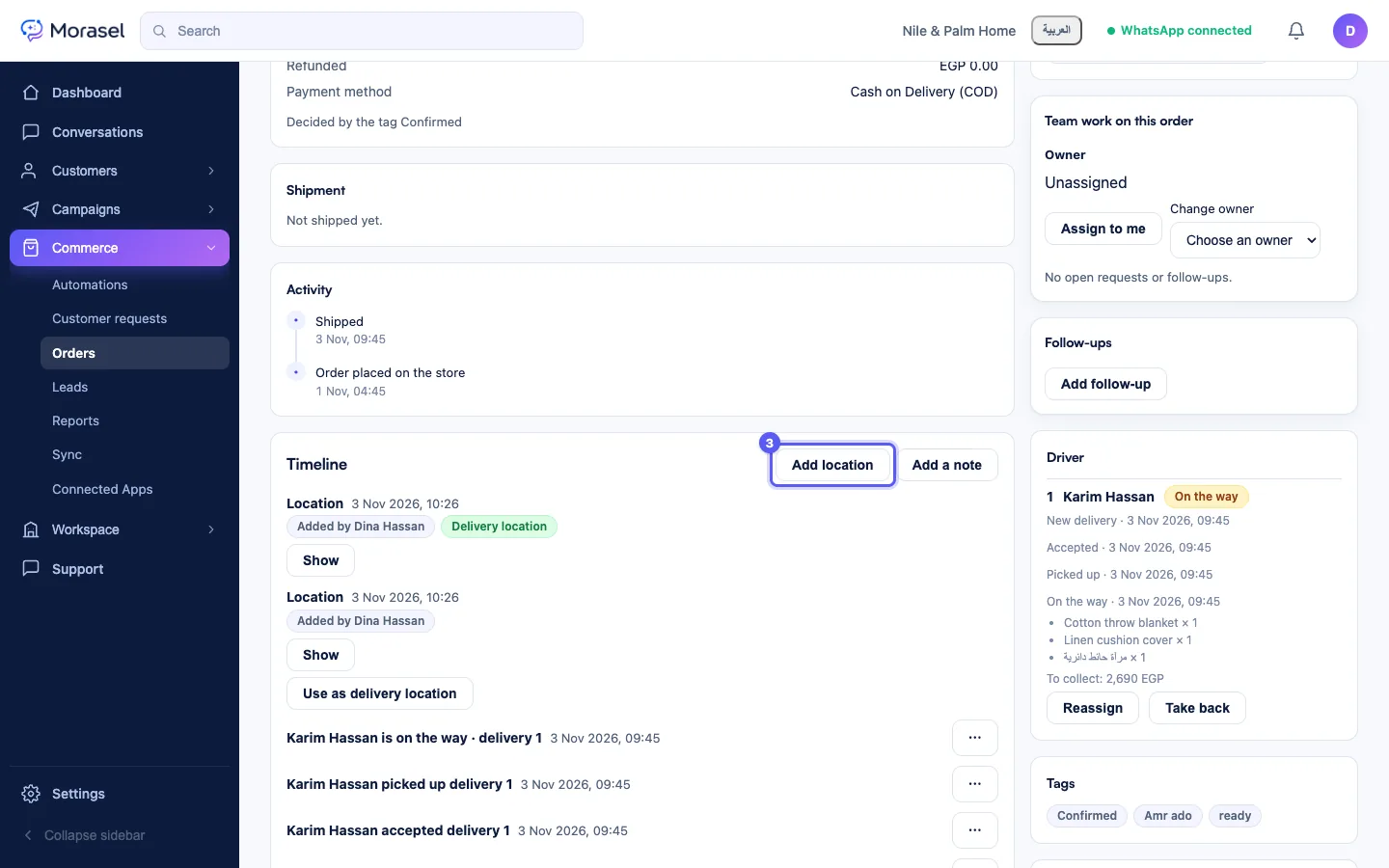
O que você deve ver: The order opens, with its Timeline and the Add a note and Add location buttons.
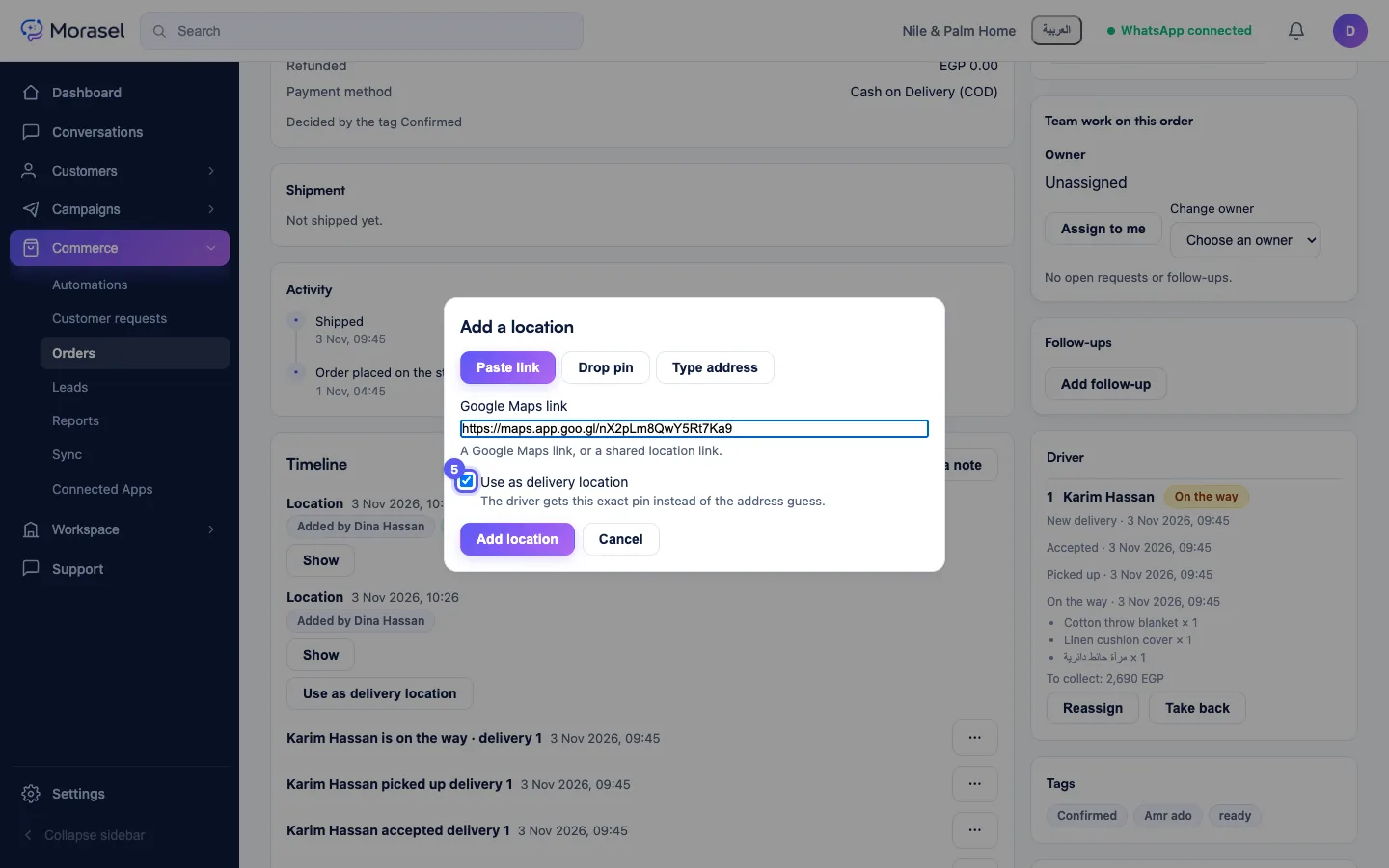
In the Timeline, click Add location.
O que você deve ver: Add a location opens on Paste link, with Use as delivery location ticked.
Paste the customer's link into Google Maps link. If you have no link, choose Drop pin and click the spot on the map, or choose Type address.
O que você deve ver: The Add location button in the dialog can be clicked.
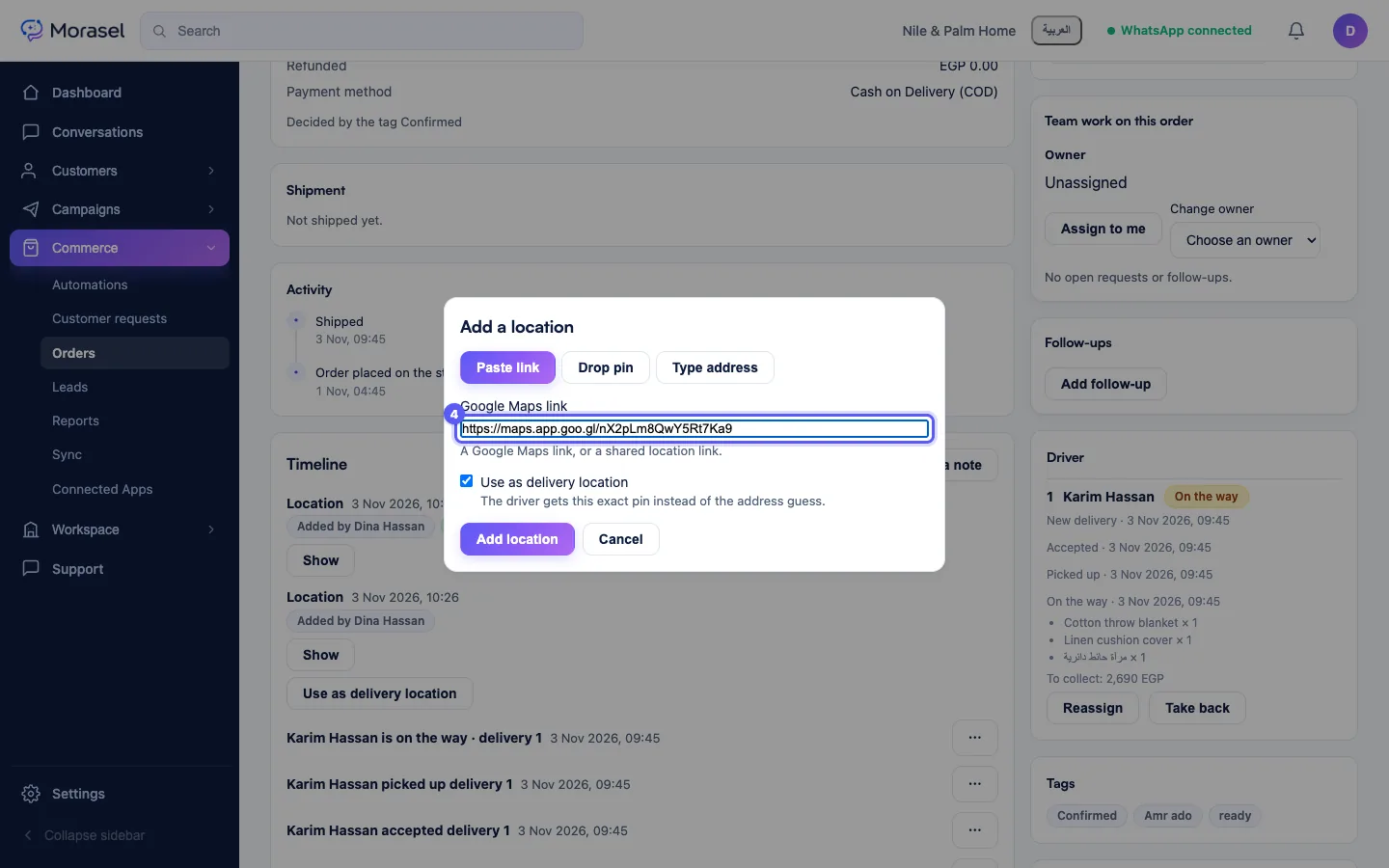
Leave Use as delivery location ticked and click Add location.
O que você deve ver: The location is added to the Timeline with "Added by <your name>" and the Delivery location badge. The Delivery location box on the order shows it, and drivers on the order get "Delivery location updated for order #N". Like the shipping address, the pin and the address stay hidden until you click Show (in the Delivery location box, on a Timeline location, or Show contact details); until then the box reads "Delivery location set".
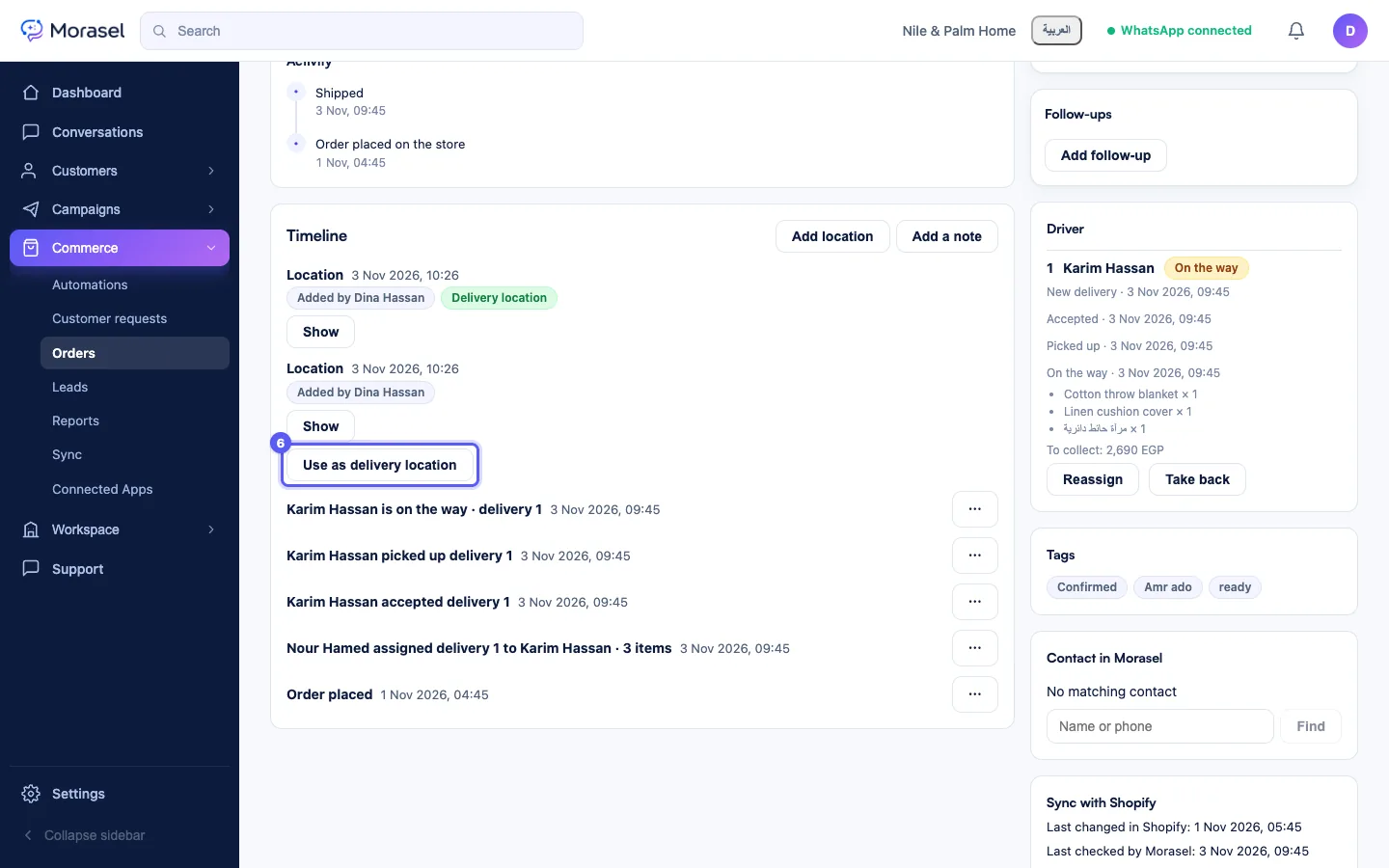
To send drivers to another location on the Timeline, click Use as delivery location on its card.
O que você deve ver: That card gets the Delivery location badge and the Delivery location box shows it, with "Set by <name>".
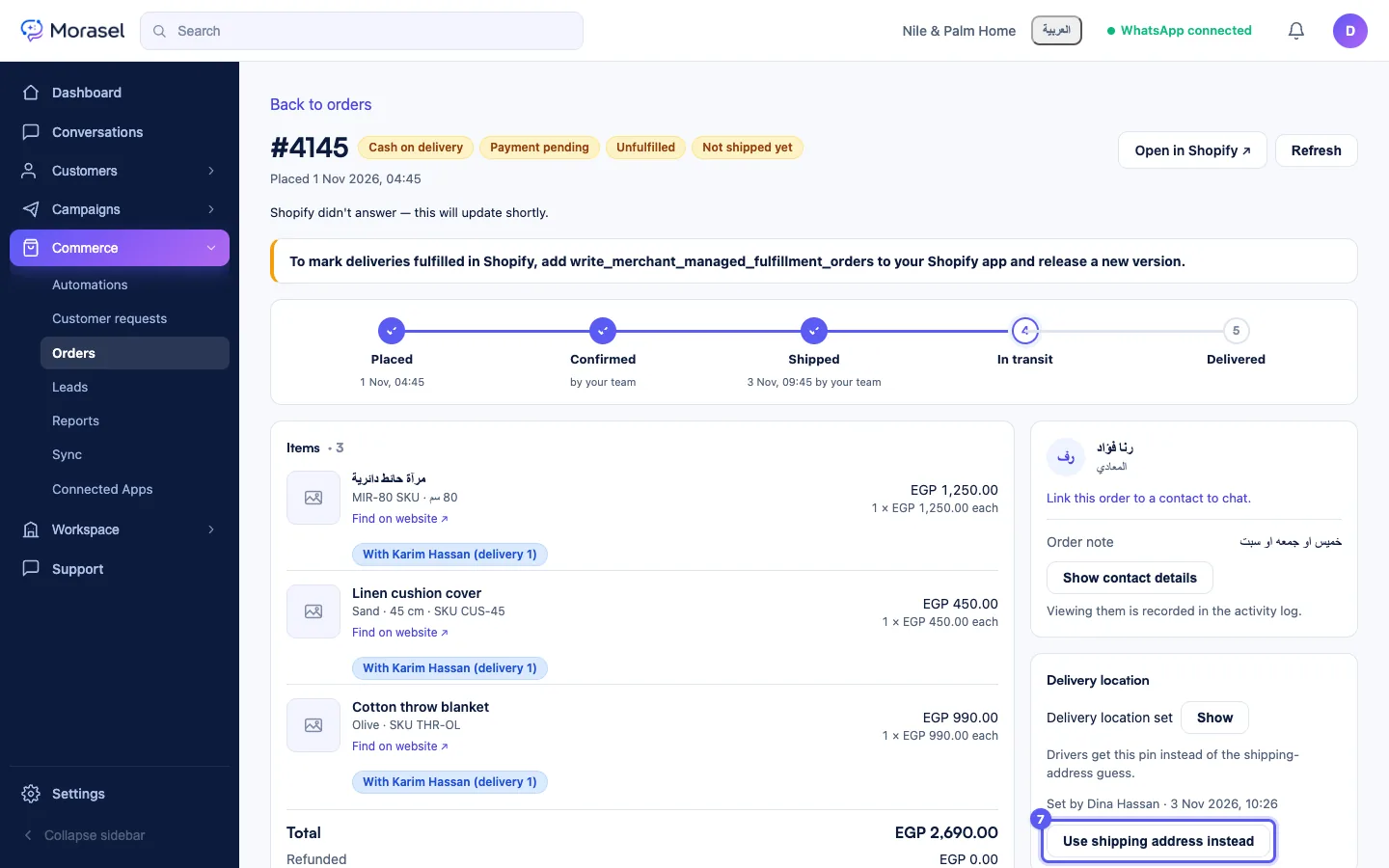
To go back to the shipping address, click Use shipping address instead in the Delivery location box.
O que você deve ver: The box goes away. Drivers navigate to the customer's shared location or the shipping address again.
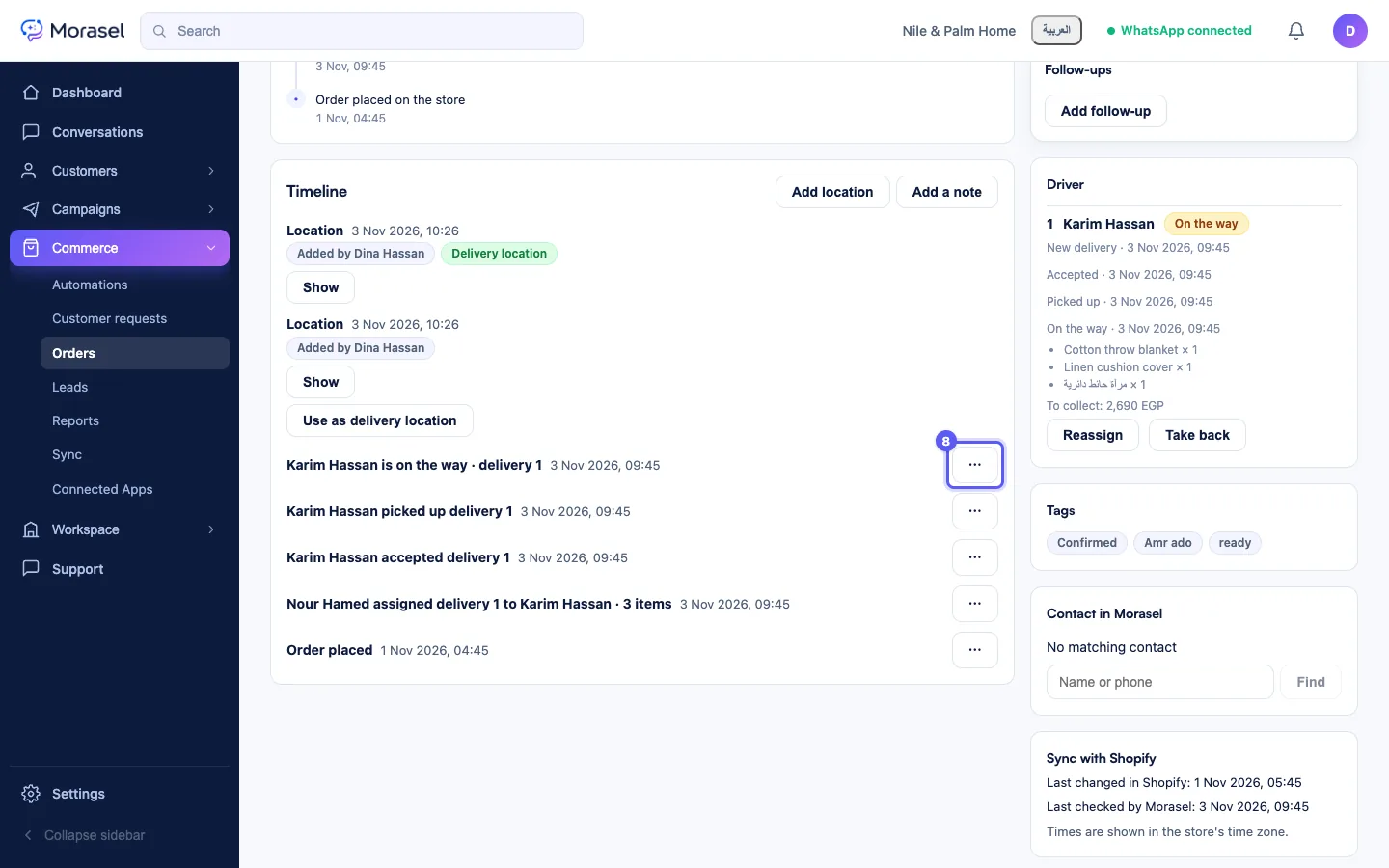
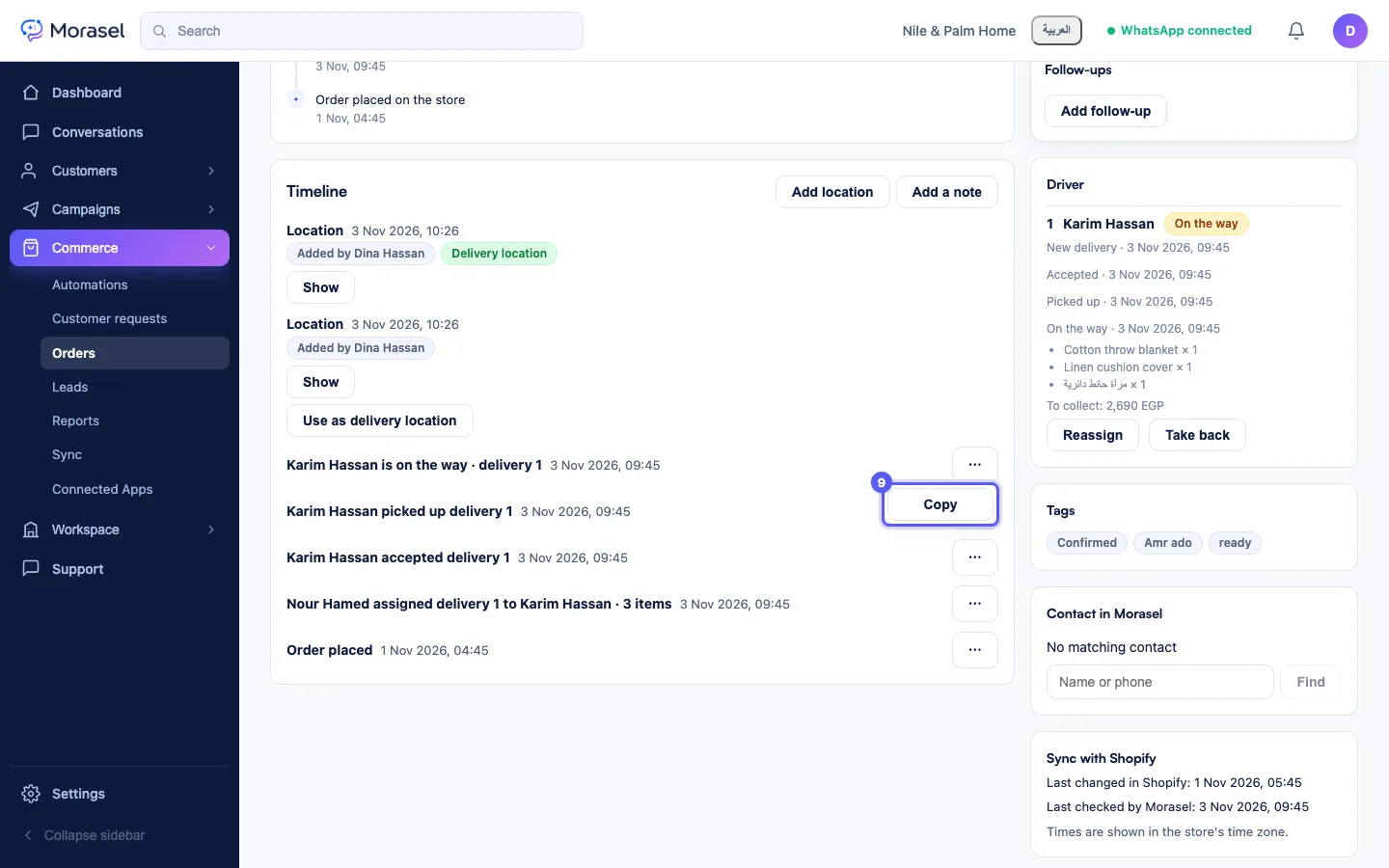
On any Timeline item, click ⋯ (More actions). For a location, click Show first.
O que você deve ver: A menu opens with Copy.
Click Copy.
O que você deve ver: "Copied" appears. A location copies its maps link, name, address and coordinates, one per line; a note copies its text.
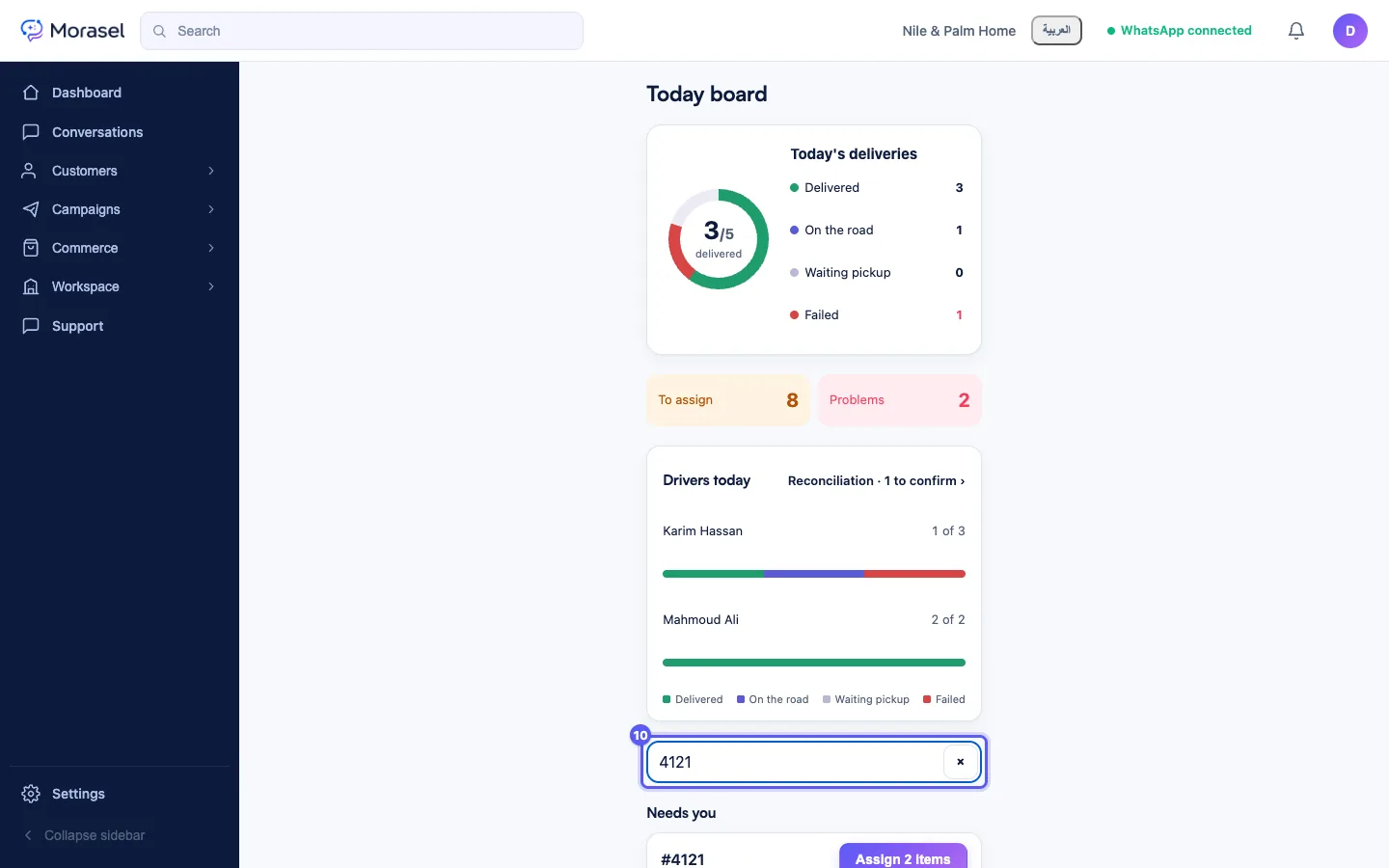
Open Today and type an order number, name, phone or email in Search orders.
O que você deve ver: Needs you shows only the matching orders, or "No orders match". The counters at the top still count the whole day.
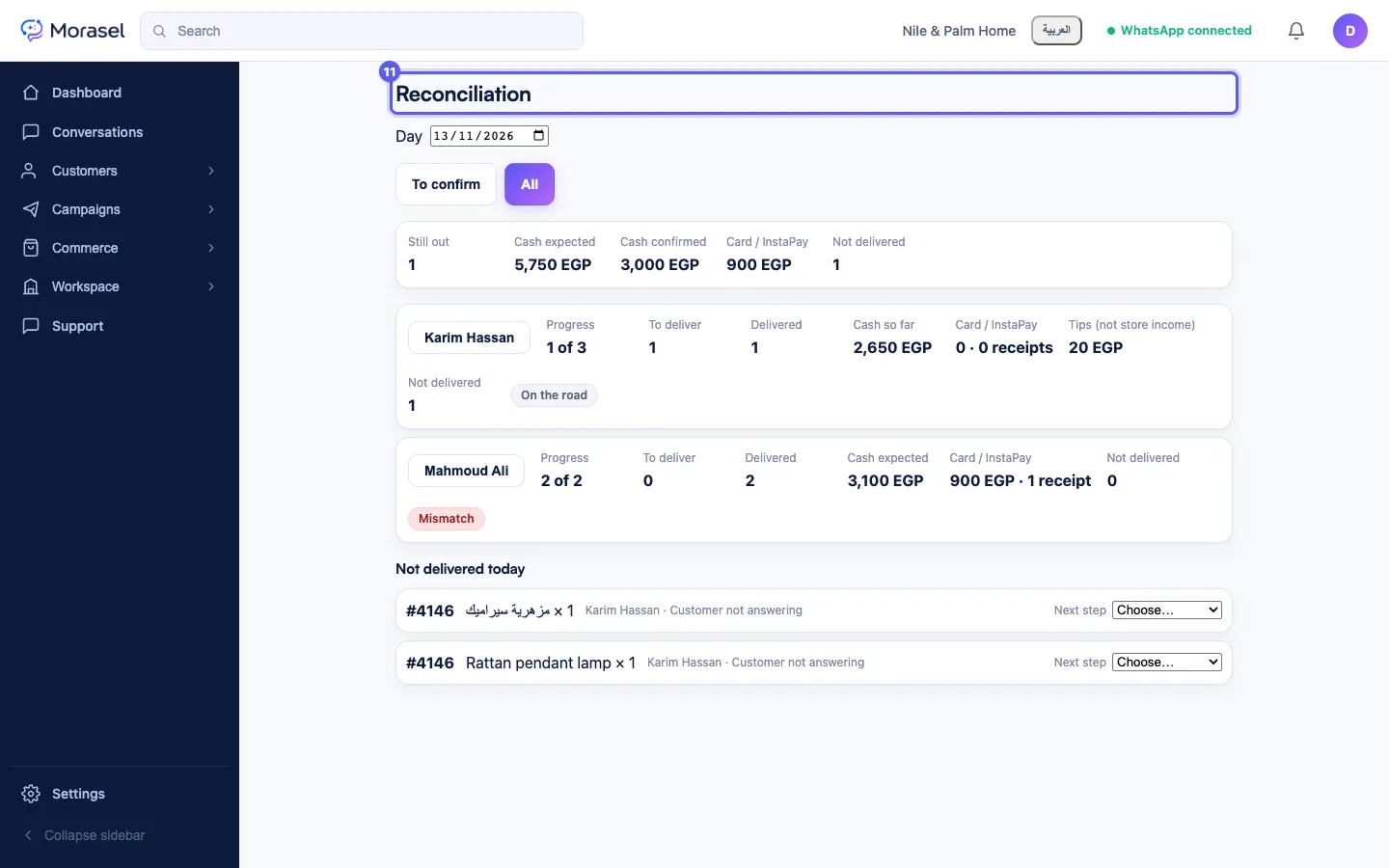
Open Reconciliation to confirm each driver's cash for the day.
O que você deve ver: Reconciliation lists today's drivers with what each one collected and handed over, and each driver's state. The article Today and reconciliation explains the states, the progress card on Today and the day picker.


Se não funcionou
- "Turn on Assign delivery first" when you give an order to a driver, on the web or in the iOS or Android app.
- The Assign delivery automation is off for your store, so Morasel can't send deliveries to drivers, and nothing was sent. Ask the owner or an admin to open Commerce → Automations on the web and turn on Assign delivery (step 1), then assign the driver again. The Driver updates card shows the same line until Assign delivery is on.
- "We could not read a location from that. Check the link or type an address."
- Paste the link exactly as the customer sent it (a Google Maps, Apple Maps or Waze link), or choose Type address and type the address instead.
- Drop pin says to enter a latitude between -90 and 90.
- Click the spot on the map, or type the coordinates in Latitude and Longitude. Arabic digits work too.
- A location card has no map.
- A typed address or a named place has no exact coordinates, so there is no map. Drivers still get its maps link.
Perguntas frequentes
How do I add a customer's location from a chat?
In Conversations, open the chat, hover the location message, click ⋯ (More) and choose Add to order #N timeline, or Add to another order… to pick the order. A location the customer shares, or a message that is only a maps link, is added as a location, with Use as delivery location ticked. A toast says "Added to order #N" with Open order, and the message shows a "📎 Order #N" chip that opens the order. In the iOS and Android apps, long-press the message.
Which location does the driver navigate to?
The delivery location set on the order comes first. Without one, the driver gets the location the customer shared during the delivery, then Shopify's map pin, then the shipping address. A location the customer shares later never replaces the one your team chose.
What does the driver see?
On the delivery, the map shows "Exact pin set for this order" and the line "Pin set on the order", with a Navigate button. On iPhone, Navigate asks Apple Maps or Google Maps; on Android it opens Google Maps. When your team changes the location, the driver gets a notification: "Delivery location updated for order #N".
Where are Reconciliation and My day in the apps?
For order agents, Today on the web and in the iOS and Android apps has Drivers today, with a "Reconciliation · N to confirm ›" link (or "Reconciliation ›" when nobody is ready) that opens Reconciliation. For drivers, the My day bar at the top of My deliveries shows Cash in hand today and Hand over, and opens My day. Today and reconciliation explains both, and the day picker.
Can I copy a location from the apps?
Yes. In the iOS and Android apps, long-press a Timeline item, or tap ⋯, and choose Copy. For a location, tap Show first: like the shipping address, it stays hidden until you do.
Who can set a delivery location?
Anyone who manages deliveries, including order agents on the orders they open. Order agents have no inbox, so they add locations on the order page.
Artigos relacionados
Última atualização · Added: drivers and delivery are available on Commerce Pro and Max